Archimede University · for your exams
Exams, study plan.
And a tutor who follows you.
Add an exam, pick the date and the hours per day, upload your material: the tutor walks with you up to exam day. Grades are out of 30.
Choose “University” after signing up. The screenshots are a preview of the project and may change.
How to start
Three steps
and you’re in.
- 1Choose “University”When asked “What are you studying?”, tap University.
- 2Add your examName, type of assessment, date, hours per day and tutor.
- 3Upload your materialBook, notes, photos, voice, video or link: then match the pages to the chapters.
Choose your path
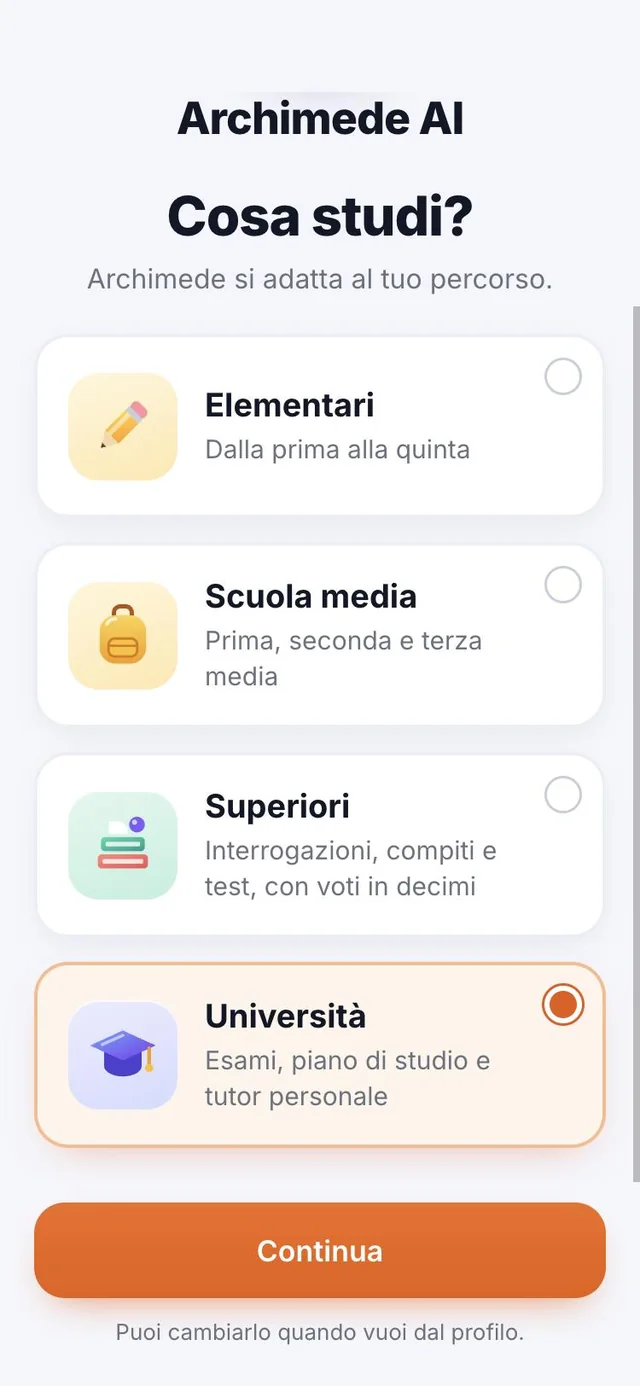
What are you studying?
Choose University.
What it does. The app adapts to your path: exams, study plan and personal tutor.
You can change it anytime from Profile. Archimede calls you by name.
From Home, “Change path” takes you back to the choice between school, university and high school. Your exams stay saved: changing path loses nothing, and when you go back to “University” you find everything just as it was.
Your exams
Every exam,
with its date.
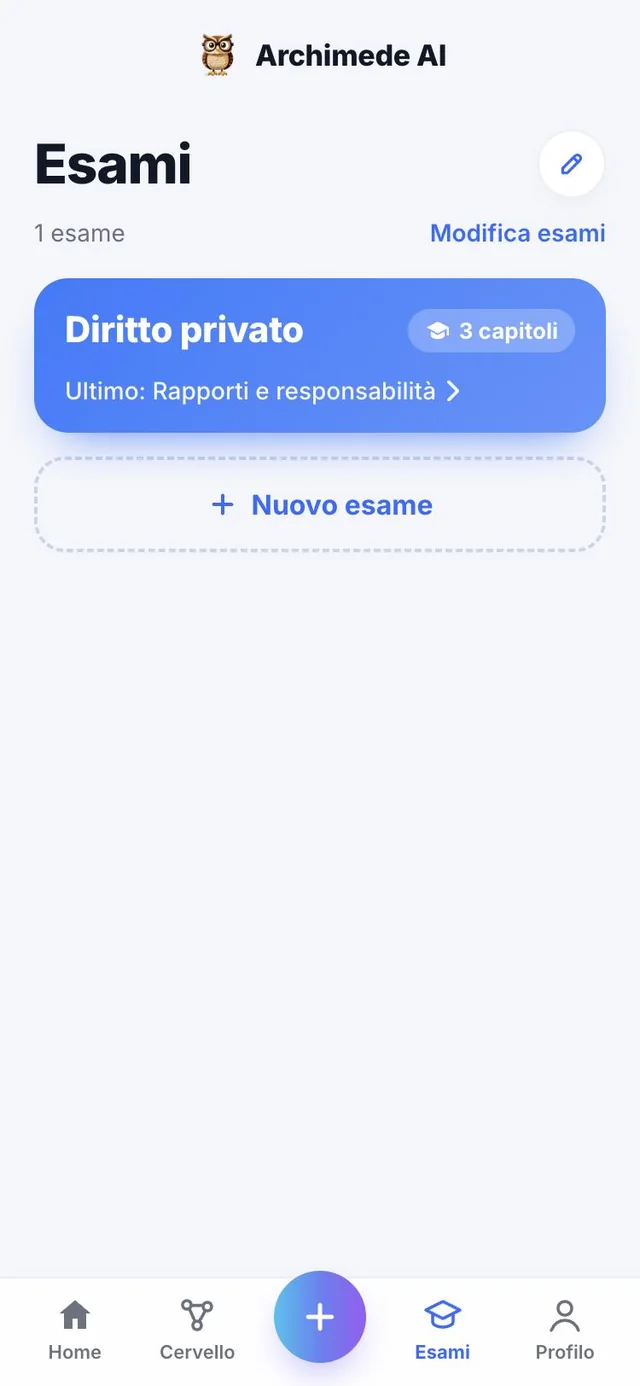
What it does. All your exams on one screen.
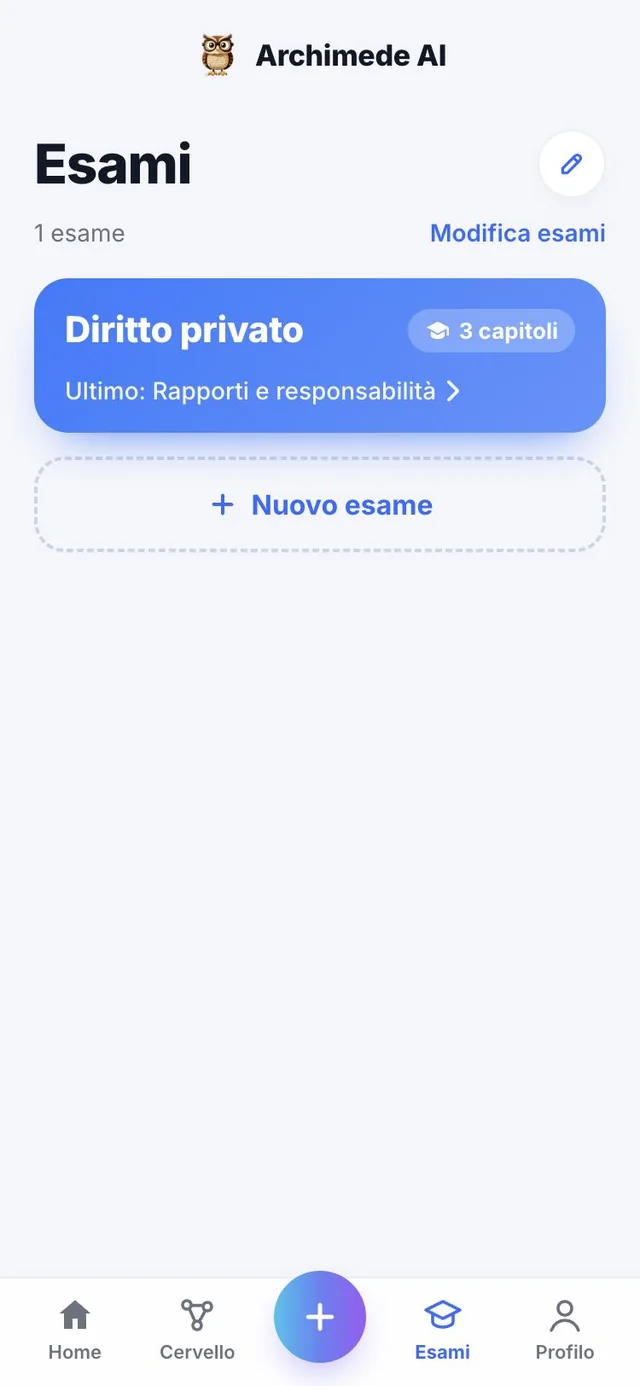
Each exam has its own card: the type of assessment (oral, handwritten or multiple choice), the exam date, how much you have already studied and the tutor who follows you. The “New exam” button adds another one.
Below you’ll find the study week. Finished exams are archived and stay in Profile.
The “+” button at the bottom opens the “What do you want to add?” sheet: from there you create a new exam or add material to an exam you already have, choosing first which one. The bar at the bottom takes you to Home, Exams, Brain and Profile.
Exams · Management
Rename, colour,
add chapters.
What it does. The Exams page is where you organise your exams and their chapters.
With “Edit exams” each card shows the controls: rename the exam, change its colour, delete it (that is, archive it, with “Cancel” right at hand) or add a new chapter by typing its name. Tapping a card opens the exam with its chapters and the tutor, which you can change from here.
A deleted chapter can also be recovered with “Cancel”. Chapter colours follow a fixed sequence (light blue, purple, pink), so you can see at a glance where you are.
New exam
The name, the assessment
and the date.
What it does. You start with three choices: name, type and exam date.
Type the exam name, for example Private Law I. Then choose how you will take it: oral, written by hand or multiple-choice questions. Finally, tap the exam day on the calendar: the app also tells you how many days are left. The type decides which tools you find in each chapter.
If the exam name or the exam date is missing, the app tells you before letting you go on. The calendar says “today”, “tomorrow” or “in 12 days”, and warns you if you choose a date that has already passed. You can come back to this step at any time to correct the name, type or date of an exam you have already created: the exam is updated, not duplicated.
Study plan
How much time do you have?
The plan adapts.
What it does. You decide the hours per day and the pace.
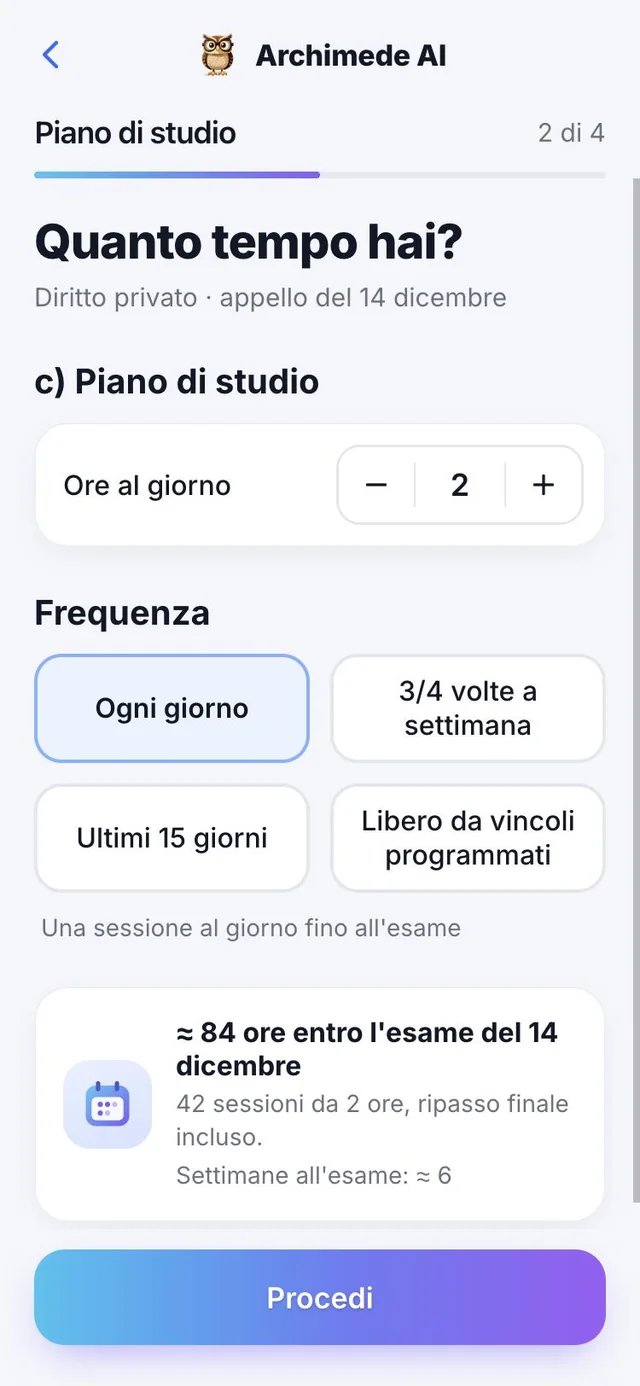
Use the minus and plus buttons to choose how many hours a day you can give, then the frequency: every day, three or four times a week, only in the last fifteen days, or with no limits. Archimede shows you how many hours and how many sessions you will have before the exam, final review included.
If you skip a session, the plan moves it to the remaining days; if the chosen pace no longer reaches the date, it tells you and suggests more hours a day or another date.
Hours per day range from 1 to 10. The four frequencies do different things: “every day” is one session a day until the exam, “3/4 times a week” leaves Archimede to choose the best days, “last 15 days” concentrates intensive study just before the exam, “free” sets no calendar but Archimede still reminds you of the date. Below you see the weeks left and the number of sessions, so you immediately understand whether the pace is realistic.
If the exam is today, the app wishes you “Good luck!”; if the date has already passed, it asks you to choose a new one.
Your personal tutor
A face, a voice,
a name you choose.
What it does. The tutor follows you by voice throughout the exam.
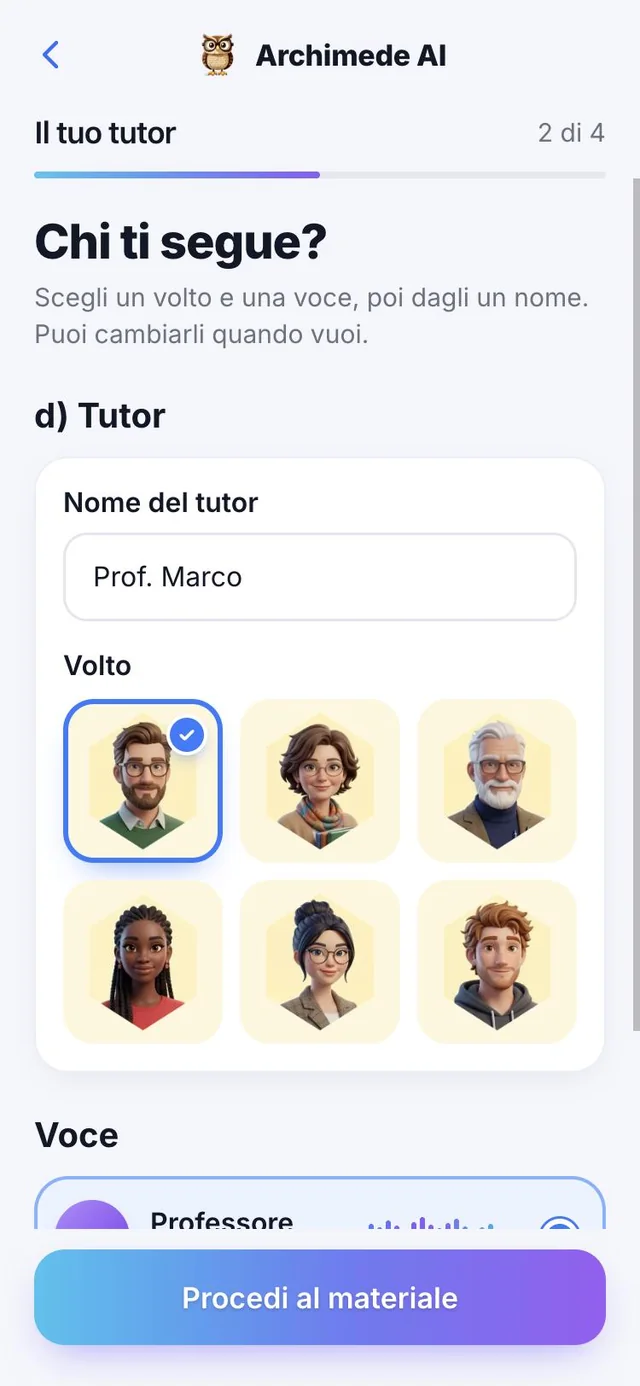
Choose from six faces (Marco, Giulia, Luca, Elena, Paolo and Sara) and from two voices, one of a male professor (Fabi) and one of a female professor (Violetta). Listen to each voice with the ▶ button before you decide, and give the tutor the name you prefer: if you write nothing, the suggested name is “Prof. Marco”. You can change face, voice and name whenever you like, from Profile or from the exam card.
The tutor is not just a label: it is the voice that greets you on Home, explains the chapters, questions you and corrects your answers. That is why it’s worth choosing one you enjoy listening to for a long time.
The voice tutor
You speak,
the tutor answers.
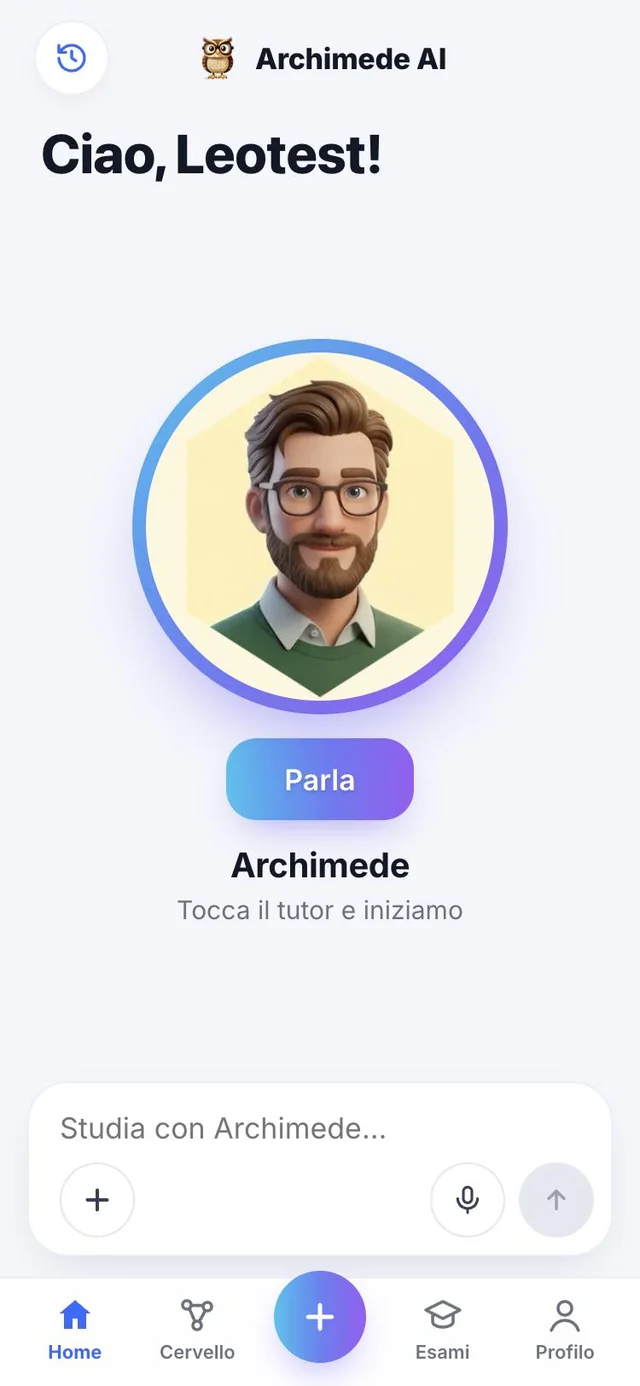
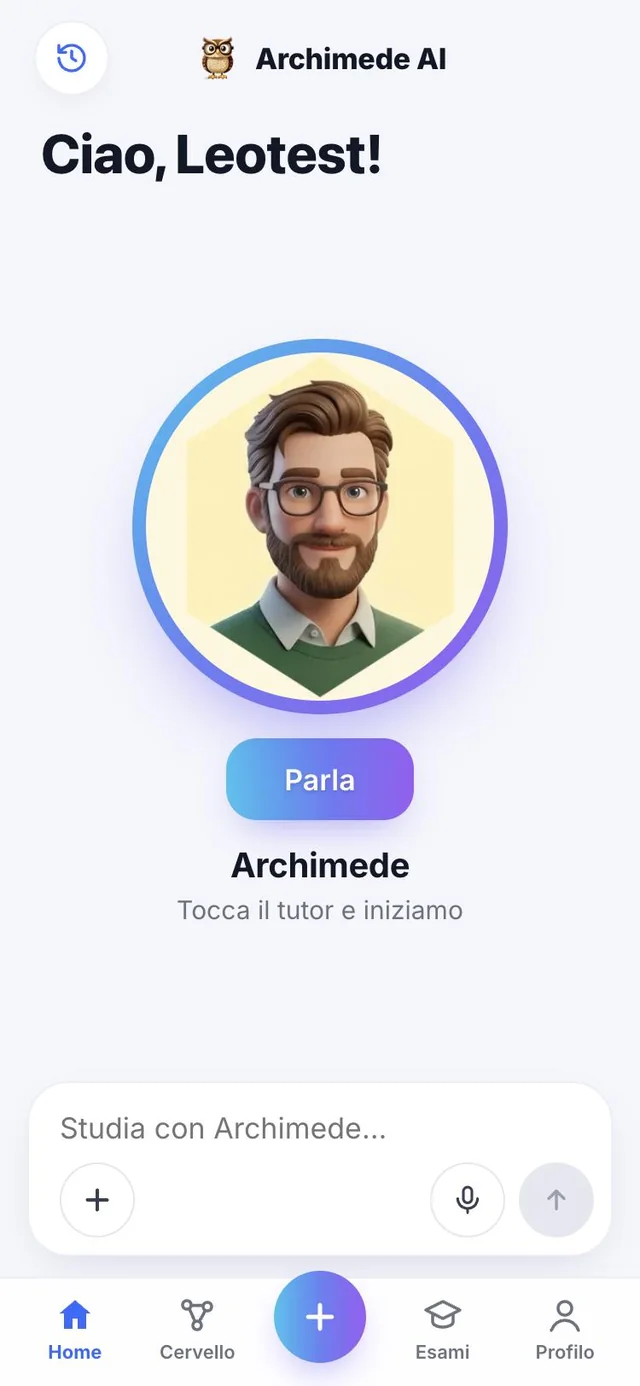
What it does. From Home you talk, by voice, with the tutor of your nearest exam.
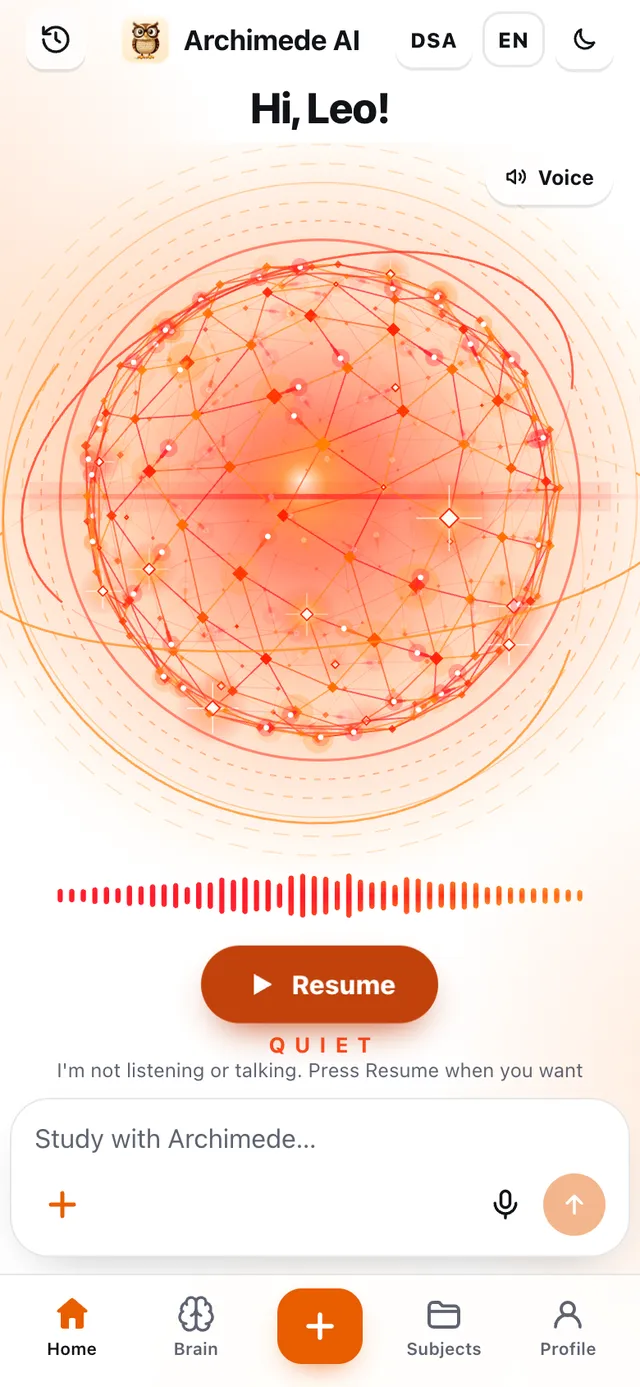
Tap the tutor and you start: the microphone stays open, so you can talk to it whenever you like and interrupt it even while it is answering (“Talk over me or tap the tutor to interrupt me”). The tutor calls you by name and is the tutor for your nearest exam.
If you need silence in class, in the library or on the train, tap “Be quiet”: the tutor does not listen and does not speak until you press “Resume”. The silent state stays active while you change screen.
Why it helps: studying out loud is what you will be asked to do in the oral exam, and having someone who answers straight away, without judging, makes it easier to ask even silly questions.
Material
Book, PDF, notes,
photos, voice and video.
What it does. Bring everything you use to study.
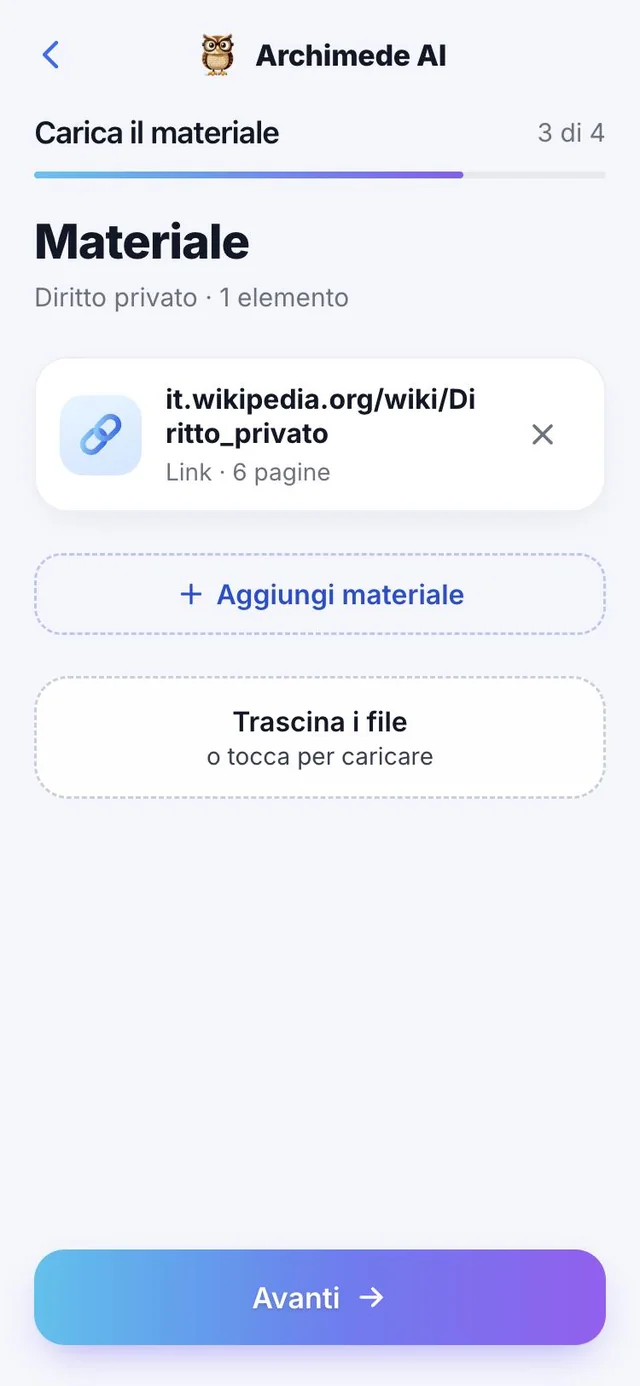
On the Material page, tap “Add material” and choose what to upload: whole book, notes or diagrams, Word, PDF, photos from the camera roll, photos taken on the spot, voice recording, video and links. Archimede reads them and links them to the chapters. For each item you can see whether it is being processed, and you can remove it.
Below, a card for each type of material.
You can also drag files onto the “Drag your files here” area instead of browsing folders. For each item the list shows its type, how many pages it has and its status: “Processing” while Archimede reads it, “Not completed” if something went wrong. Removing a material always asks for confirmation. When you are done, “Done? Go to the summary” takes you to the last step.
Originals of books, Word files, audio and video up to 50 MB stay in your private exam archive, and you can reopen them whenever you like. Files in a format Archimede does not recognise are rejected straight away, with a message: use PDF, Word, photos, audio or video.
Material · Book, PDF or Word
The book,
the pages you need.
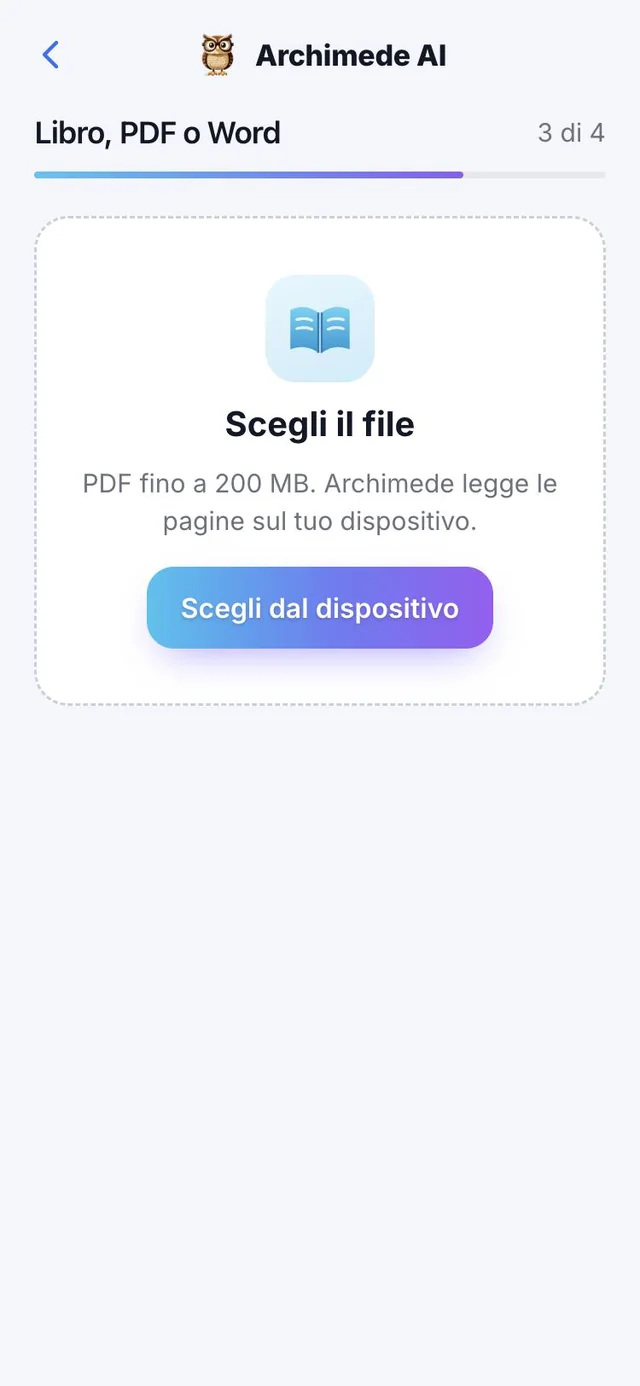
What it does. Upload a book, a PDF or a Word file and choose what to study.
Pick the file from your device: Archimede reads the pages on your device. Then decide whether to study the whole book or only the pages and chapters you need.
With “Whole book” Archimede uses all the pages (up to 600). With “Key chapters” you write, for each chapter, its name and its “from” and “to” pages (up to 30 chapters), and you see live how many pages you will study out of the file’s total. The app checks that the pages fit within the file and that the chapters do not overlap. If you only need some chapters for the exam, the other pages stay out and do not weigh down the plan.
PDF and Word (.docx) files up to 200 MB are accepted. A password-protected PDF must be unlocked first; an old .doc must be saved as .docx. A progress bar shows how many pages have been prepared.
Material · Notes
Notes and diagrams.
What it does. Your written or drawn pages, read by Archimede.
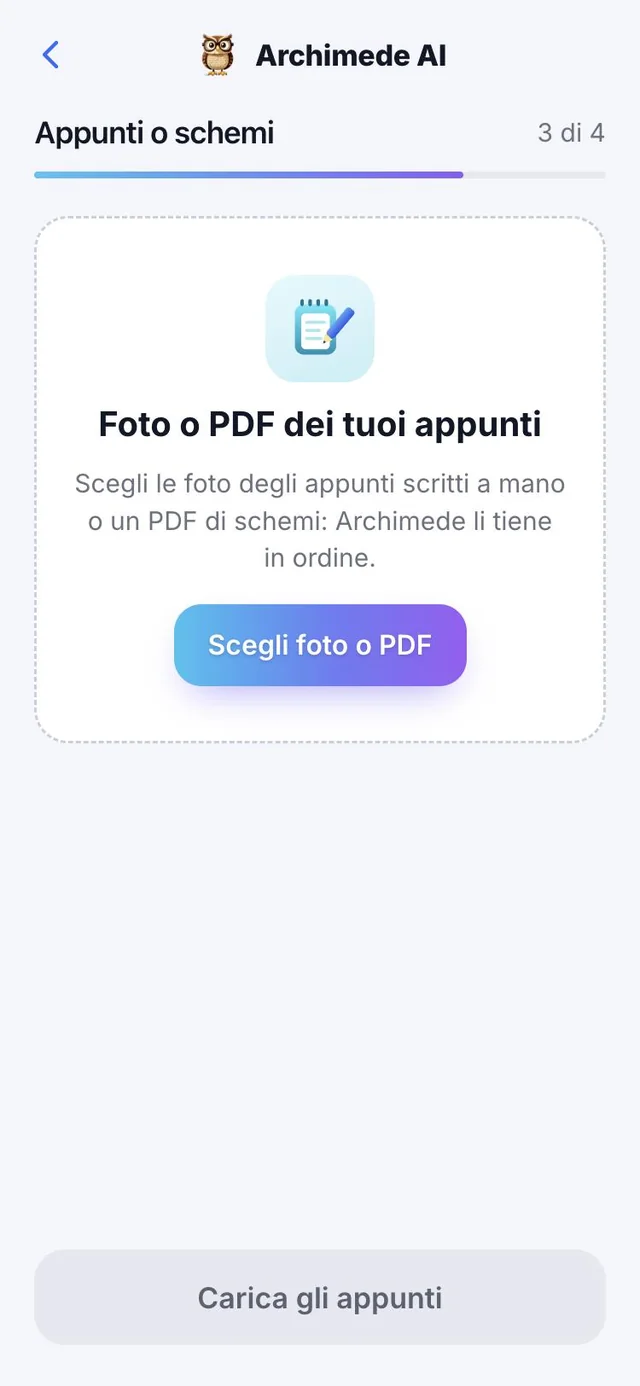
Upload your notes or diagrams and their pages appear, ready to be matched to the chapters.
You can upload photos of handwritten notes or a PDF of diagrams, up to 40 sheets at a time. Each sheet can be removed before saving, and the notes take the title “Notes from” followed by the date. After uploading, each sheet can be linked to a chapter, you can add more notes, or go back to the material. To turn a hand-drawn diagram into a clean one, see “Digital diagram” below.
Material · Digital diagram
Your hand-drawn diagram,
redrawn.
What it does. It turns the photo of a handwritten sheet into a clean digital diagram, with the text transcribed.
From “Notes already uploaded” you can see, for each sheet, whether it is “Digitized” or “Not digitized yet”. Archimede reads the sheet, rebuilds boxes, ovals, arrows and highlights in the same layout as the original, and transcribes the text. “Before and after comparison” puts the photo next to the result, and with “Download the PDF” you save the diagram.
If a sheet cannot be read, the warning “Some sheets could not be read” appears, and “Try sheet again” rereads it without redoing the others. A sheet with no text is flagged.
Why it helps: handwritten notes become material the tutor can use for lessons and quizzes, and you study from a readable diagram instead of a crooked photo.
Material · Photos
Photos from the camera roll
or taken right away.
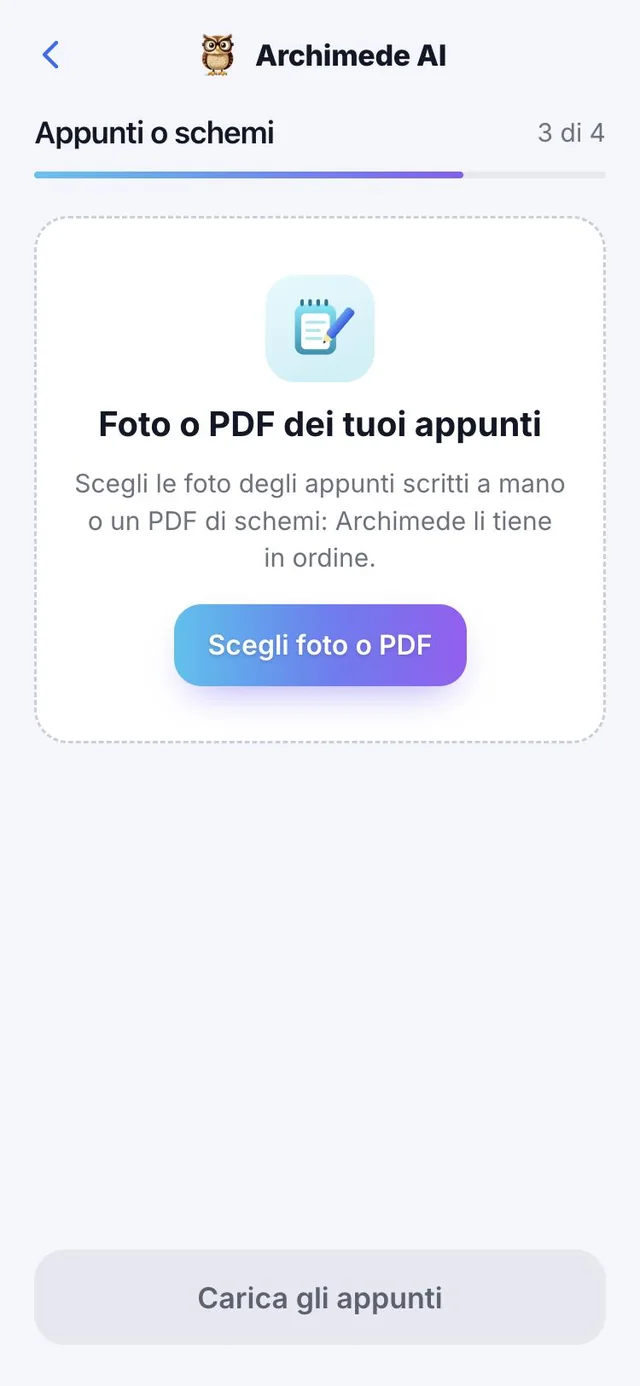
What it does. Photograph the pages and Archimede reads them.
You can pick photos already in your camera roll or take new ones. Crooked photos are straightened before being read.
You can upload up to 25 photos at a time. Photos can be reordered by dragging them or with the arrows (there is also “Original order” to go back), and you can decide whether they form a new chapter or are added to a lesson already created for the exam. While uploading, the app shows “Uploading photos” and then “Reading the pages” with a count of how many are left. If a photo does not upload, try again: the ones already uploaded will not be repeated. Files that are not photos are discarded, and you are told which ones.
Material · Voice
Record the lesson
or your voice.
What it does. A voice recording becomes study material.
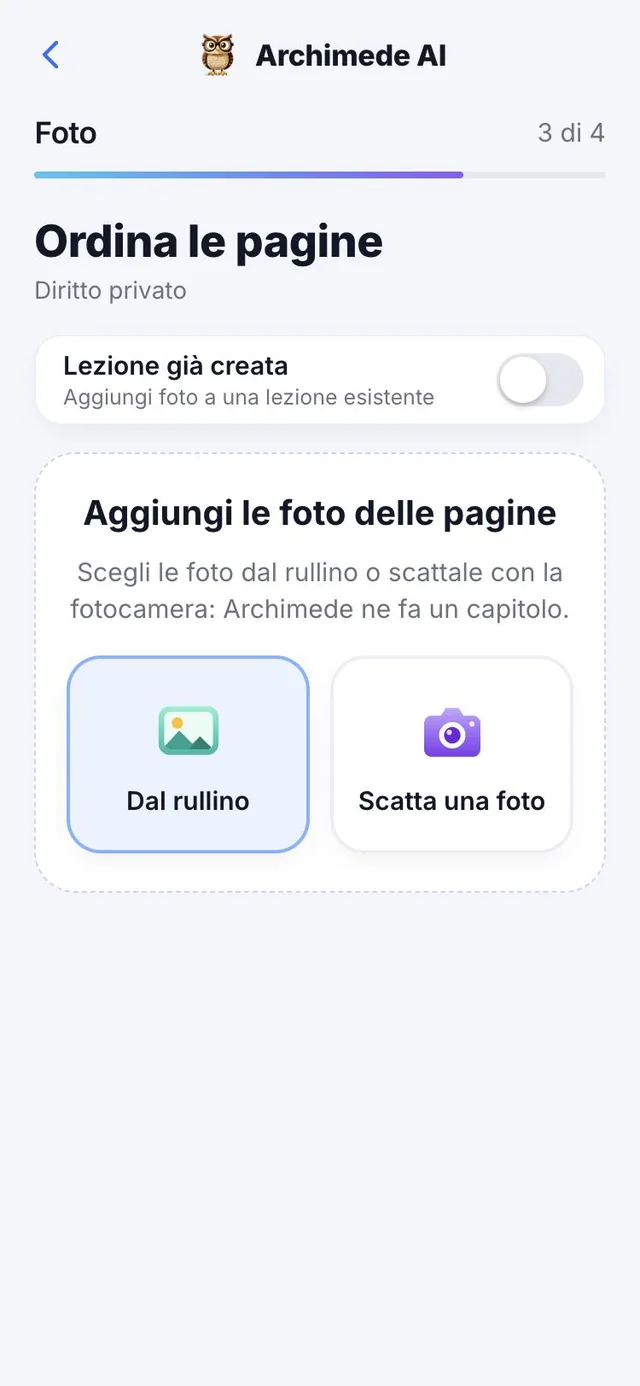
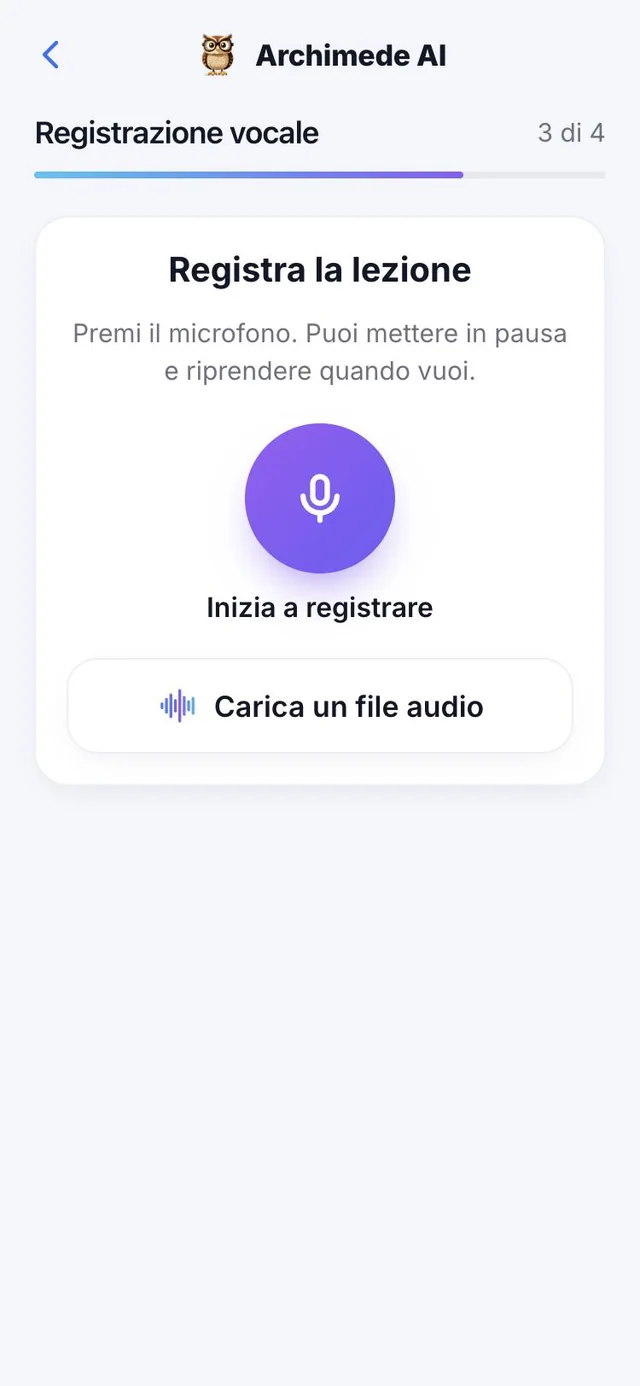
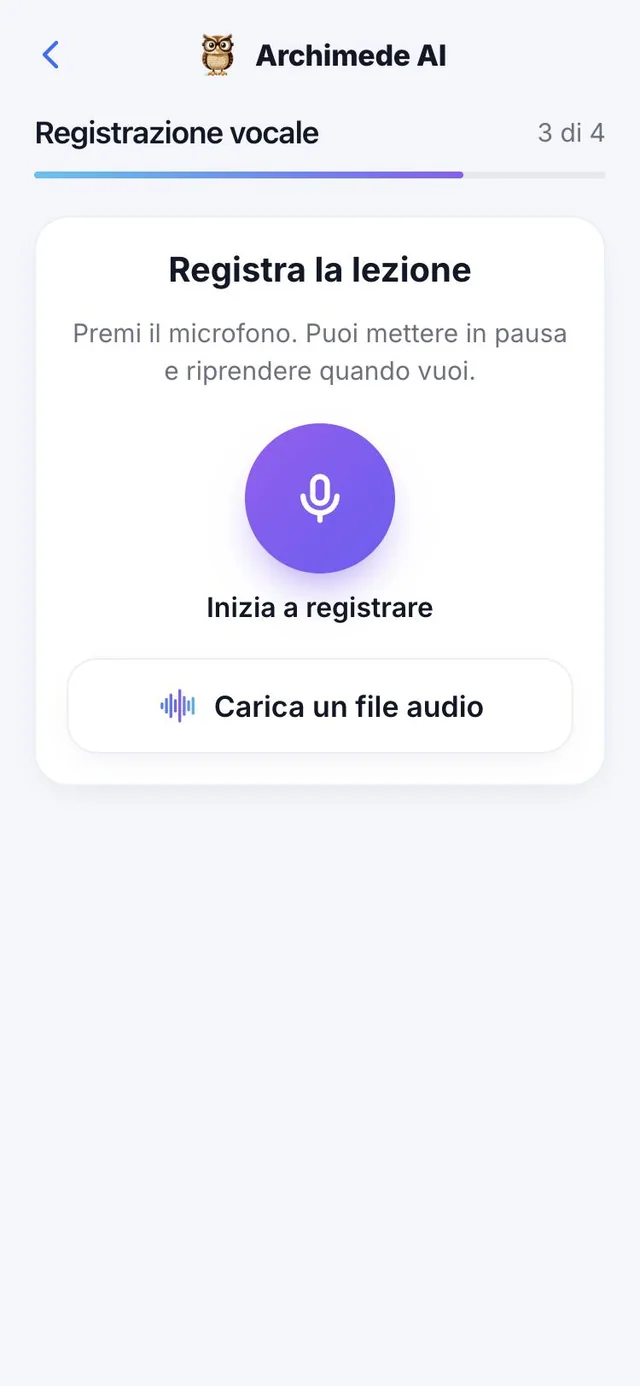
Record the lesson, or tell it a topic out loud: Archimede transcribes it, removes pauses and repetitions, and the clean text is linked to the chapters like everything else.
Tap the microphone to start: you can pause and resume whenever you like, then finish, give it a title (the default is “Recording from” with the date) and save. If you already have audio, you can upload an MP3, M4A, WAV, OGG or WebM file. The limit is 50 MB and 90 minutes of transcription. If you try to leave with an unsaved recording, the app asks for confirmation, because it would be lost. If the browser has blocked the microphone, the app explains how to allow it or offers to upload a file instead.
Material · Transcript
A clean transcript,
ready to study.
What it does. It turns a recorded lesson into an orderly text, without the “um”s and the off-topic parts.
As soon as you save the recording, Archimede listens and writes down everything that is said. Then it removes pauses, repetitions and parts that are not related to the subject (announcements, jokes, greetings), and divides the text into paragraphs. At the top you see a clear count: how many pauses, repetitions and off-topic parts have been removed. With “Show what I removed” you can check that nothing important has disappeared.
It takes a few minutes, and the work continues even if you close the page: you can come back later. When in doubt, Archimede does not remove anything, because one extra word is better than losing a concept.
Why it helps: a one-hour lesson becomes a text you can read, search and match to chapters, instead of an audio you have to listen to in full.
Material · Versions
Ask for a change,
a new version is born.
What it does. Each transcript has its own numbered versions (v1, v2, v3…), and you never lose the previous one.
Write how you want the text changed, for example “Add a title to each topic”, and tap “Send request”: Archimede prepares the next version. Each version is marked as “Current”, “Ready” or “Approved”, and you can reopen the earlier ones.
When the text is the way you want it, tap “Approve transcript”: that is the version that goes into the exam material. You can also download it as a file. The same logic applies to video translations and to diagrams digitised from notes.
Why it helps: you can experiment without fear of spoiling the text, and you always have a safe version to go back to.
Material · Video
A course video.
What it does. Upload a video and get study material from it.
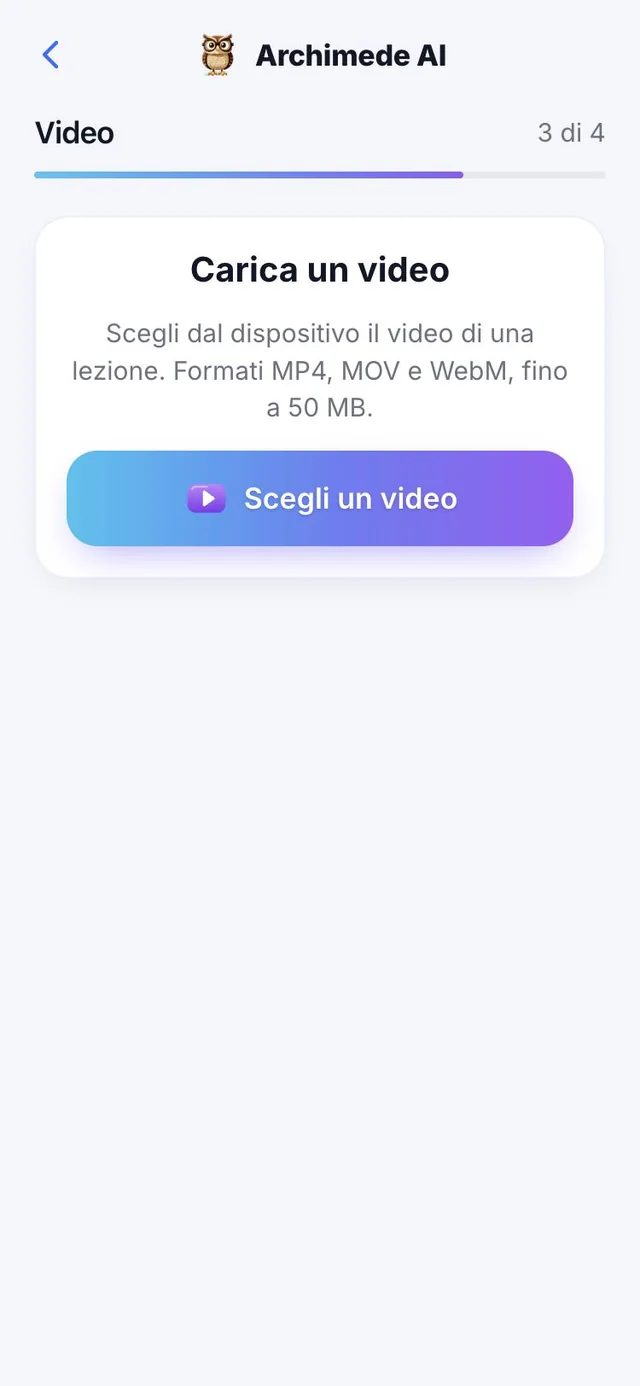
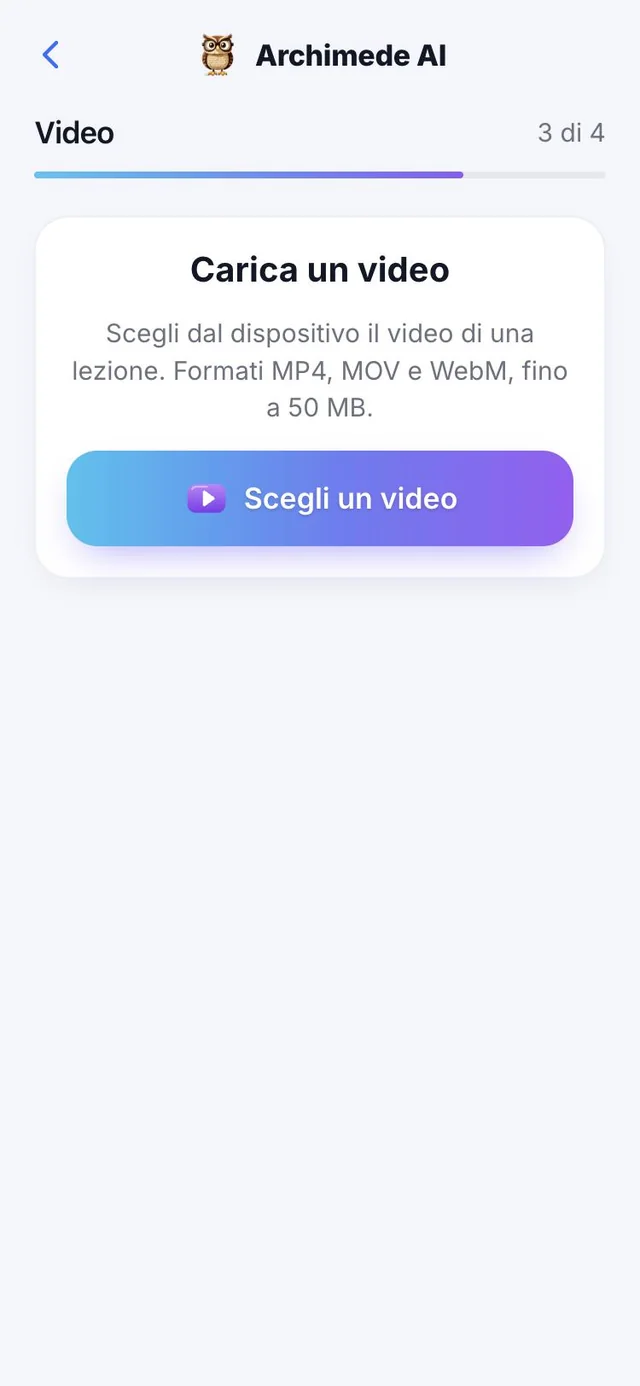
Add a lesson video (MP4, MOV or WebM, up to 50 MB): Archimede listens to the audio, transcribes it and, if the video is in another language, translates it. Then you match it to the chapters.
Before saving you see a preview of the video; if the browser cannot show it, the video can still be added. Transcription works up to 90 minutes. In the list, each video shows whether it is “Being prepared”, “Transcribed” or already “In the exam”.
Material · Video in parts
A long lesson,
split into parts.
What it does. Archimede divides the lesson into parts with timestamps, and each part takes you to the right point in the video.
After the transcription, Archimede cuts the lesson into “Parts” (Part 1, Part 2…) with the minute each one starts, giving each a title. Tap a part and you go to that point in the video (“Go to 12:30 in the video”), or read only the piece you need.
If the video is in another language, the transcript is also translated into the app’s language, keeping the timings: the label “Translated from English into Italian” tells you what you are reading, and “Show original” shows you the starting text.
Why it helps: a lesson of an hour and a half is not one single block. You review only the part on the topic you missed, and find in seconds where the professor explained that point.
Material · Link
A link to study.
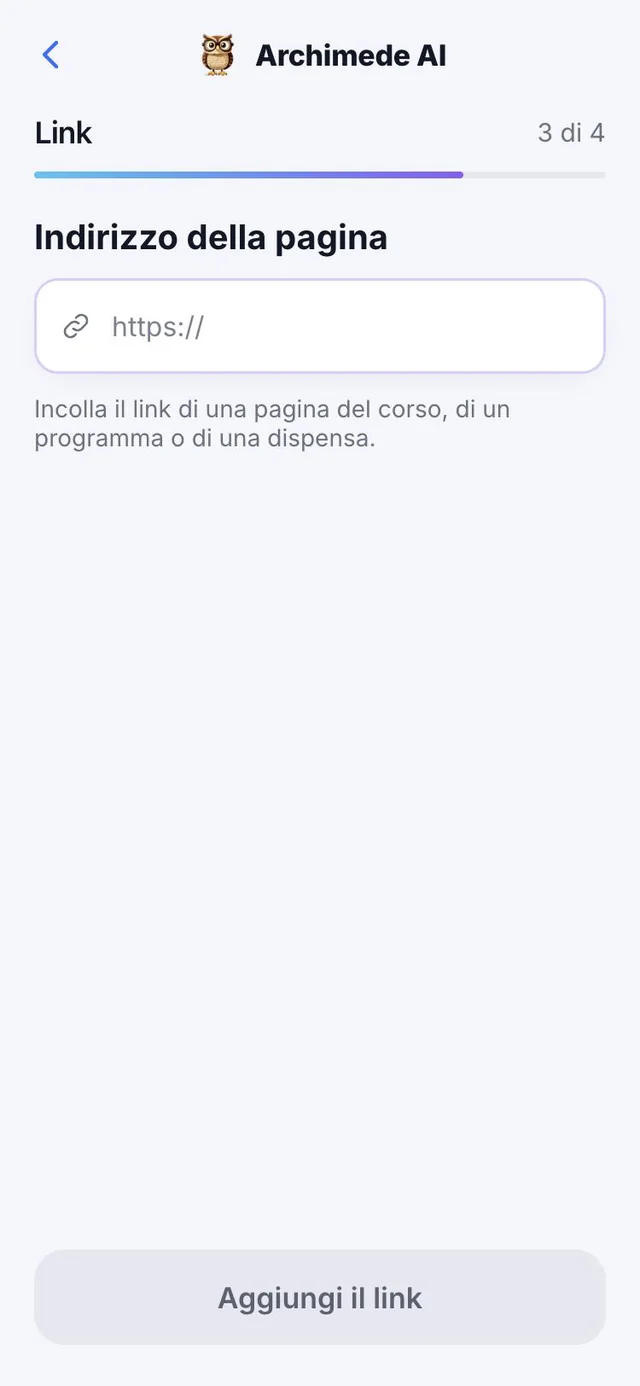
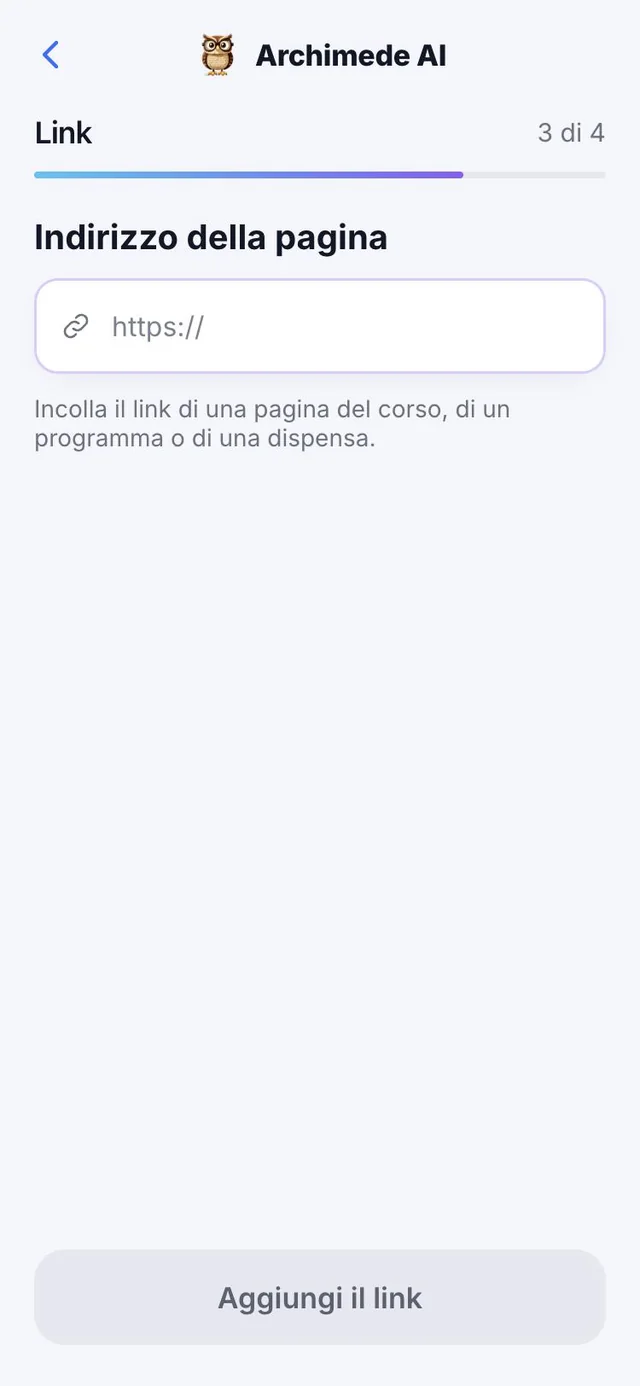
What it does. Paste the address of a page and it becomes material.
Useful for handouts and online articles. Archimede reads the page (“Reading the page…”) and shows you the text it found, with the word count, before adding it to the exam.
For safety, only addresses starting with https:// from public sites are accepted. If the page is behind a login, such as Moodle or Ariel, Archimede cannot get in: it explains how to download the file from the site and upload it from “PDF” or “Word”. The maximum from a link is 10 MB.
Material · Link attachments
The page and
its attachments.
What it does. If the page contains PDFs or Word files, Archimede finds them and you can add them.
In “Attachments found” you see the PDFs and Word files on the page. Choose what to include: the page text, one or more attachments, or everything, and confirm with “Add to exam”. If the page has no text, you add only the attachments; if the link leads directly to a file, you add it from there. “Reread the page” rereads it if it has changed in the meantime.
Why it helps: course handouts are often on a teacher’s page, with the slides attached. So you bring everything in with a single address.
Split into chapters
No book?
Split into chapters.
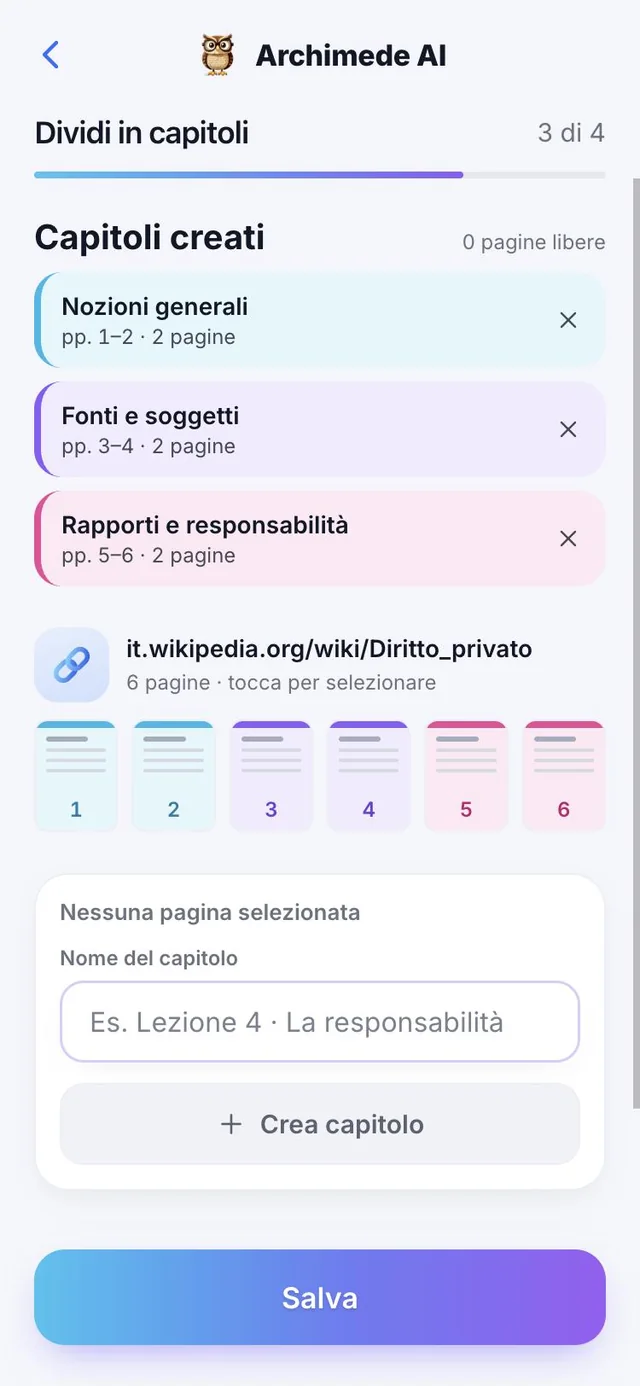
What it does. Creates the chapters from the material you have.
If the material doesn’t already have chapters, select the pages and give each chapter a name. Pages still unassigned stay marked, so you don’t lose any.
Select the pages by tapping them and give the chapter a name, or use “Use a single name for everything”: the chapters become “Part 1”, “Part 2”… If you change your mind, “Dissolve” a chapter and its pages become free again. The screen counts how many pages are still free.
Match
Every page
to its chapter.
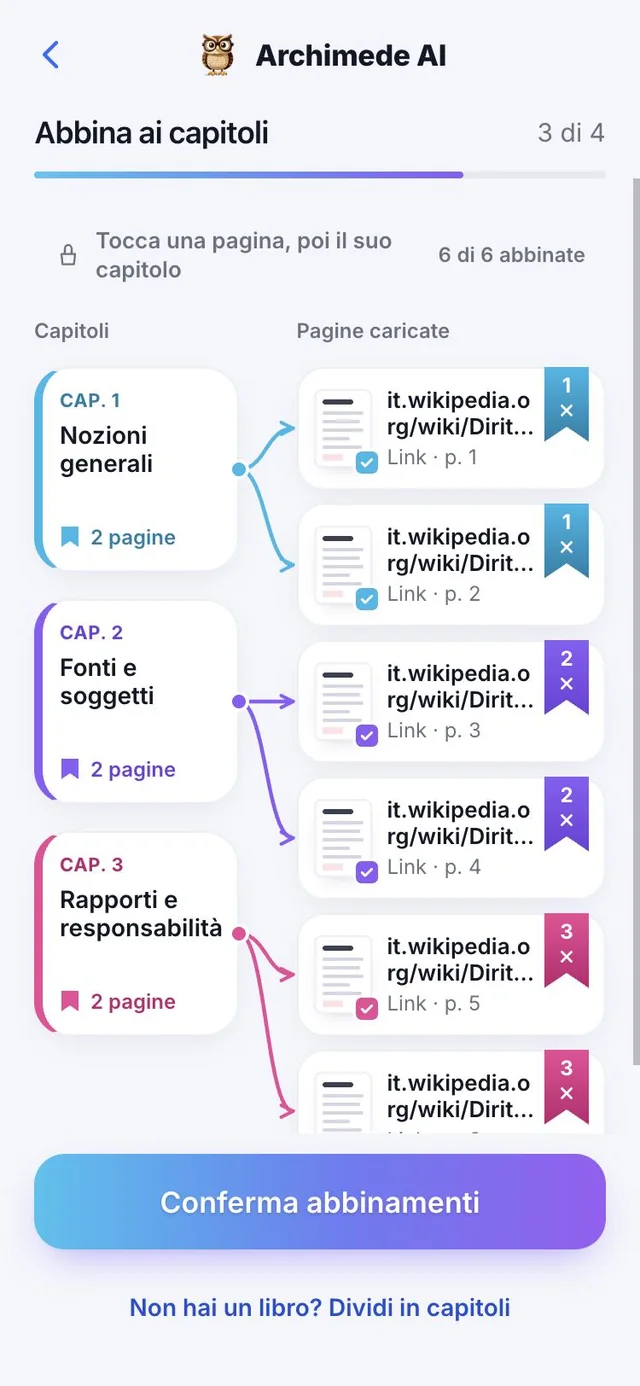
What it does. Links the uploaded pages to the chapters.
Archimede suggests the matches on its own and you check them: tap a page and then its chapter. You see how many pages are matched, you can filter by chapter, restore the suggestion or ask for a new one. At the end you confirm.
Archimede’s suggestions only appear when it is sure enough: if it isn’t, the page stays “To match” and you decide. Better a free page than a wrong one. Pages can come from notes, transcripts, photos, videos and links. Tapping a chapter shows you only its pages, and “Remove” unlinks a page from the chapter.
Summary
Check everything.
Then start studying.
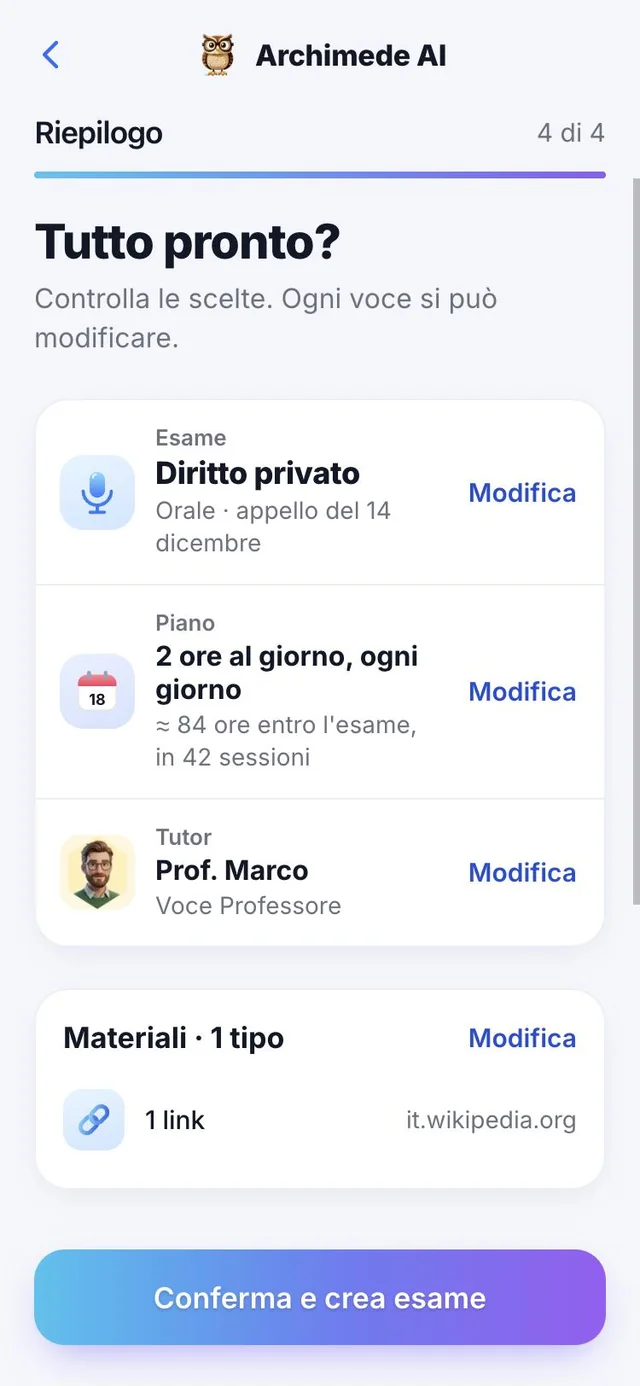
What it does. One last look, then the exam is created.
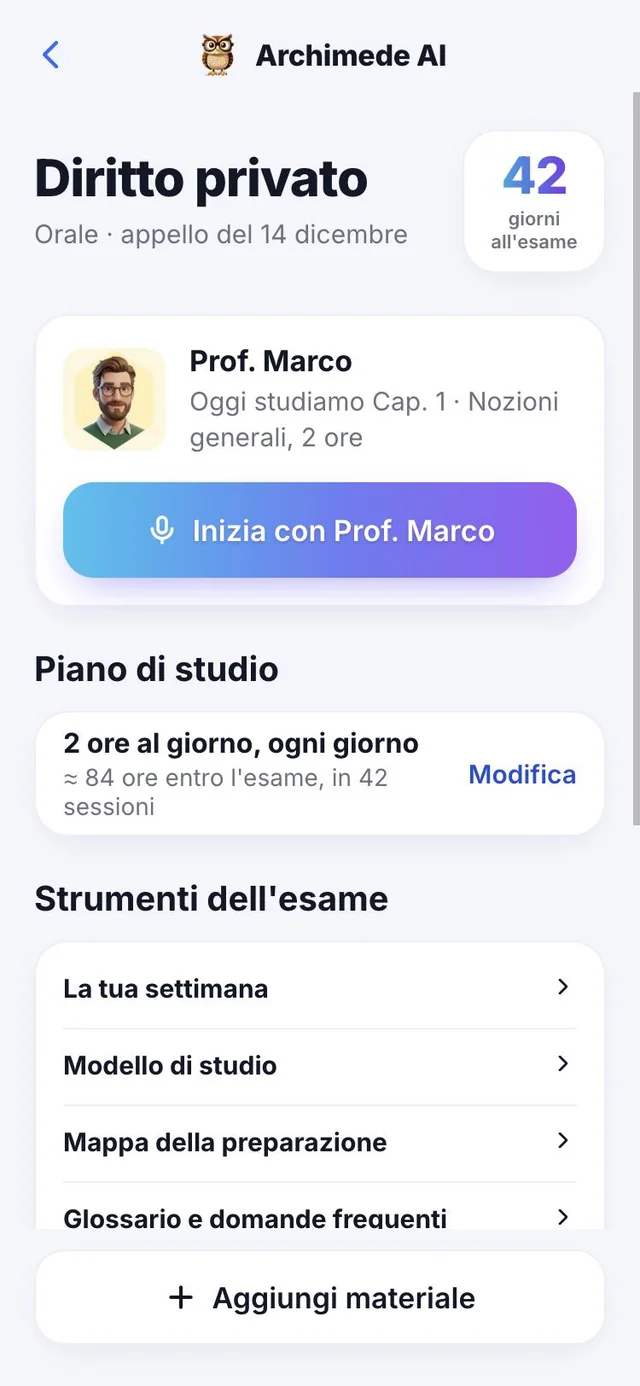
The summary brings together exam, plan, tutor, material and chapters, with “Edit” next to each item. Confirm, and the exam page shows the days left, what to study today with the tutor, the week and how well you know each chapter.
If the exam is still a draft, the app tells you with “Complete the exam”. Once created, each chapter shows the status of its lesson: “To upload”, “Lesson to create”, “Being prepared”, “Lesson ready” or “To retry”. Archimede prepares lessons in a few minutes, and you can start from the tutor card (“Today we study the chapter…”).
The week
Your study
week.
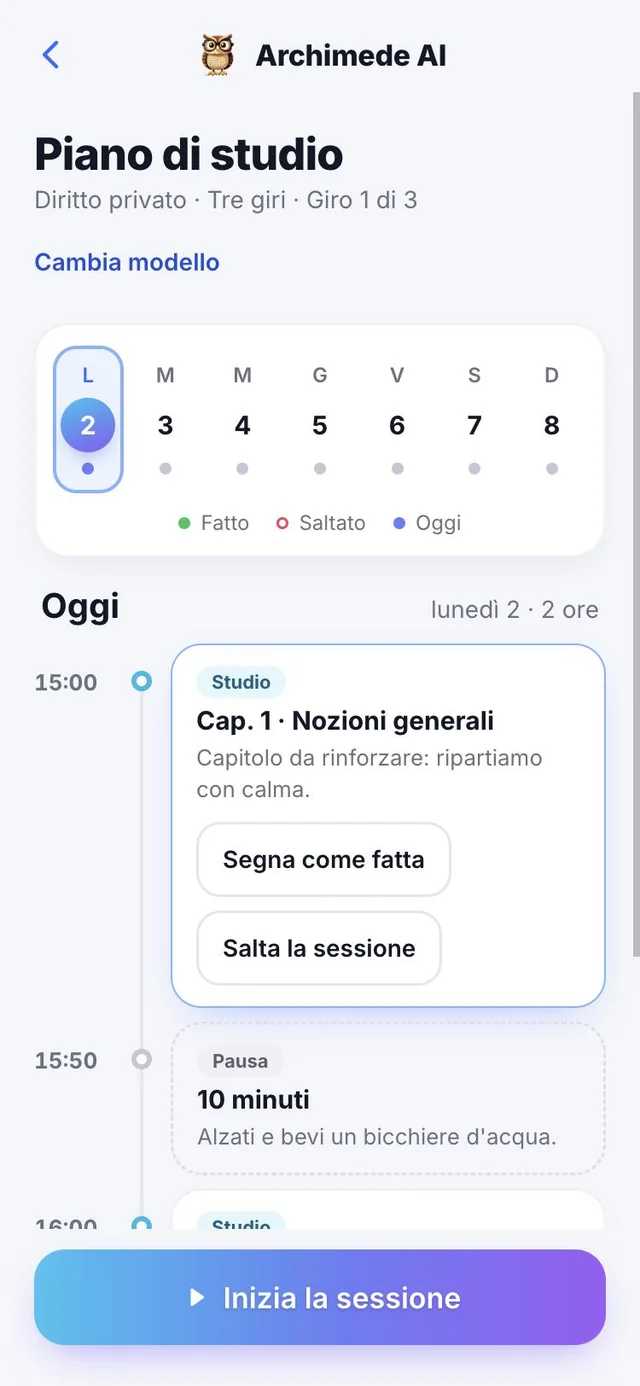
What it does. The sessions for the coming days, one by one.
For each day you see whether you have sessions planned and whether they are done or skipped. Sessions are study, check, spaced review and final review; skipped ones move to the remaining days.
Each session has its type (study, check, break, spaced review, final review, catch-up), the chapter with its pages, and a note explaining why it is there, for example “It’s been 1 day: it’s the right time”. From today’s session you can start it, mark it as done or skip it.
The smart plan
Done, skipped,
caught up.
What it does. The plan is recalculated every time, starting from today, and no session is ever lost.
If you skip a session, it stays in the history as “Skipped”, and the work not done returns on the remaining days as “Catch-up”, with the notice “Plan updated” telling you what has been moved and where. If at the chosen pace the date can no longer be reached, a warning tells you how many extra hours you would need and suggests more hours per day or another date.
Reviews come back at increasing intervals from the last time you touched the chapter: after 1, 3, 7 and 14 days. Weaker chapters get more days and come first, and before the exam there is a final review with flashcards and diagrams.
Why it helps: you always know what to do today, and you don’t have to redo the calendar by hand every time life throws you off schedule.
Glossary
The glossary
of your course.
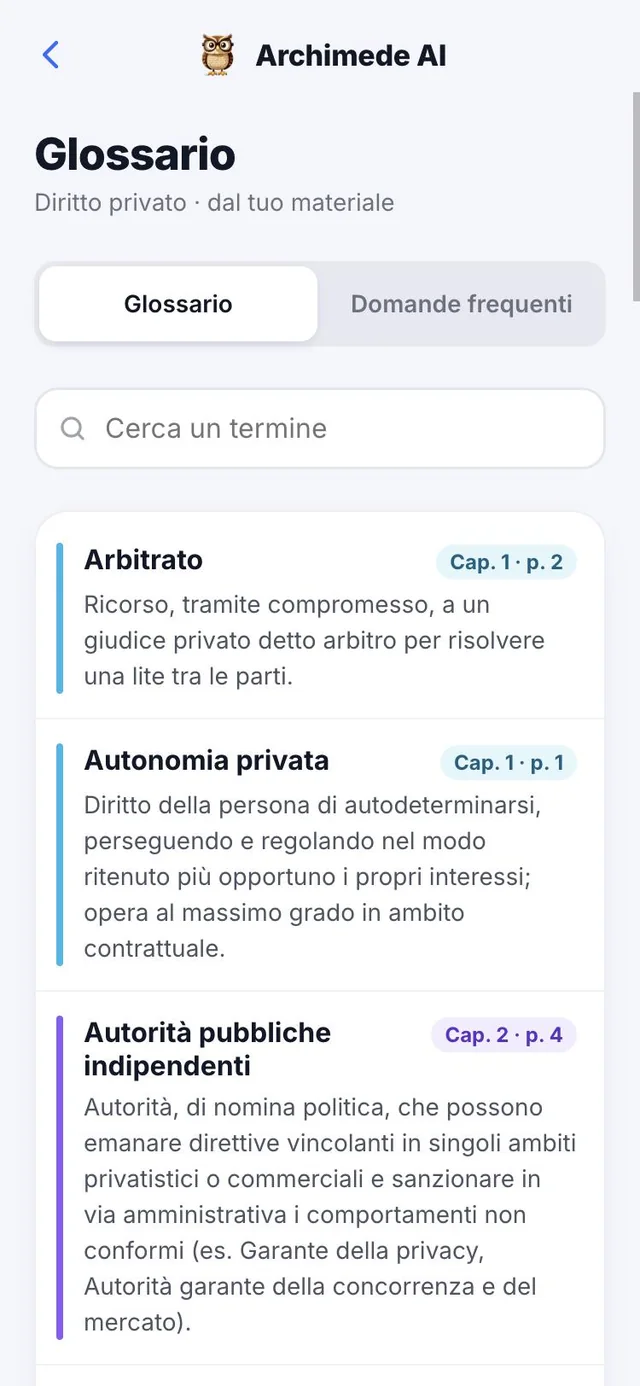
What it does. The key terms, taken from your material.
Archimede prepares the glossary and the frequently asked questions from your material and from the questions you get wrong most often. Search for a term or a question, see in which chapter and on which page it appears, and tap a question to practise. The first time, preparation takes a little while.
The glossary is divided by section, and each term shows its chapter and page. Frequently asked questions have a priority, “High” or “Medium”. If the search finds nothing, the app suggests another word or asking the tutor to explain it to you by voice. If you have not yet matched pages to chapters, the glossary stays on hold.
Preparation
Are you ready
for the exam?
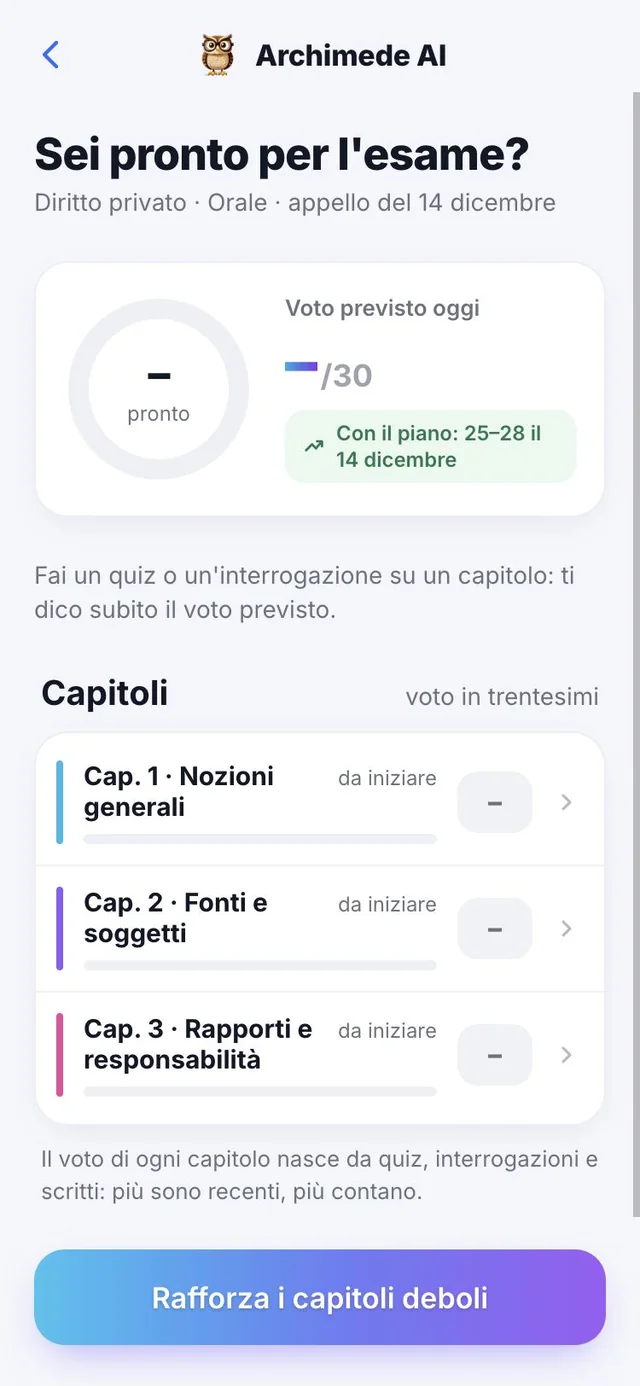
What it does. Your overall preparation and the expected grade out of 30.
For each chapter you see a grade out of 30 based on quizzes, oral tests and written work: the more recent, the more they count. Chapters are marked as solid, sufficient, to strengthen or to start. At the top you find the expected grade today and the one expected by following the plan.
At the top you read the overall percentage of preparation, the predicted grade today and the predicted grade following the plan up to the exam date. A chapter without tests does not have a grade yet: take a quiz or an oral test and the predicted grade appears straight away. The grade is an estimate, meant to show you where to strengthen.
Study models
How do you want
to study?
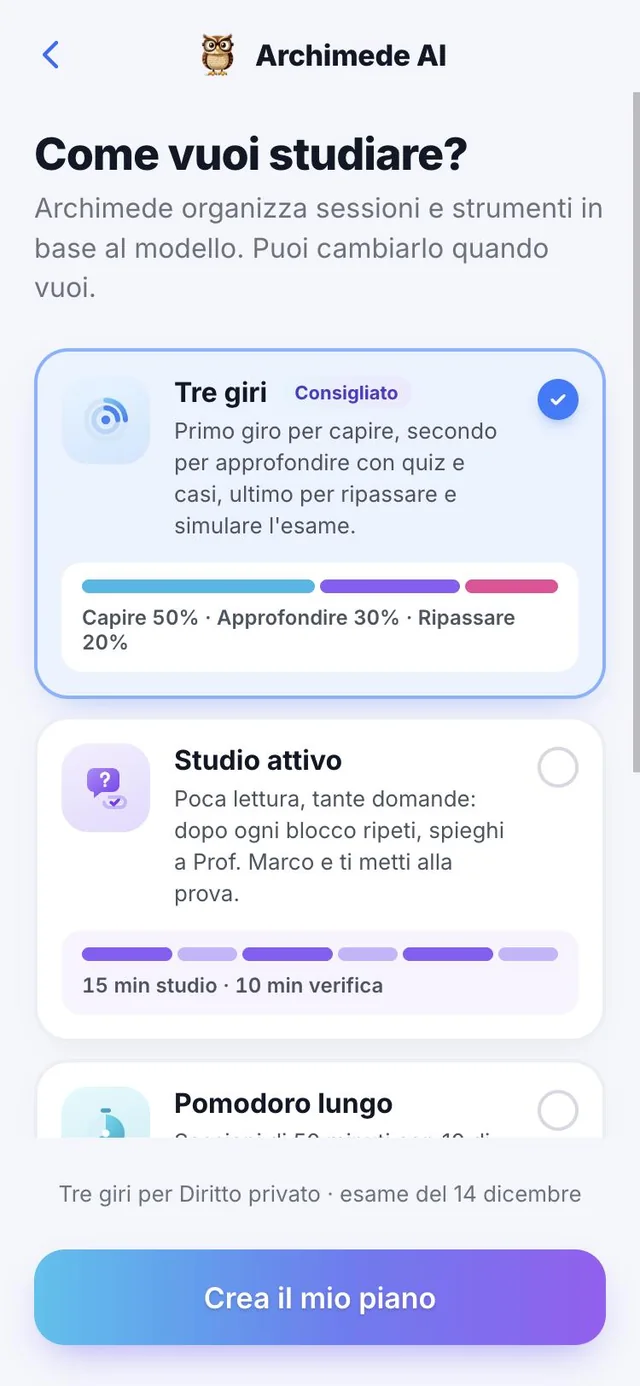
What it does. Choose the model and Archimede organizes sessions and tools.
Three rounds: understand, go deeper with quizzes and cases, review and simulate. Active study: little reading and lots of questions. Long Pomodoro: 50-minute sessions with 10-minute breaks and a mini quiz at each break. Final sprint: for those short on time, weak chapters first and one simulation a day. You can change model anytime.
Each model has a summary of timings: “Three rounds” splits the work into understand 50%, go deeper 30% and review 20%; “Active study” alternates 15 minutes of study and 10 of check; “Long Pomodoro” is 50 minutes of study with a 10-minute break and 3-question mini quizzes; “Final sprint” takes up the last 15 days, with one simulation a day. With “Create my plan” the model becomes your own week, and you can change it with “Change model”.
Exam simulation
The real exam,
timed.
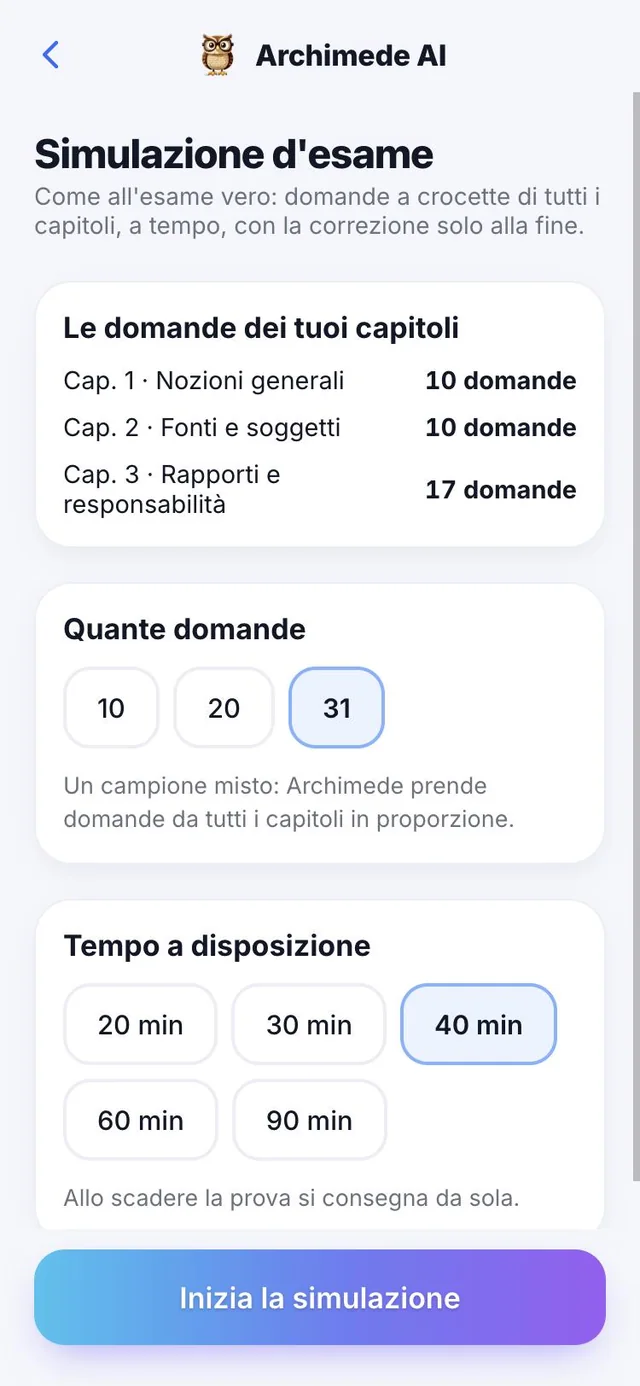
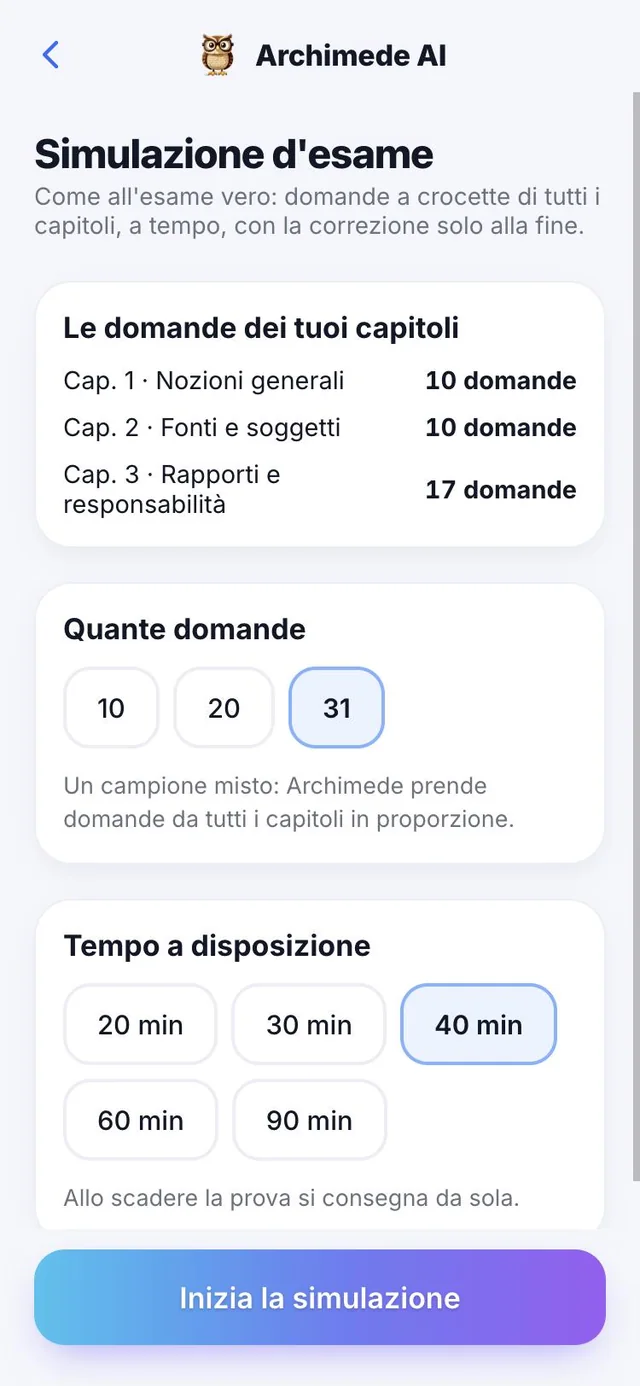
What it does. Multiple-choice questions from all chapters, with a stopwatch.
Like the real exam: no corrections until the end. A map lets you jump between questions, and you can flag some to review. When you submit, you see the grade out of 30, the result chapter by chapter and the explanation of each mistake; if time runs out, unanswered questions count as mistakes. It needs the multiple-choice questions of the chapters.
Before you start, choose how many questions (a mixed sample, taken from all the chapters in proportion) and the time available, which can also be off. Before submitting there is a confirmation; after submitting you find the result by chapter and can start a “New simulation”. The latest simulations stay in the list with the correct answers. Chapters without questions stay out.
Chapter · Study and check
The right tools
for your exam.
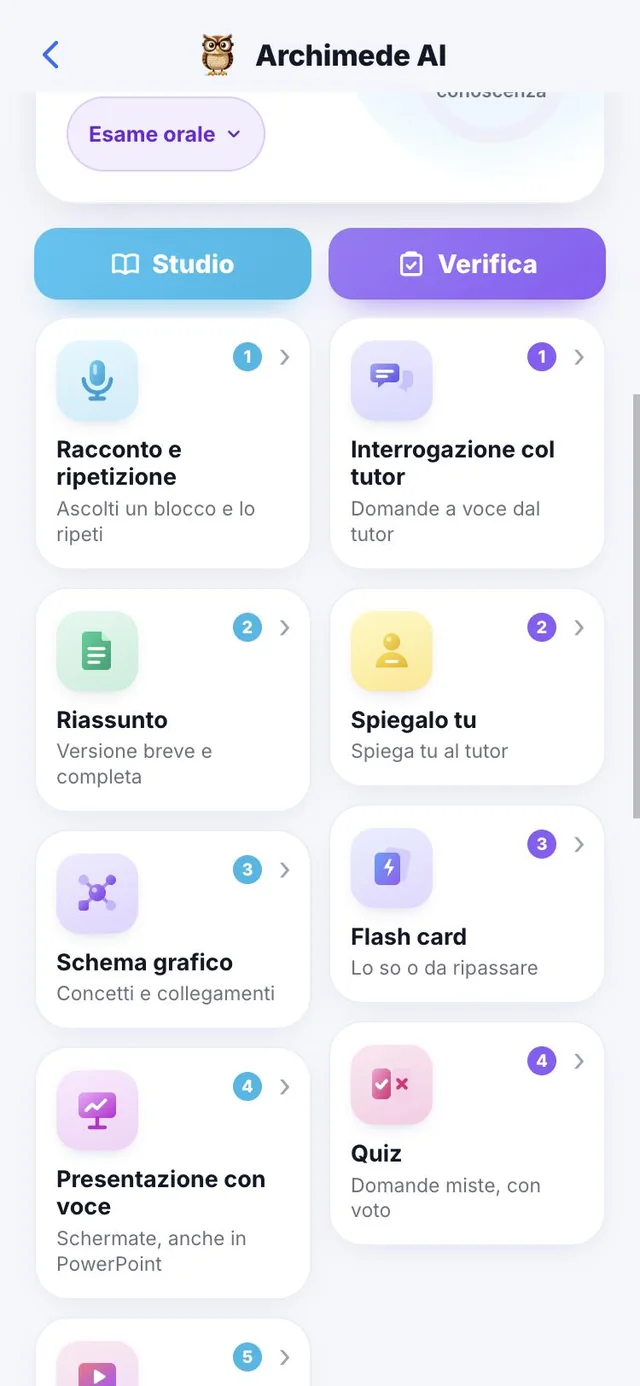
What it does. The STUDY and CHECK columns adapt to the assessment.
Oral. STUDY: story, summary, map, presentation, animated, audio. CHECK: oral test with your tutor, You explain it, flashcards, quizzes.
Written. STUDY: summary, map, presentation, animated, audio. CHECK: open questions, practical cases, quizzes, flashcards.
Multiple choice. STUDY: as for written. CHECK: quizzes, multiple-choice simulation, open questions, flashcards.
All the other tools stay in the chapter’s catalogue. Below you’ll find a card for each one.
At the top you can show or hide the tutor, talk to it with “Talk”, or write in the field “Ask about the chapter…”. Below you also find the last check, the best grade and the date of the next recommended review. If you chose the wrong type of exam, change it by tapping the label (oral, written or multiple choice), and the columns adjust.
Chapter · Create the lesson
From pages
to lesson.
What it does. From the material linked to the chapter, Archimede creates the story, questions, diagram and quiz.
When a chapter has its pages, tap “Create the lesson with Archimede”: it reads the pages and prepares everything you need to study and test yourself. A progress bar shows where it has got to; the tools appear as soon as the lesson is ready. If something stops, “Try creating the lesson again”: the uploaded pages are safe.
“Regenerate the chapter” rereads the pages and recreates everything from scratch. Before doing so, the app asks for confirmation, because what is there now will be replaced. “Add more pages” is for when you have found other material.
Why it helps: you don’t have to prepare anything by hand. You upload, match, and immediately have the tools ready, even for the chapters you add at the last minute.
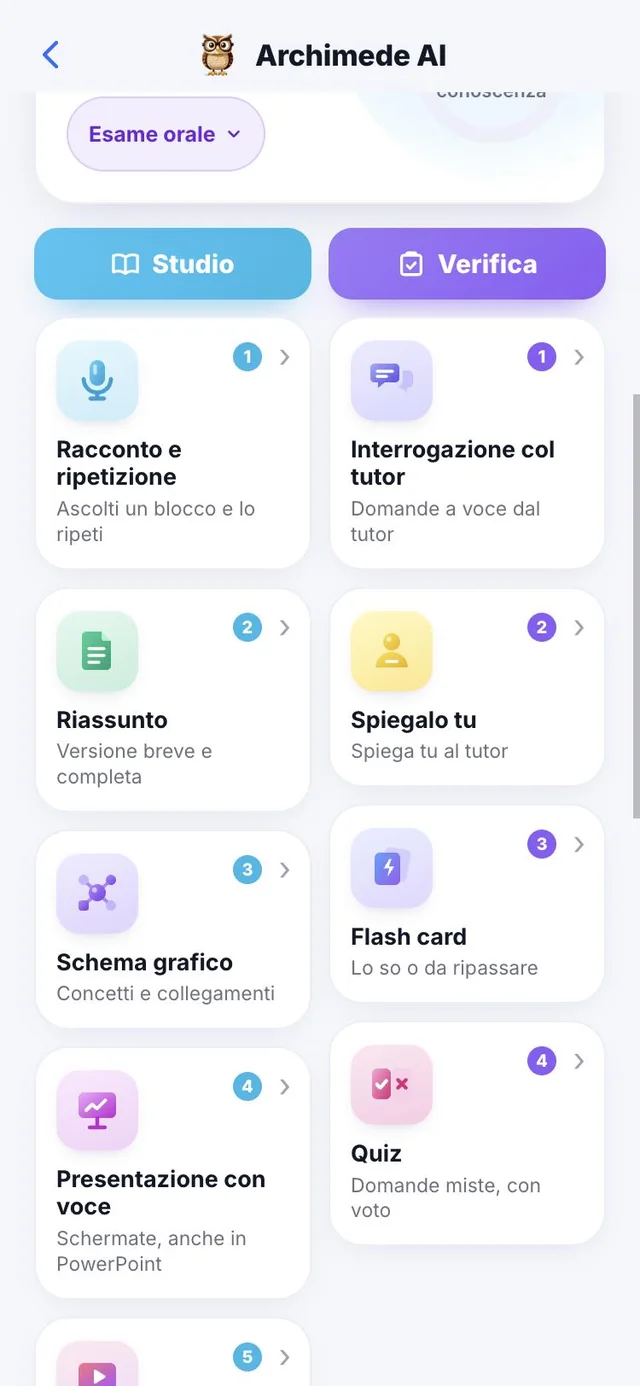
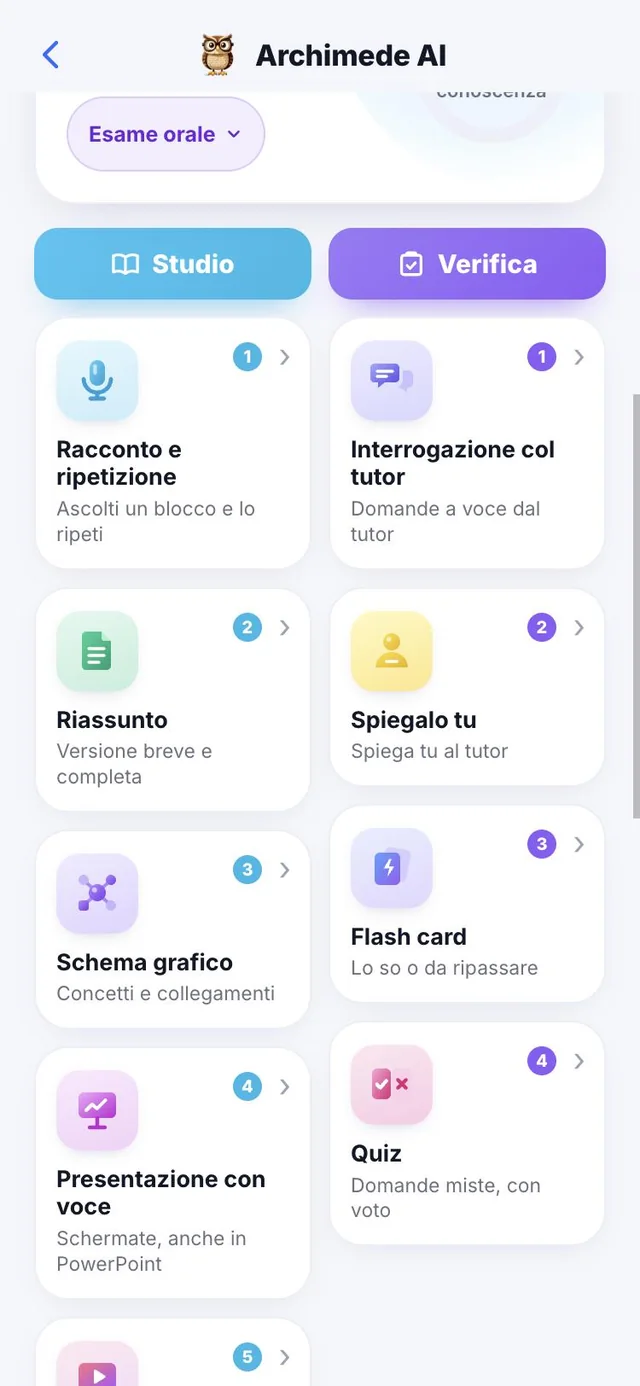
Chapter · Tools catalogue
All the tools,
in a single list.
What it does. The catalogue shows every tool in three sections: STUDY, CHECK and EXAM.
Tapping “Tools” in the chapter shows the whole list, with a line of explanation under each name, and the ones recommended for your type of exam come first. In the EXAM section you find the simulation, the plan, preparation, glossary and study models. Some tools are designed only for university, such as open questions, practical cases and the multiple-choice simulation.
Why it helps: the STUDY and CHECK columns show the minimum useful tools, and the catalogue lets you discover the rest when you want to change how you study.
Study · Story
The lesson out loud,
one block at a time.
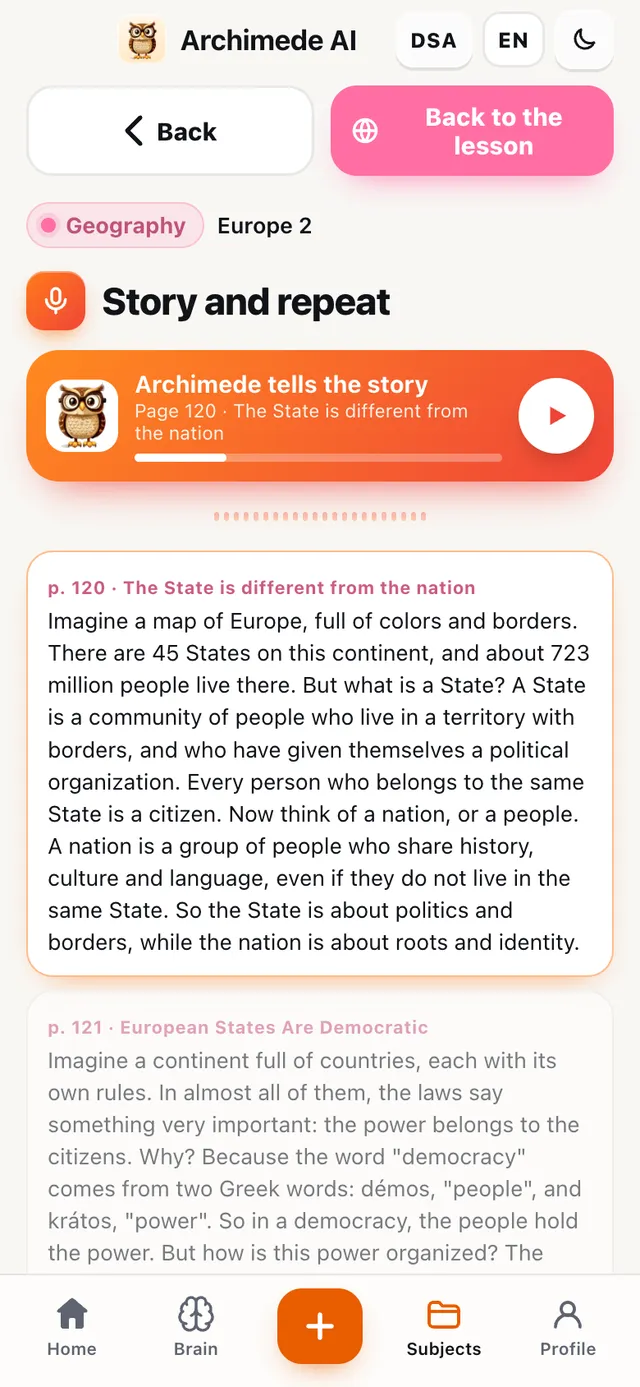
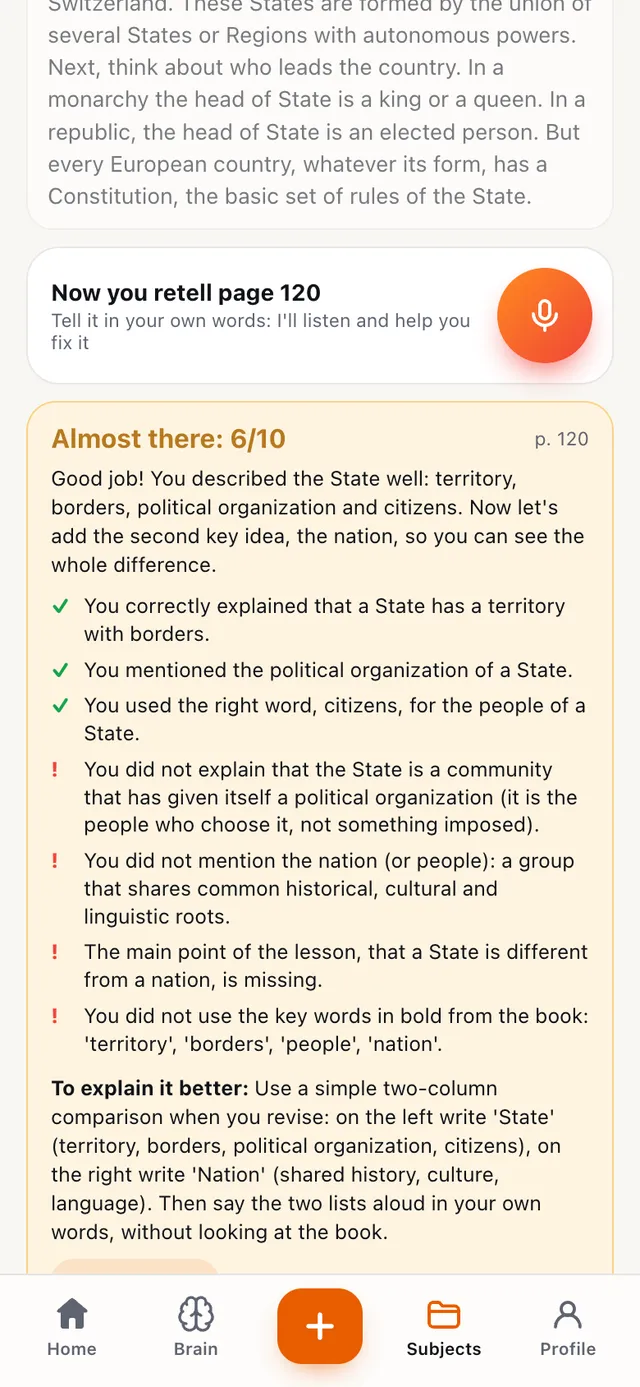
What it does. The tutor explains the chapter in blocks and after each block it’s your turn to repeat it.
Repeat in your own words, by voice or in writing, and the tutor assesses you. It’s the training closest to the oral exam.
The chapter is divided into blocks. After each block you repeat it out loud, and the tutor listens to the whole repetition, including the pauses to think. It stops when you tap again, gives a grade, and says what you got right and what is missing. You move on to the next block only when this one is passed. Speaking out loud is the best way to discover where your explanation gets stuck, before the exam.
Study · Summary
The summary,
full or short.
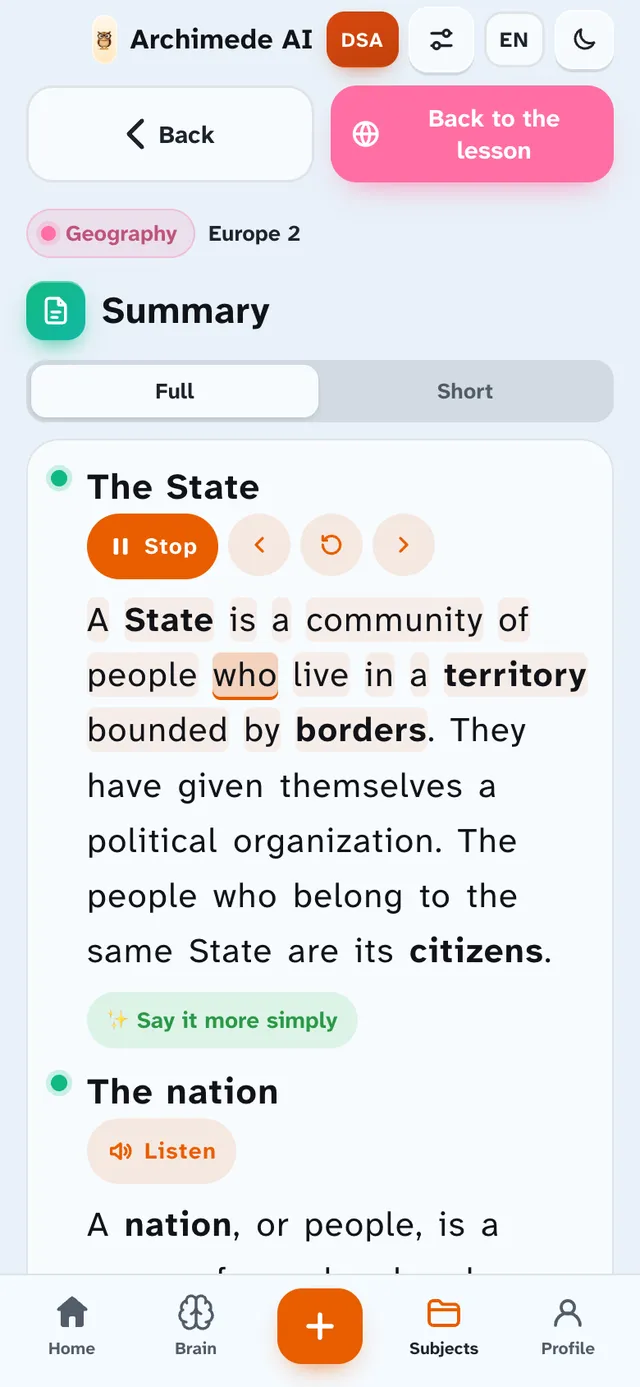
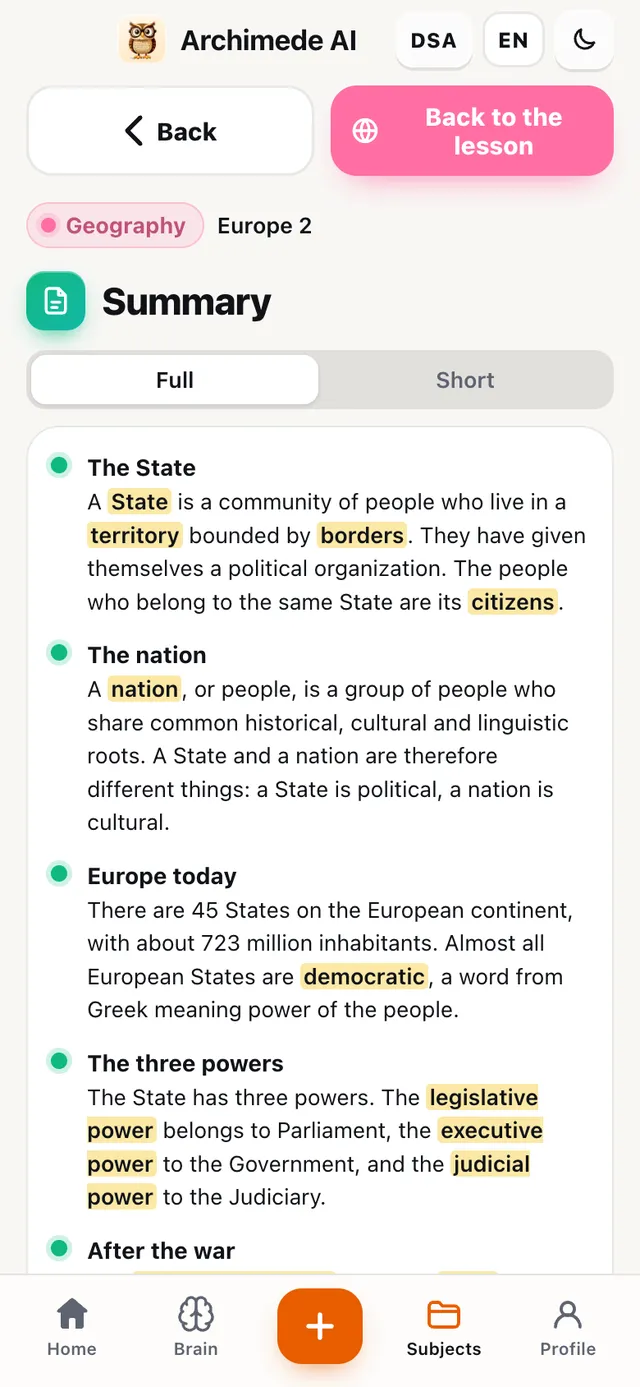
What it does. The chapter summarised, with the key words highlighted.
Choose “Full” to study or “Short” for a quick review before the exam.
Important words are highlighted, so your eye finds them at once. Use the full summary to study, and the short one for a quick review the last evening before the exam.
Study · Mind map
The mind map,
the map of the chapter.
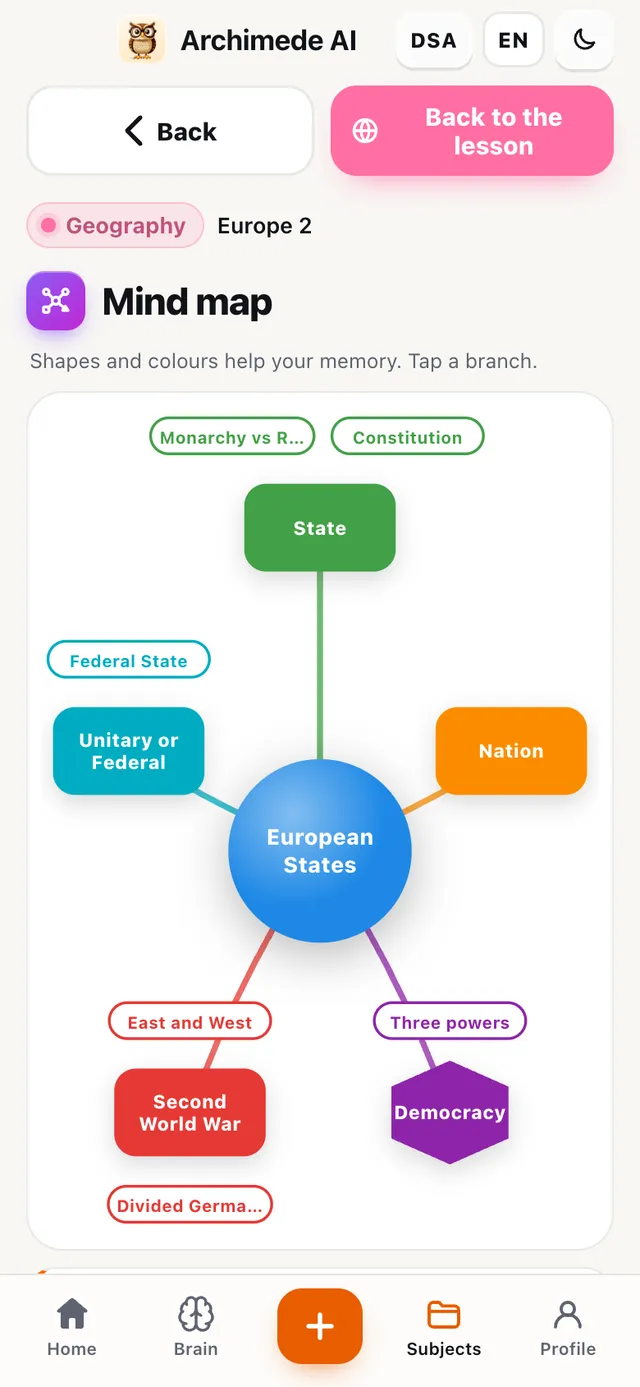
What it does. The concepts in a colour map, with links.
The tutor explains the centre and the branches one at a time while the map is built; below, a card for each branch.
With “Listen to the diagram” the tutor tells the centre and the branches one at a time, and the diagram builds up while it speaks. Each branch has a card with the explanation, to read even without voice. Shapes and colours help visual memory, which is useful for linking concepts that are far apart.
Study · Presentation
The presentation
with voice.
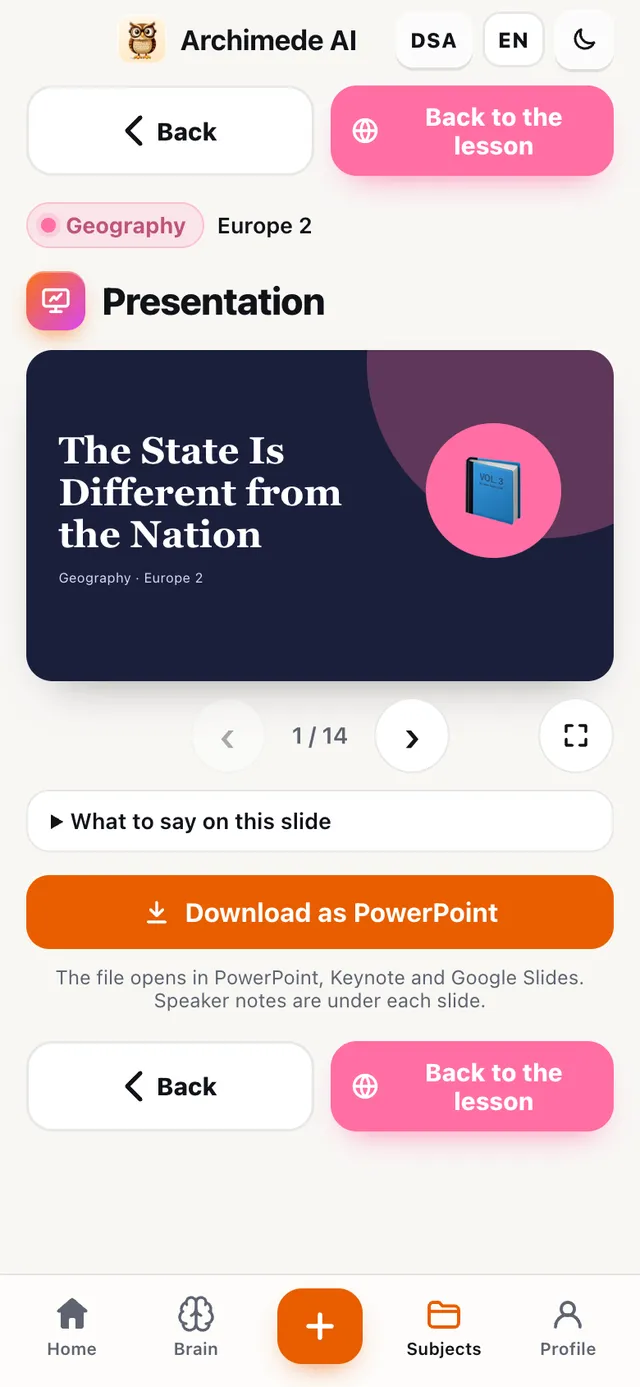
What it does. The chapter in slides, narrated by the tutor.
You can also download it as PowerPoint, with notes to present under each slide.
With “Listen to the slides” the tutor narrates one slide at a time, then you move on to the next. The PowerPoint file also opens in Keynote and Google Slides: useful if you have to present a topic in class.
Study · Animated diagram
The animated diagram
that talks.
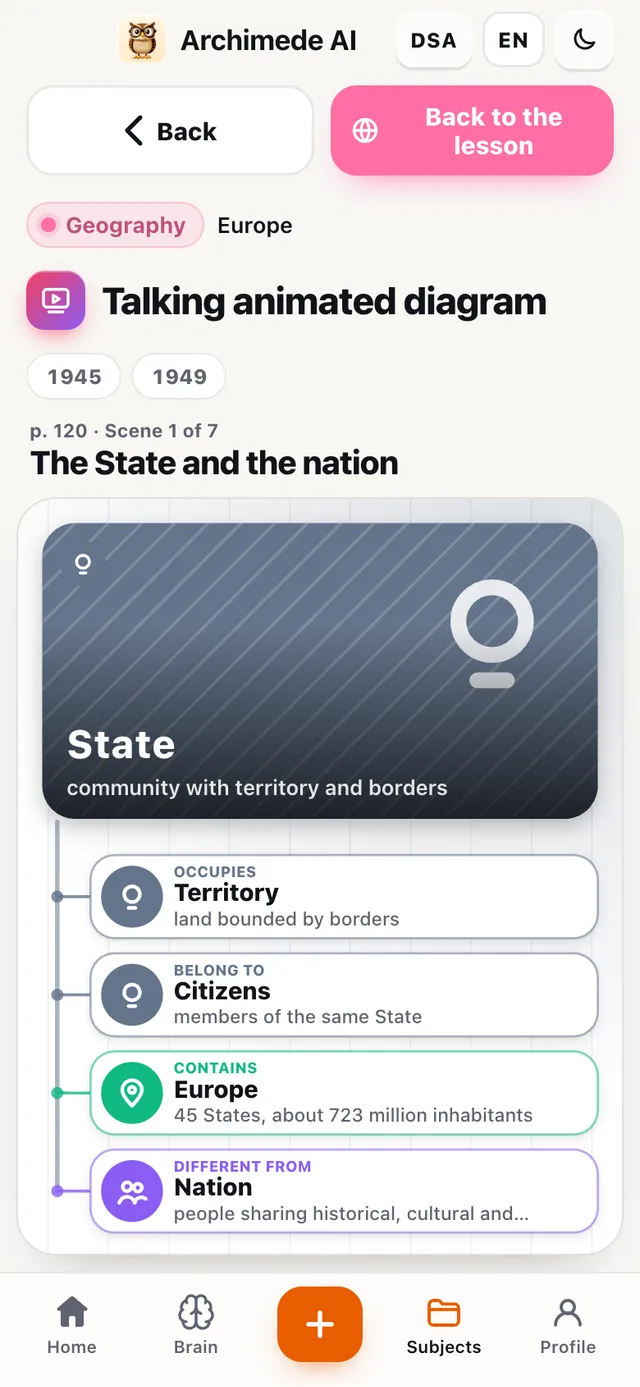
What it does. It appears while the tutor explains.
Names, concepts and dates are drawn scene by scene; you can pause and review.
Names, concepts and dates appear while the tutor says them, together with the images and the timeline. You can pause, go back and review each scene in full.
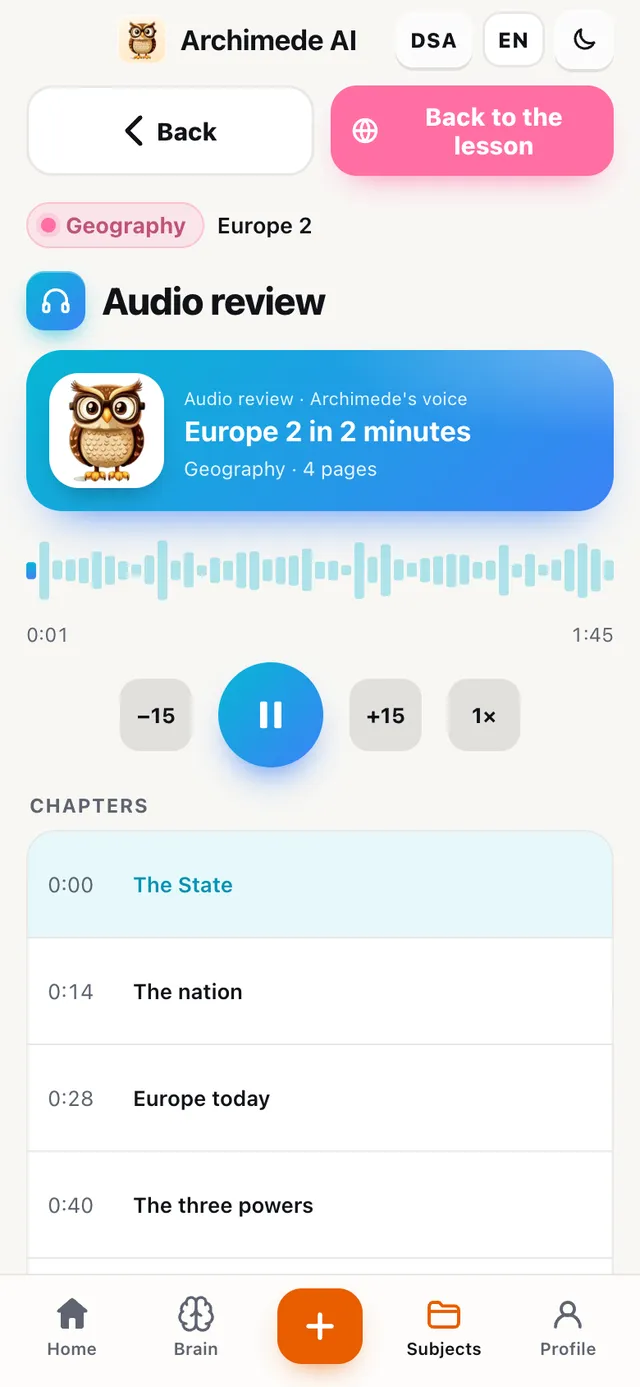
Study · Audio review
The audio review,
like a podcast.
What it does. The summary read aloud, divided into chapters.
Review by listening, without looking at the screen: skip forward and back fifteen seconds and adjust the speed.
Perfect for reviewing on the move: back and forward fifteen seconds, adjustable speed, and the chapters to jump to the point you need.
Check · Oral test with your tutor
The oral test
with your tutor.
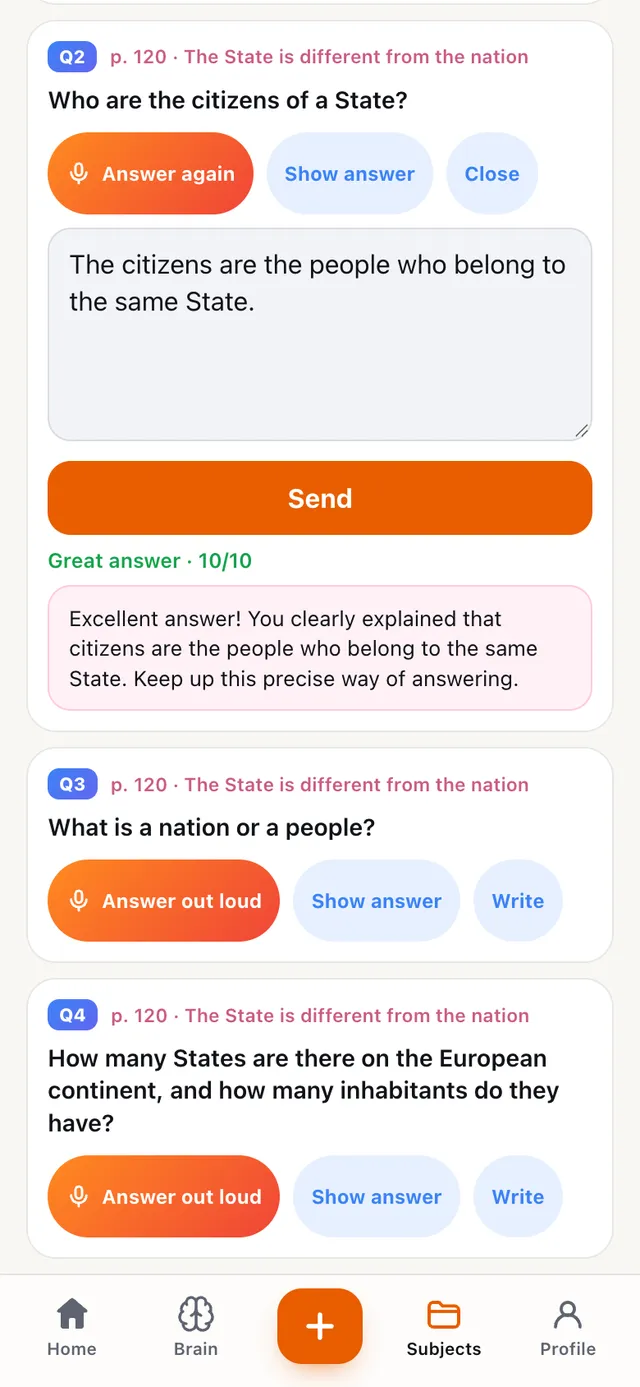
What it does. The tutor asks you questions by voice.
Answer by voice or in writing, as in the oral exam, and receive an assessment.
You can stop to think: the tutor waits a few seconds of silence before answering you, and if you have finished early, you tap “I’ve finished answering”. Every answer gets an assessment with a short judgement and what is missing. The harder questions come back in the reviews at the right moment. It is the training closest to the oral exam.
Check · You explain it
You explain it
to the tutor.
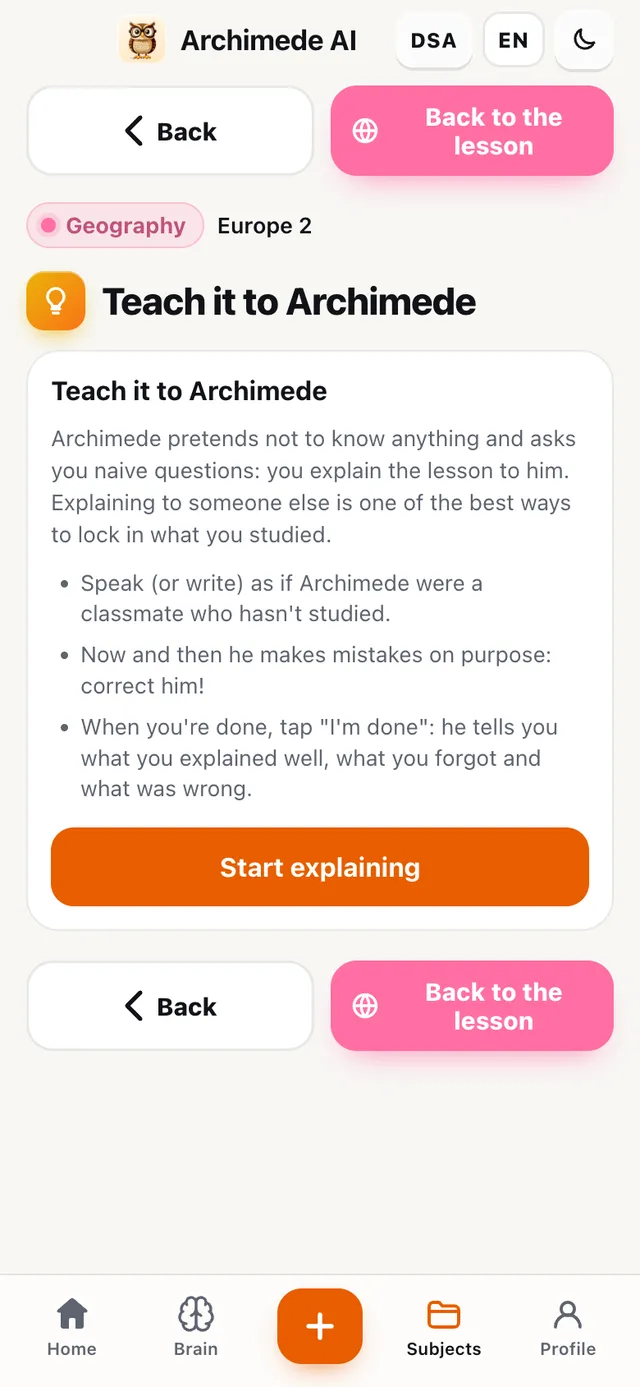
What it does. Roles swap: you explain, the tutor plays the curious student.
If you can explain it, you really understand it. At the end the tutor tells you what you forgot or got wrong.
Every now and then the tutor makes a mistake on purpose: it is up to you to notice it and correct it. Explaining to someone else is one of the best ways to fix what you have studied, and you immediately discover where your knowledge has gaps.
Check · Flashcards
The flashcards.
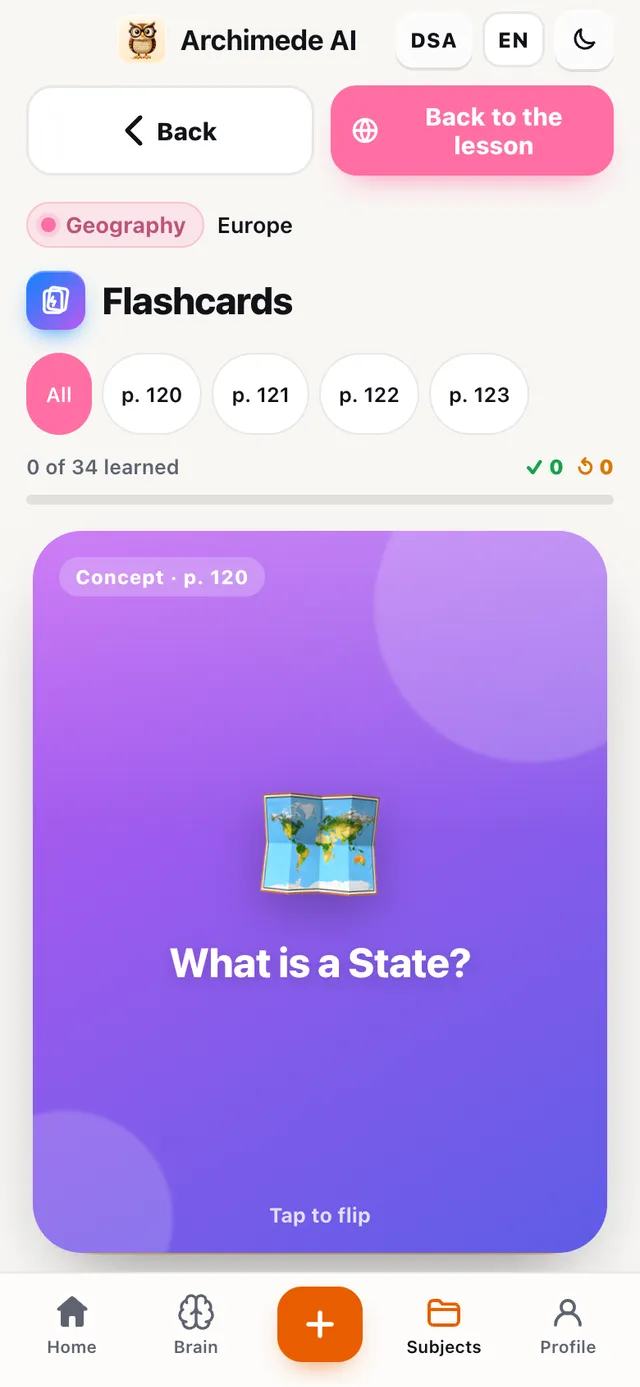
What it does. Question on the front, answer on the back.
Flip them with a tap and mark “I know it” or “To review”: the ones to review return to the deck.
Cards are flipped with a tap, or listened to in the tutor’s voice. If you know the answer, move the card to the right; if not, to the left. The hard ones return to the deck until you know them all. At the end of the deck the grade is saved automatically. Great for definitions, dates and legal articles.
Check · Quiz
The quiz,
in every mode.
What it does. Mixed questions, with a grade.
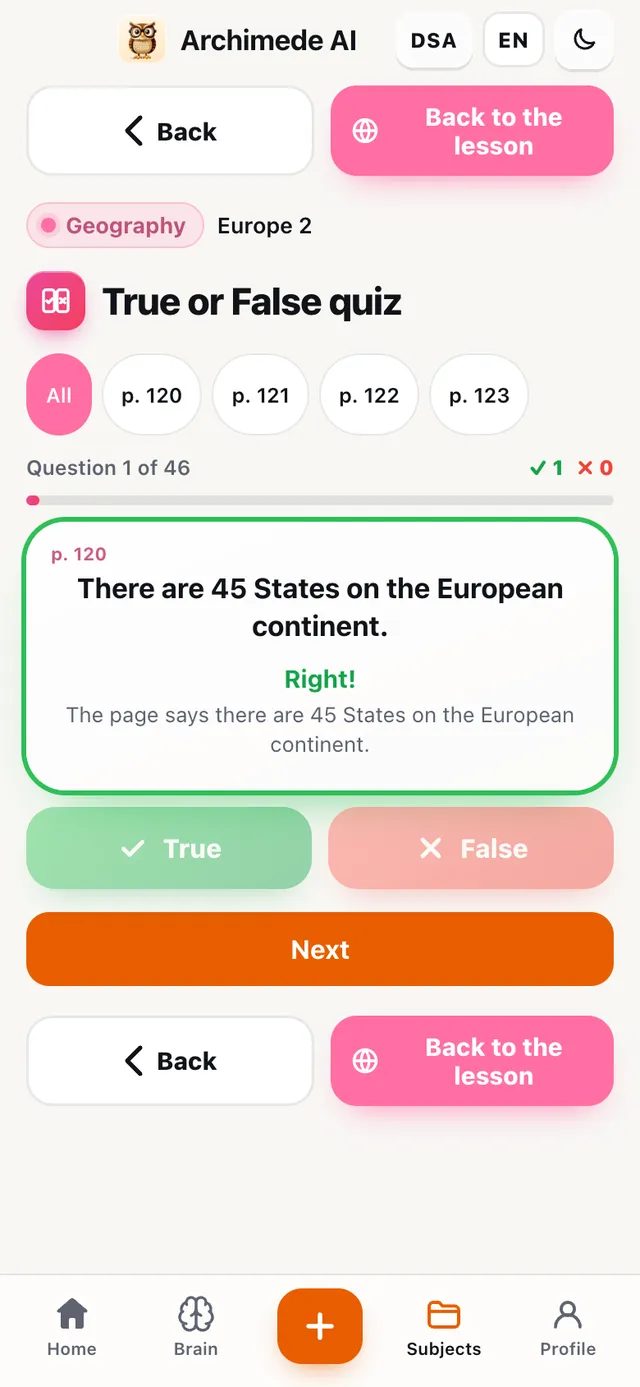
For written and multiple-choice exams, the Quiz is the entry point to all the modes: multiple choice, matching, fill in the blank and reverse. Below, the card for each one.
Mistakes go into Archimede’s memory, which brings them back in the reviews. Quizzes can also be taken timed: see “Timed quiz” below.
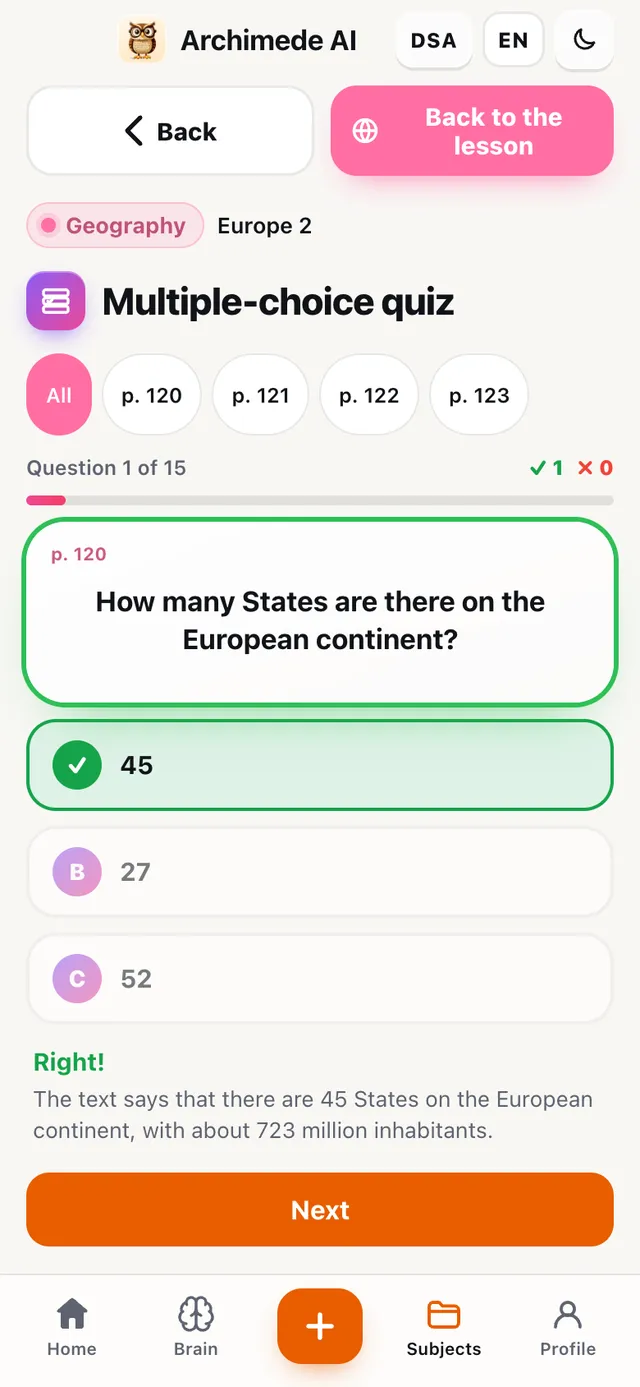
Check · Multiple choice
Multiple choice.
What it does. Three answers, and the explanation.
Questions taken from your material: tap the answer and see straight away why it is right or wrong.
Archimede prepares ten questions for each page, drawing them only from what is in your material. They are the same questions from which the multiple-choice exam simulation is built.
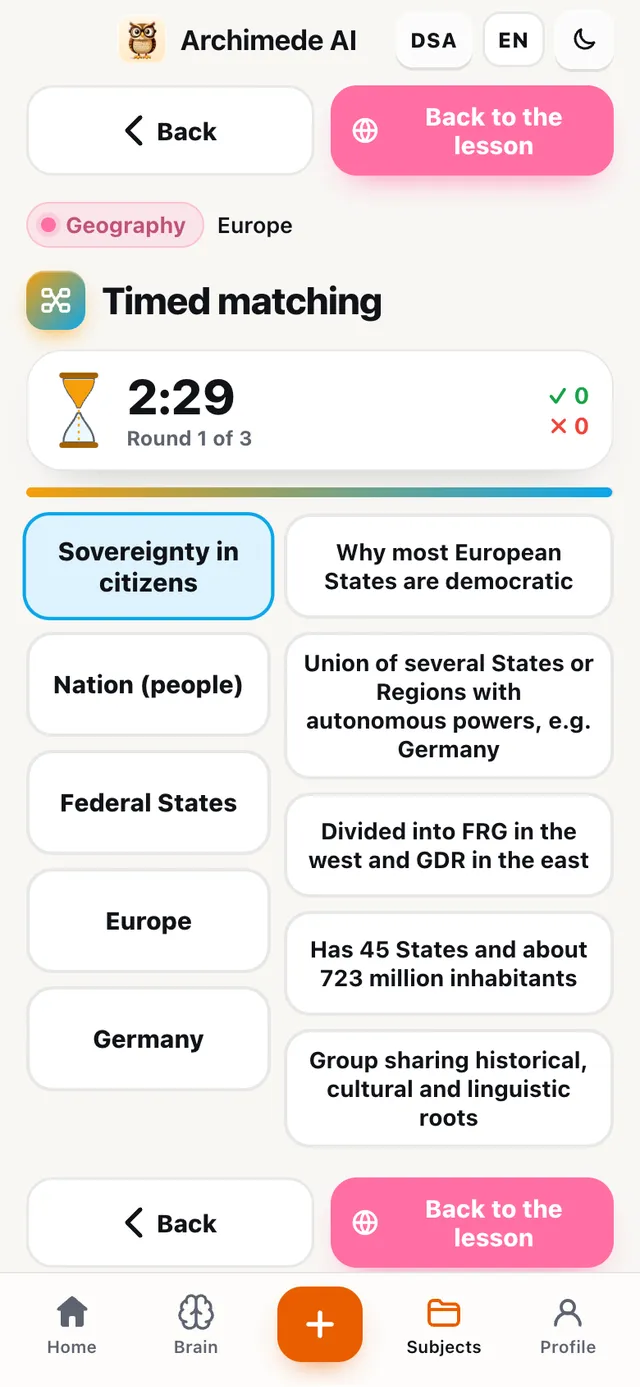
Check · Matching
Matching,
against the clock.
What it does. Term and definition, timed.
Match the pairs between two columns before the hourglass runs out.
There are fifteen pairs to match between two columns. Every mistake counts and the best time is saved; those who prefer can play without a clock.
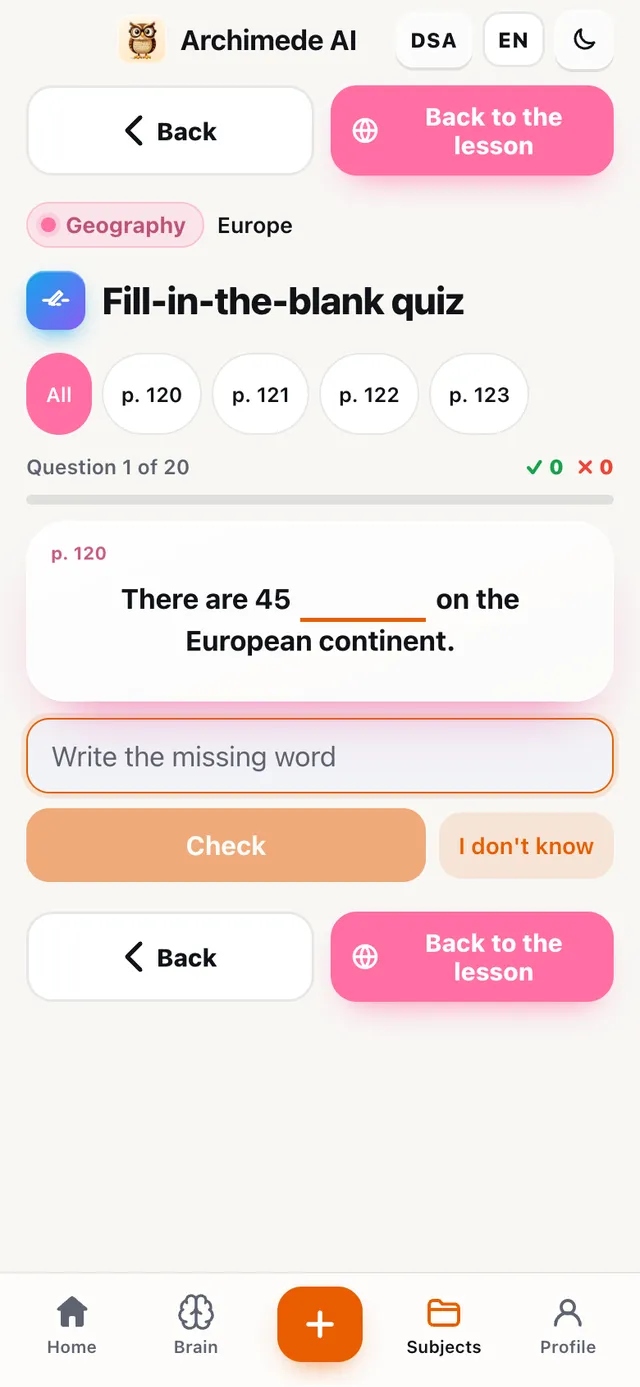
Check · Fill in the blank
Fill in the blank.
What it does. The missing word, without help.
To see if you really remember terms and definitions.
A small typo counts as correct, because what matters is remembering the content. Numbers and dates, however, must be exact.
Check · Reverse
The reverse
quiz.
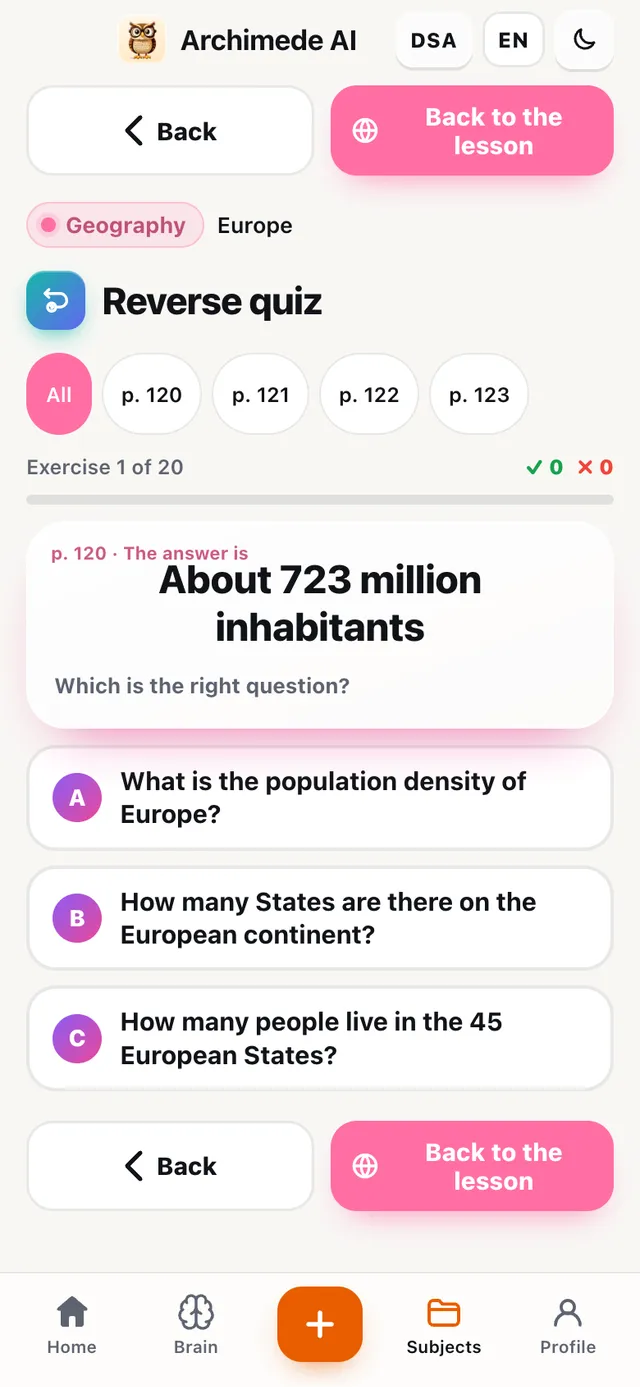
What it does. From the answer to the question.
The tutor gives the answer and you choose the right question.
It trains you to link dates, names and terms to their meaning, not just to repeat them: useful when, at the exam, the question comes in a different way from how you studied it.
Check · Timed quiz
The quiz with
the hourglass.
What it does. You choose how long you have to answer: the quiz closes by itself when time runs out.
Before starting a quiz (multiple choice, fill in the blank, reverse), choose the duration: off, 5, 10 or 20 minutes, or a custom duration from 1 to 90 minutes, using the “minus” and “plus” buttons. The timer starts at your first answer, and above the questions you see the hourglass and the minutes left. In the last seconds the colour changes to warn you. With the timer off there is no limit: you only see how much time has passed.
When time runs out, the quiz closes and the grade counts the answers given. The choice is remembered on your device and applies only to university chapters.
Why it helps: at the exam, time is a variable. The sooner you get used to answering while the hourglass runs, the sooner you stop feeling it as a weight.
Check · Open questions
Open questions,
written or as a photo.
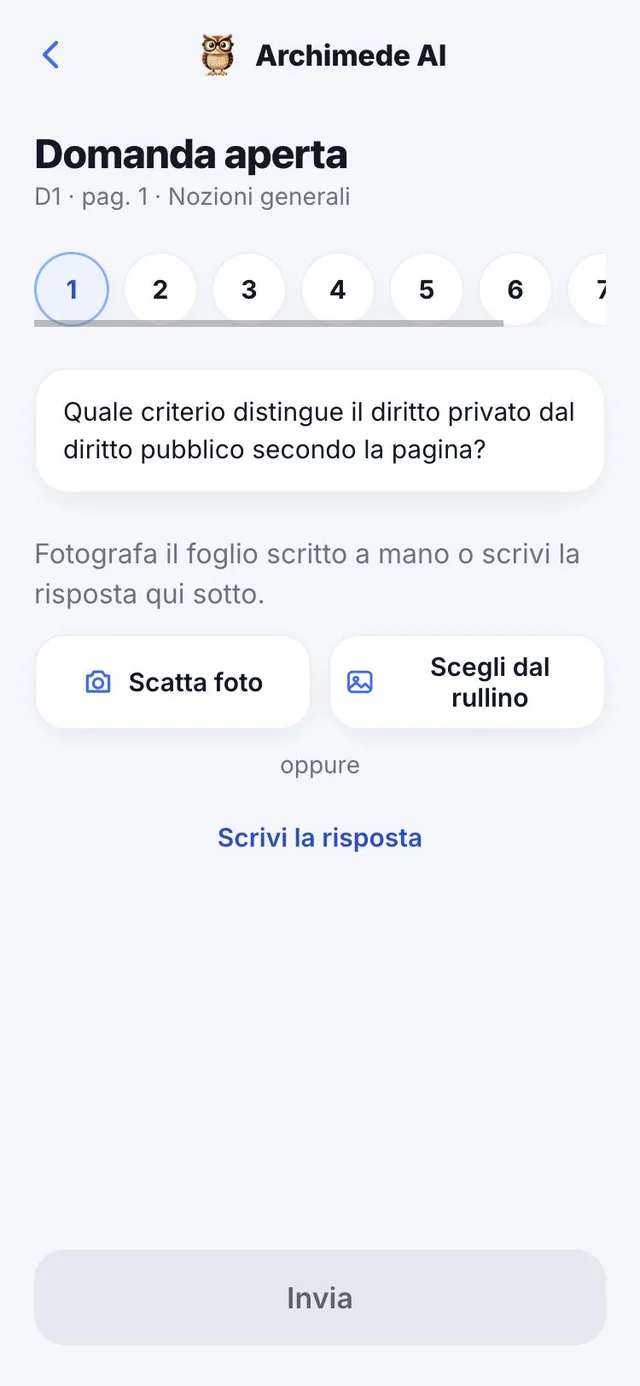
What it does. Answer as in a written exam and the tutor corrects it.
Write the answer or photograph the handwritten sheet: Archimede reads it, straightens it and corrects it. You get a grade out of 30, see what is missing and can open the model answer. You can redo the answer.
Each chapter has up to eight questions, each with its reference page. The correction tells you what you got right, which sentences are wrong with the correction, and what is missing; with “Model answer” you compare your answer with a well-written one. If the sheet is hard to read, the app asks you to retake the photo with more light.
Check · Exercises and practical cases
Practical cases,
one step at a time.
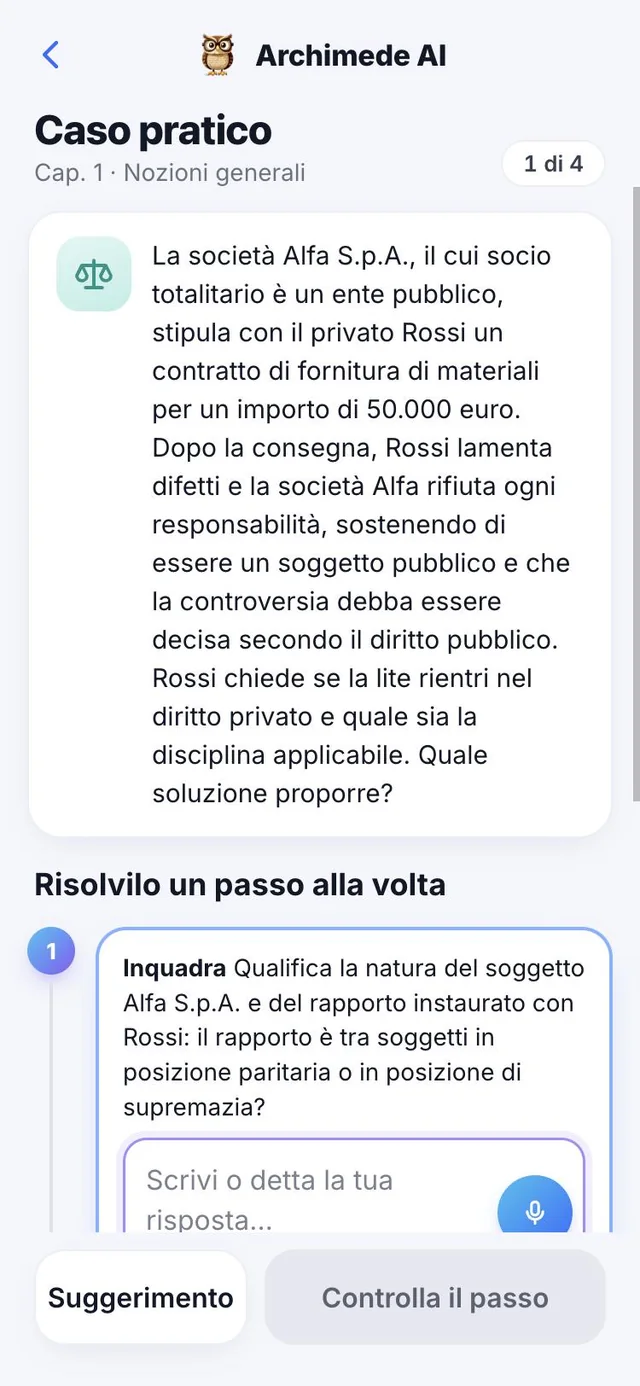
What it does. A case or an exercise to solve step by step.
Answer by writing or dictating, check the step and move on to the next; for each step, right, partly right or wrong, there is the reference solution. At the end, the grade out of 30 and the average of the cases. For calculations there is a calculator.
In case-based subjects (such as law), the case has a fact and a question, and the steps are, for example, “Frame”, “Rule”, “Exception” and “Conclusion”, with the law article it rests on. In science subjects the exercise has steps such as “Data”, “Formula” and “Calculation”. If you are stuck, there is a hint that helps without giving the answer; at the end, “Next case” or “Back to the chapter”.
Check · Multiple-choice simulation
The multiple-choice
simulation.
What it does. The exam’s multiple-choice test, timed.
In the CHECK column for multiple choice you find the simulation, timed and with corrections only at the end.
All the details of the test (how many questions, the time, the map, the result by chapter) are on the card “The real exam, timed”.
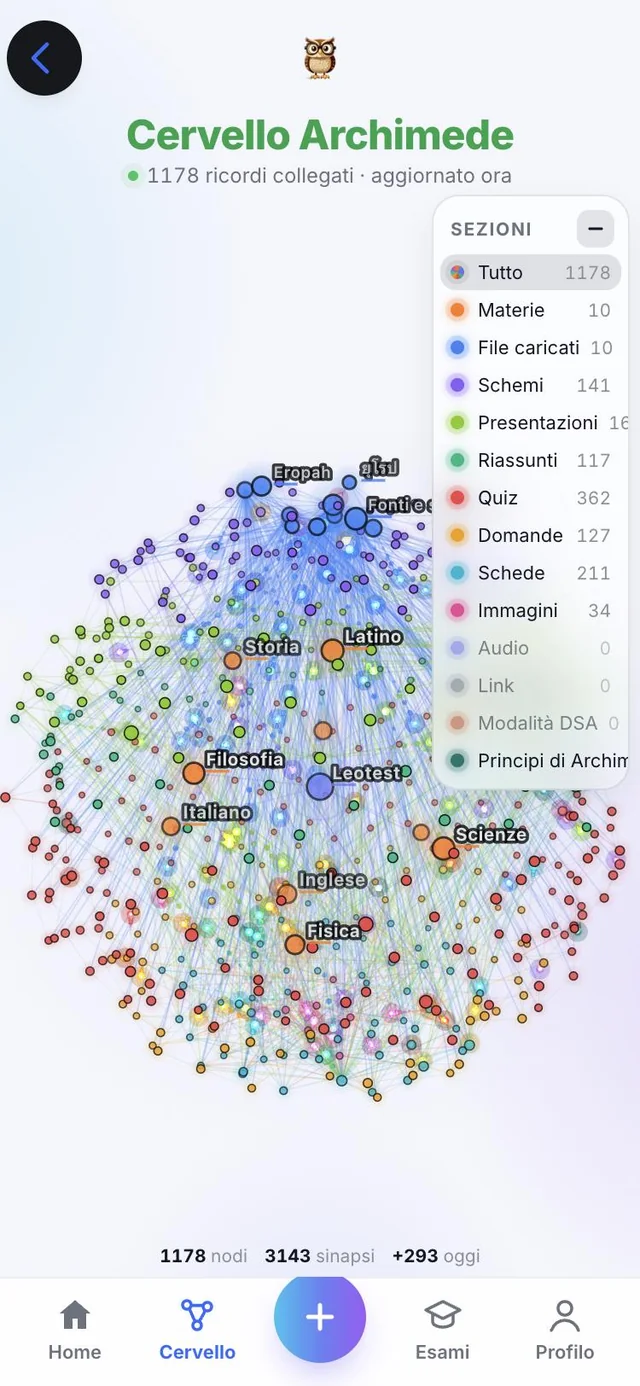
Brain
What you have studied,
connected.
What it does. It is Archimede’s Brain, in the university colours.
A globe with all the concepts you have studied, linked together and divided by section. You explore it to see what you have in mind.
The Brain updates with what you study: the more chapters and materials you match, the more the globe fills with linked concepts.
Profile
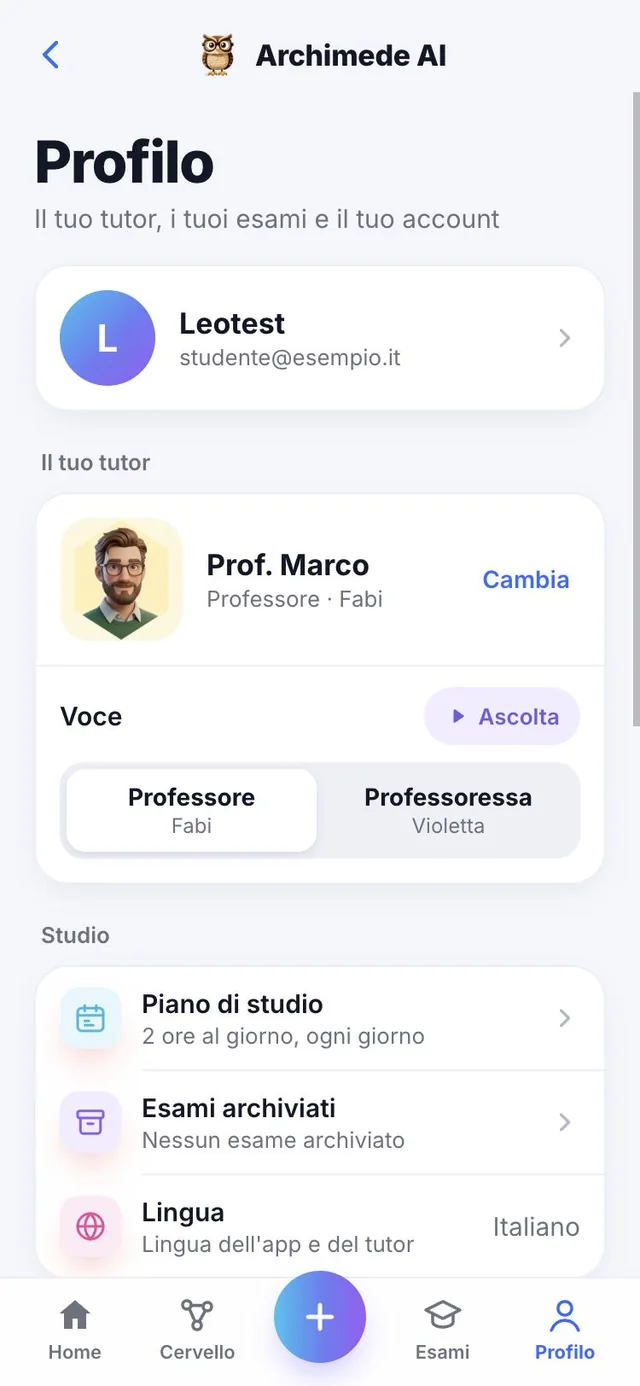
Your tutor,
your exams, your account.
What it does. The student’s settings.
Find the archived exams, which you can reactivate, and add the grade you got: from 18 to 30, with honours only for 30. Here you choose the language of the app and of the tutor, the theme, notifications and DSA mode.
From Profile you also open Account (email, subscription and data), Preferences (theme, notifications and DSA mode), the “Help and feedback” area to report problems and suggestions, and the link to leave a review on the App Store. The tutor has a “Change” button, and a shortcut takes you to the study plan of the nearest exam. “Change path” takes you back to the choice between school, university and high school.
Archived exams
Exam finished,
archive it.
What it does. Exams are never really deleted: they are archived, and you find them again in Profile.
From “Edit exams” you can rename an exam, change its colour, add a chapter or delete it. Deleting an exam archives it, and right after that “Cancel” appears to restore it as it was. In Profile, under “Archived exams”, you find the ones you have set aside: with “Reactivate” they return to Home.
For an archived exam you can add the grade you got, from 18 to 30 (honours only with 30), and the date you took it. Profile calculates the average of the grades. The grade can be corrected at any time.
Why it helps: Home stays tidy, with only the exams in progress, and the grade book with your real grades gives you a quick view of your path.
Languages
Twenty languages,
for the app and the tutor.
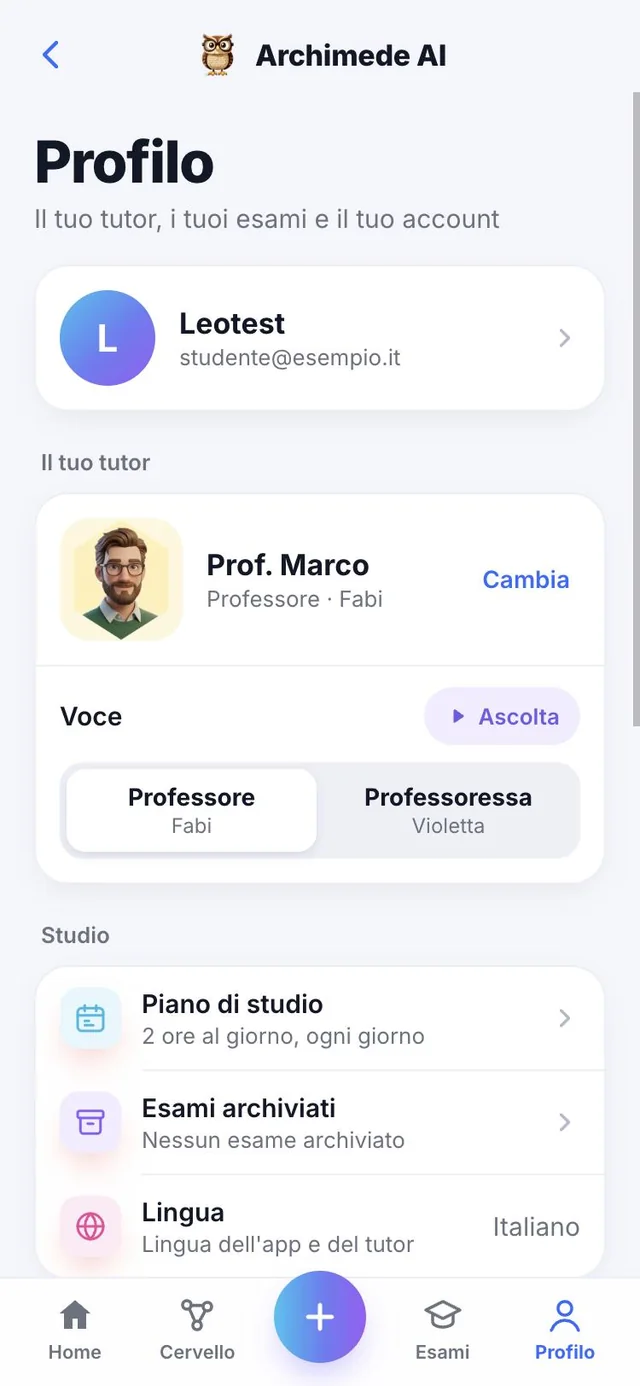
What it does. You change the app language with the button at the top, present on every screen.
Archimede University speaks twenty languages: Italian, English, Spanish, French, German, Portuguese (Portugal and Brazil), Chinese, Hindi, Russian, Arabic, Japanese, Korean, Catalan, Turkish, Thai, Filipino, Indonesian, Malay and Vietnamese. The tutor speaks in the app’s language, while the chapter content stays in the language of your book.
Why it helps: if you study in one language and think better in another, you can switch with one tap, and videos in a foreign language are translated for you too.
For everyone
DSA mode.
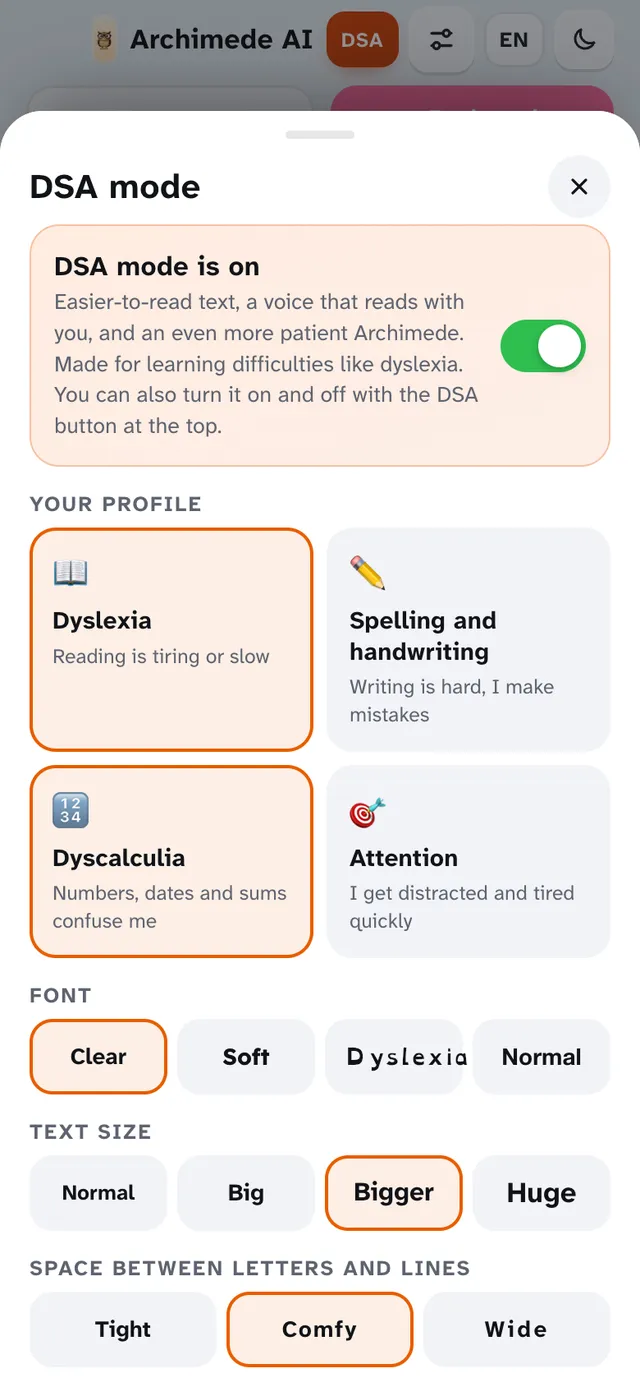
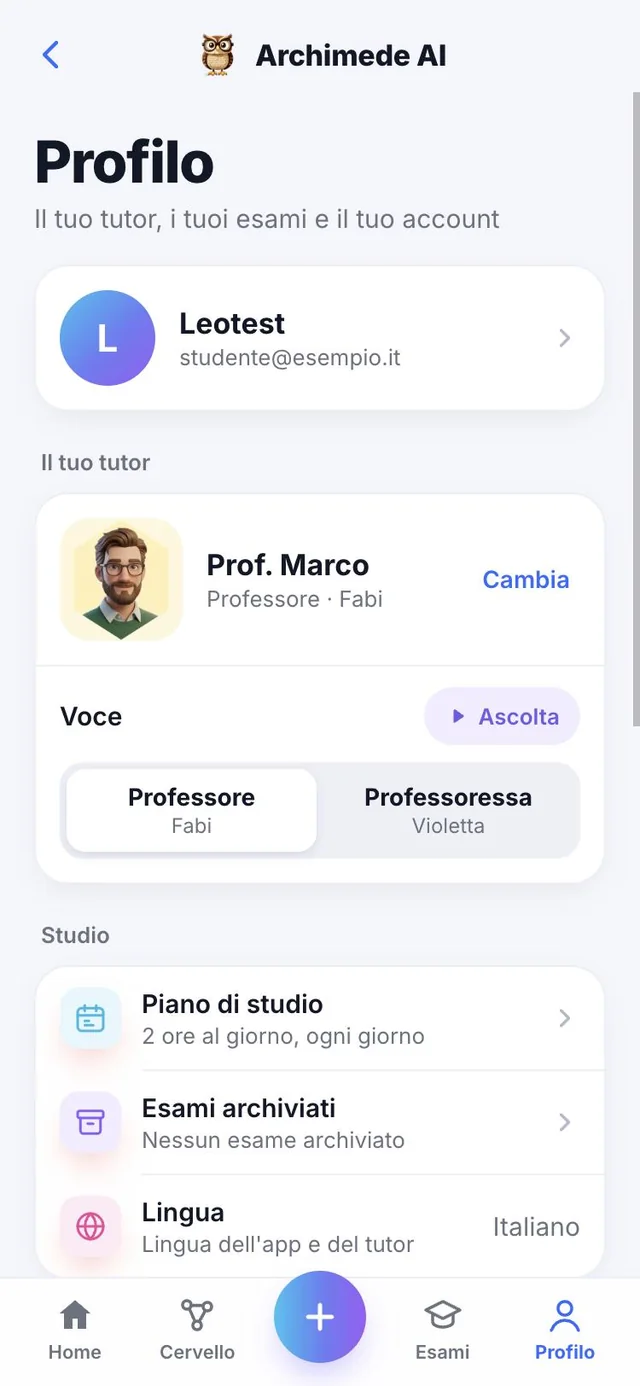
What it does. Adapts text, voice and grading for those with a specific learning disorder.
From Profile, under “Preferences”, you turn on DSA mode: highly readable fonts, more space between lines, soothing backgrounds, reading with highlighted words, syllables and “Tell me more simply”. The tutor speaks more slowly and assesses the content, not the spelling.
You choose the profile, font, size, colours and voice speed, and you can change them whenever you want. With the mode off, nothing changes.