Skip to content

Archimede Liceo · for high school

Oral tests, class tests and quizzes.
Get ready by talking.

Mark your test with its date and type. Your tutor prepares a day-by-day plan, explains the lessons out loud and puts you to the test. Grades are out of ten, just like at school.

Open the app

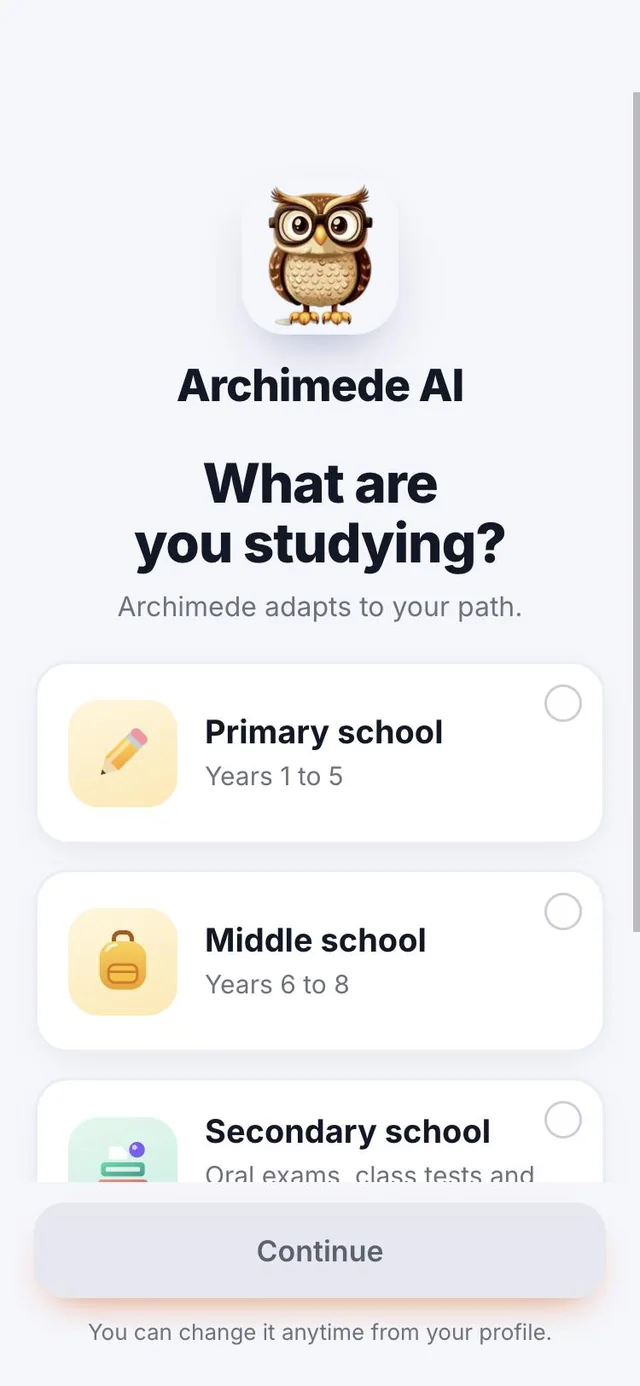
After signing up, choose “Secondary school”.

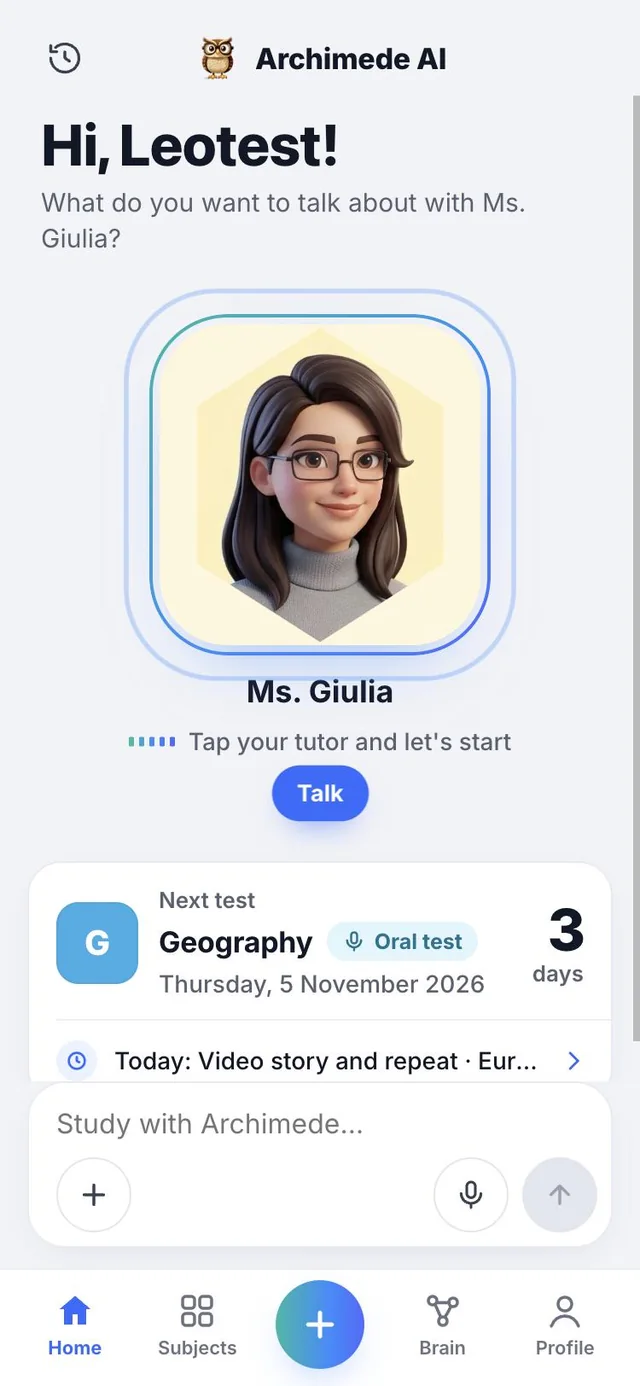
The Archimede Liceo Home: the tutor that listens to you and the Next test card with the countdown in days

How to start

Three steps
and you’re in.

You don’t have to set anything up by hand: the app prepares the subjects for your high school.

  1. 1Sign upOpen the app and create your account.
  2. 2Choose “Secondary school”When asked “What are you studying?”, tap Secondary school: oral tests, class tests and quizzes, with grades out of ten.
  3. 3Study track, year and subjectsChoose your study track and year: the subjects of your high school are already ready, and you can change them.

Choose your path

What are you studying?
Choose Secondary school.

What it does. Asks which school you attend, and the app adjusts from there.

There are four choices: Primary school, Middle school, Secondary school and University. With Secondary school you get oral tests, class tests and quizzes, and grades out of ten, just like at school.

Why it helps. You choose once, after signing up, and from then on the app shows you only high school things: subjects, tests, plan and grades. Nothing to set up by hand.

The What are you studying? screen with four paths: Primary school, Middle school, Secondary school (selected: oral tests, class tests and quizzes with grades out of ten) and University

Your school

Study track, year
and subjects.

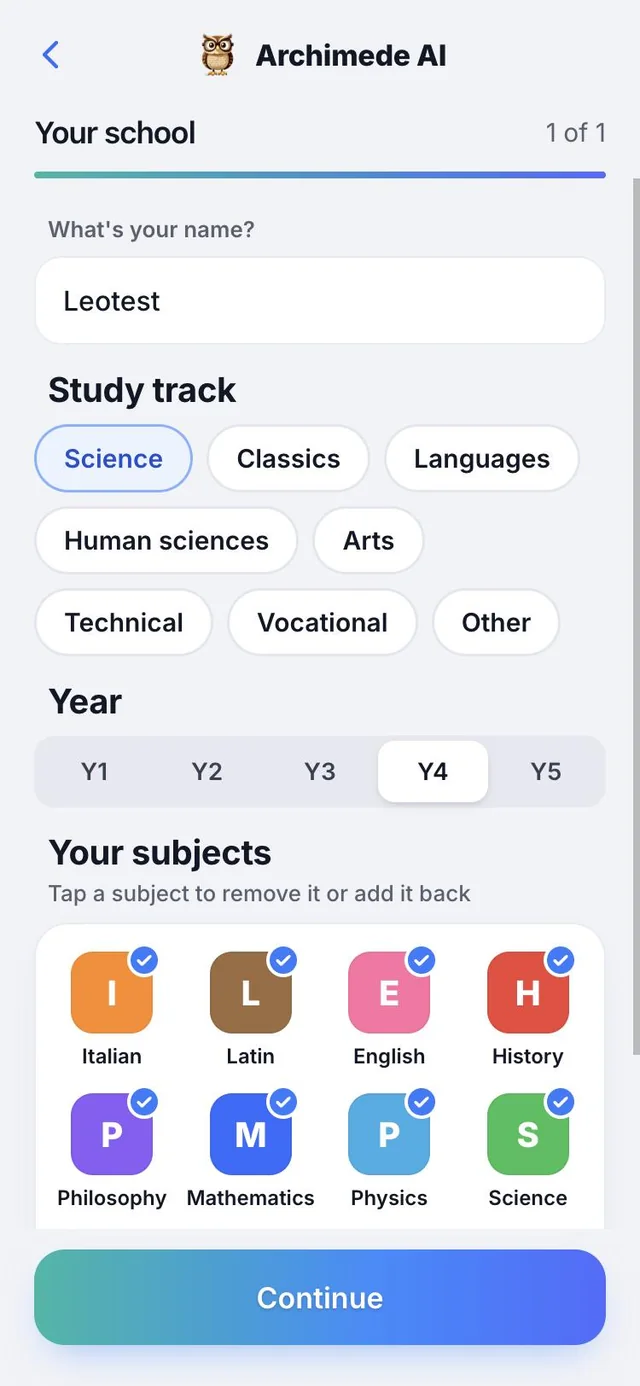
What it does. Asks for your name, track and year, and prepares the high school subjects.

Choose your study track, for example Science, and your year, from first to fifth. The subjects of your study track are already ready: tap a subject to remove it or add it back, or add your own with the “Add” field. You can change them whenever you like.

There are eight tracks to choose from: Scientific, Classical, Linguistic, Human sciences, Artistic, Technical, Vocational and Other. The subjects offered change with track and year: in the first two years, for example, History is studied together with geography, and Philosophy is not there yet.

Why it helps. You start with the right subjects without typing them one by one, and if your school is different you fix them in two taps.

The Your school screen: the name, the study track (Science selected), the year and the subjects already prepared, such as Italian, Latin, History and Maths

Home

Talk to your tutor.
See your next test.

What it does. Open the app and your tutor listens to you.

Ask it to talk about a subject or review a topic, by voice or in writing. Below is the “Next test” card: subject, type, date and days left. Right after, what to do today to get ready. At the bottom you’ll find Home, Subjects, the + button to add, Brain and Profile.

If you haven’t marked any test yet, the card tells you and takes you to add one. Tapping the card opens the subject of that test.

Why it helps. As soon as you open the app you know how many days are left and where to start, without searching for anything.

The Archimede Liceo Home: the tutor that listens to you and the Next test card with the countdown in days, plus the tip on what to review today

The voice

You speak,
the tutor answers.

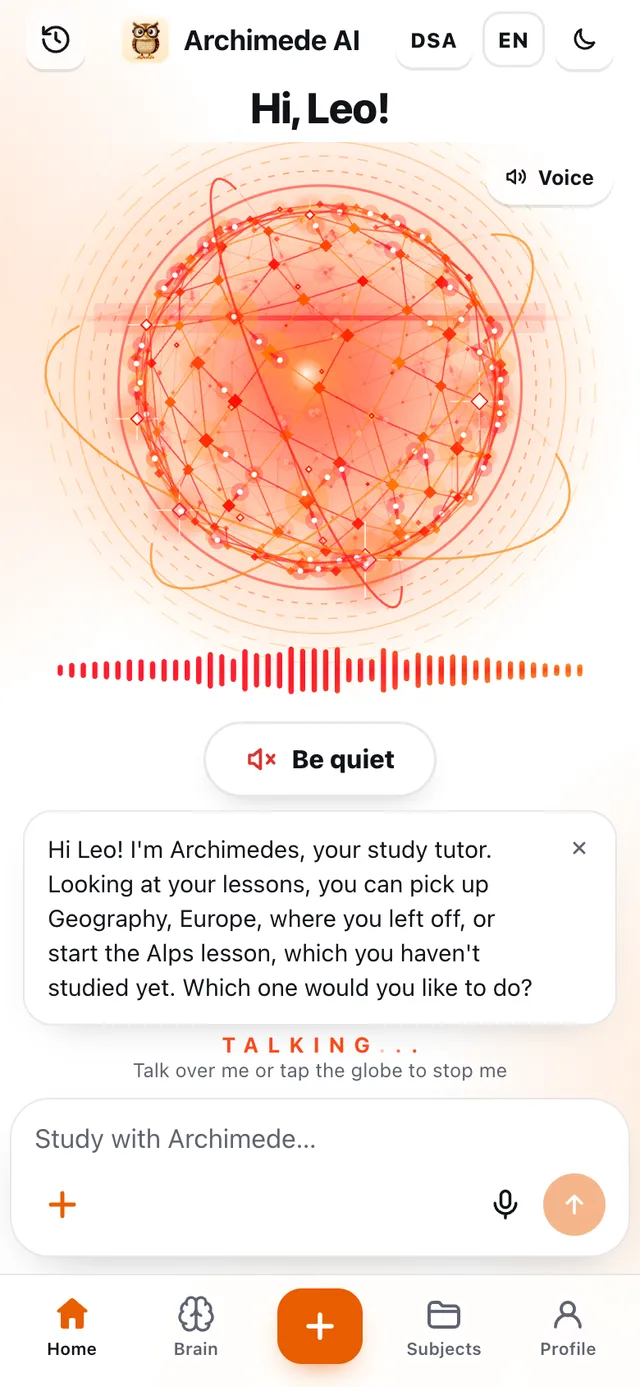
What it does. Tap “Talk” and the tutor listens and answers you out loud, like a teacher sitting next to you.

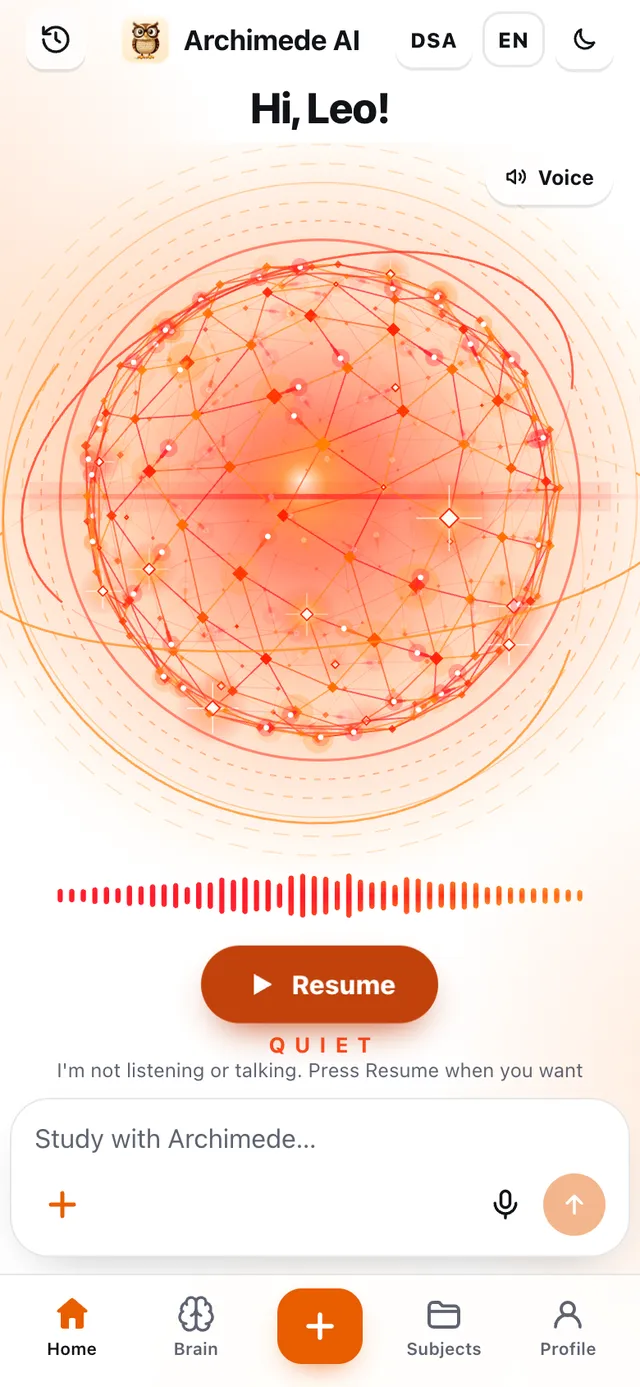
The microphone stays open: you can speak to it whenever you like, even while it is speaking, and tapping the microphone interrupts it. When you are answering a question and have finished, “I’ve finished answering” appears: tap it and don’t wait. If you need silence, tap “Be quiet”: it doesn’t listen and doesn’t speak until you press “Resume”. You can also ask it out loud to open a lesson, the Subjects or the + sheet.

Why it helps. Speaking out loud is how you are really questioned, and with the microphone always open you don’t have to tap anything for every sentence.

The tutor speaking, with the Be quiet button and its written answer below
The tutor in silence with the Resume button: it doesn’t listen and doesn’t speak

Writing and history

If you can’t speak,
write.

What it does. Below the tutor is the “Study with Archimede…” field: write and the tutor answers.

Write your question and tap send; the answer can be closed with the X. At the top left, the clock icon opens the History: the messages between you and the tutor, each with date and time, from the most recent. If you haven’t yet talked with Archimede, it says so.

Why it helps. Writing works in class, in the library or when you don’t want to speak out loud, and the History lets you find an explanation again without asking for it once more.

The Home with the History icon at the top left, the Study with Archimede field with the + button and the microphone, and below the Today line with what to study

Subjects and averages

Your subjects,
each with its average.

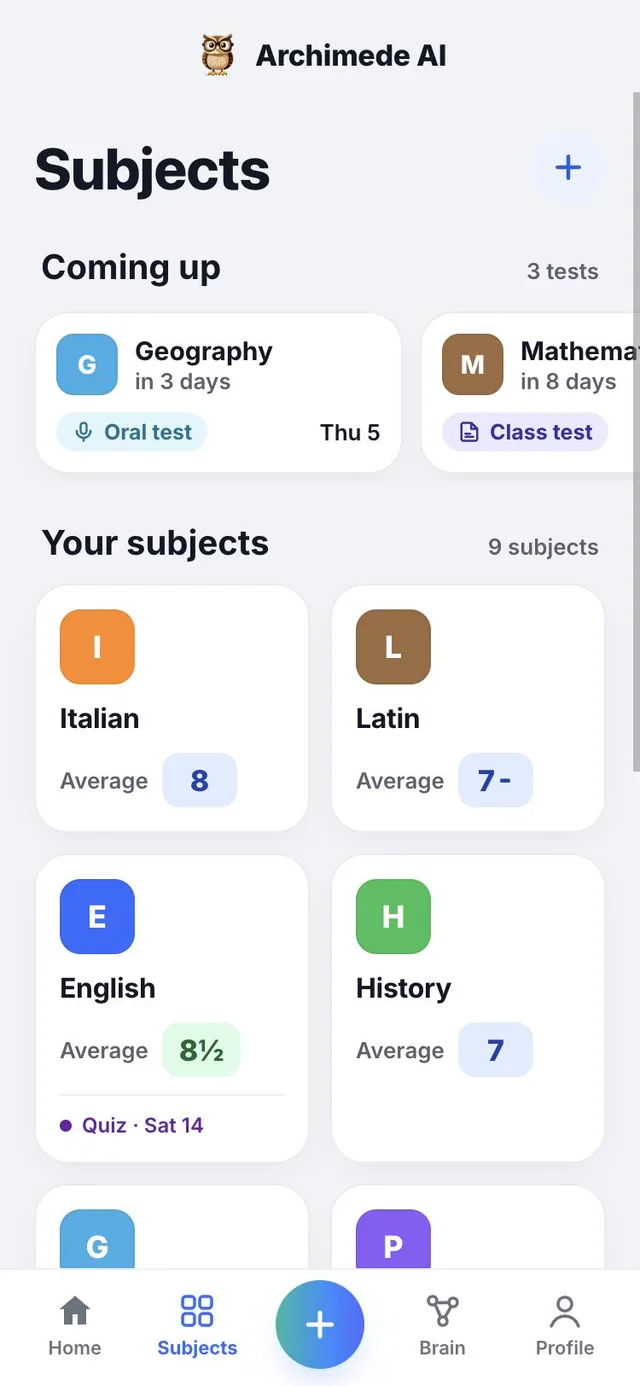
What it does. All the subjects of your study track at a glance.

Each subject shows the average of your grades, written the way it is at school. At the top, “Coming up” lists your next tests with their type and the days left. If you need another subject, add it with the + button.

The + button at the top opens “New subject”: type the name and the subject is ready. Each subject shows its average and, when tapped, opens its page.

Why it helps. You see at a glance where you are doing well and which test is coming up first.

List of subjects: at the top the upcoming History and Maths tests, below the subjects with their average out of ten, such as 7 for Italian and 6½ for Latin

Add

The + button,
to add.

What it does. At the bottom centre, the + opens “What do you want to add?”: a new test or a new lesson.

“New test” takes you to the calendar, for an oral test, class test or quiz with the date. “New lesson” takes you to the Subjects, or to the subject you have open, where you choose the lesson and photograph the pages of the book. The same sheet also opens from the + next to the writing field on the Home.

Why it helps. Adding something is always one tap away, from any screen.

The Subjects with the blue + button at the top and the + in the centre of the bottom bar

Each subject’s tests

Each subject
has its own tests.

What it does. Open a subject and see what’s coming up.

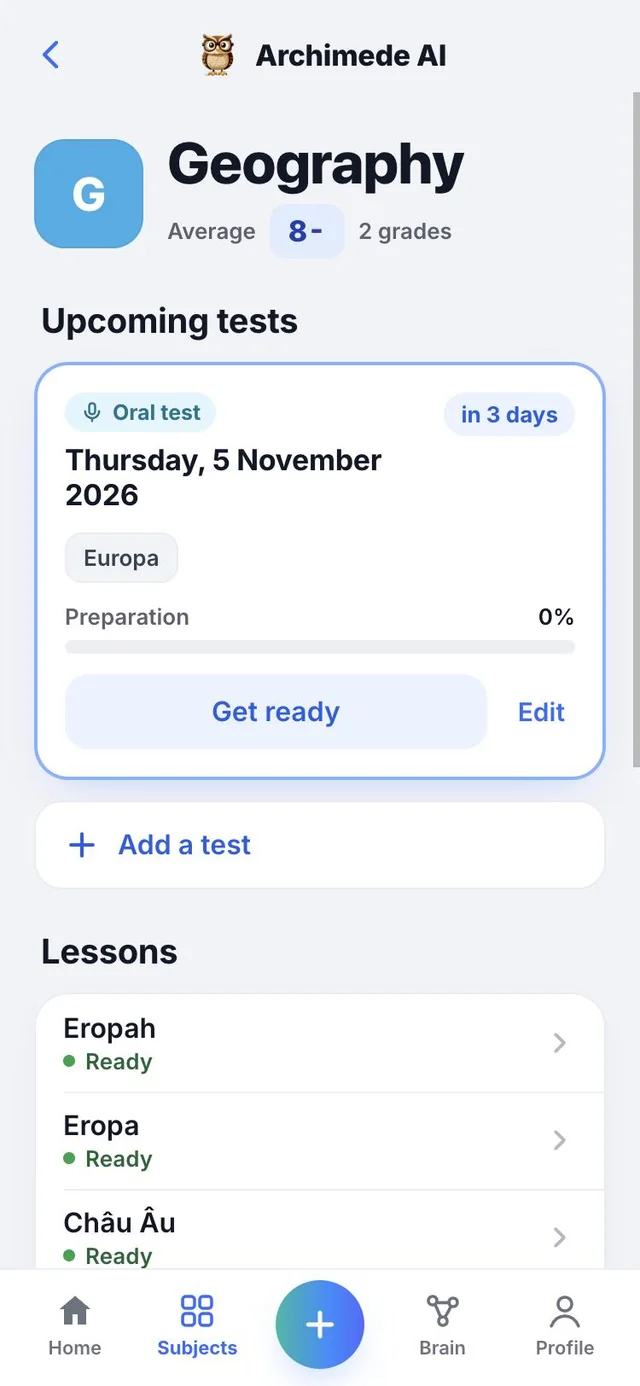
At the top are the average and the number of grades. Each upcoming test shows its type, date, topics and how prepared you are, as a percentage. With “Get ready” you go straight to the plan. Further down you’ll find the subject’s lessons, each with its status.

With “Edit” you change the date, type and topics of a test; with “Add a test” you mark another one. Each lesson says whether it is “Ready”, “Being prepared” or “To create”, and with “New lesson” you type the name and upload the pages of the book. At the bottom are the subject’s grades, with a link to “All grades”.

Why it helps. Everything about a subject is on one page: tests, lessons and grades.

The History page: average 7½, an Oral test in 4 days with the topics and 60 percent preparation, the Get ready button and the list of lessons

Add a test

Oral test,
class test or quiz.

What it does. You tell Archimede what’s coming up.

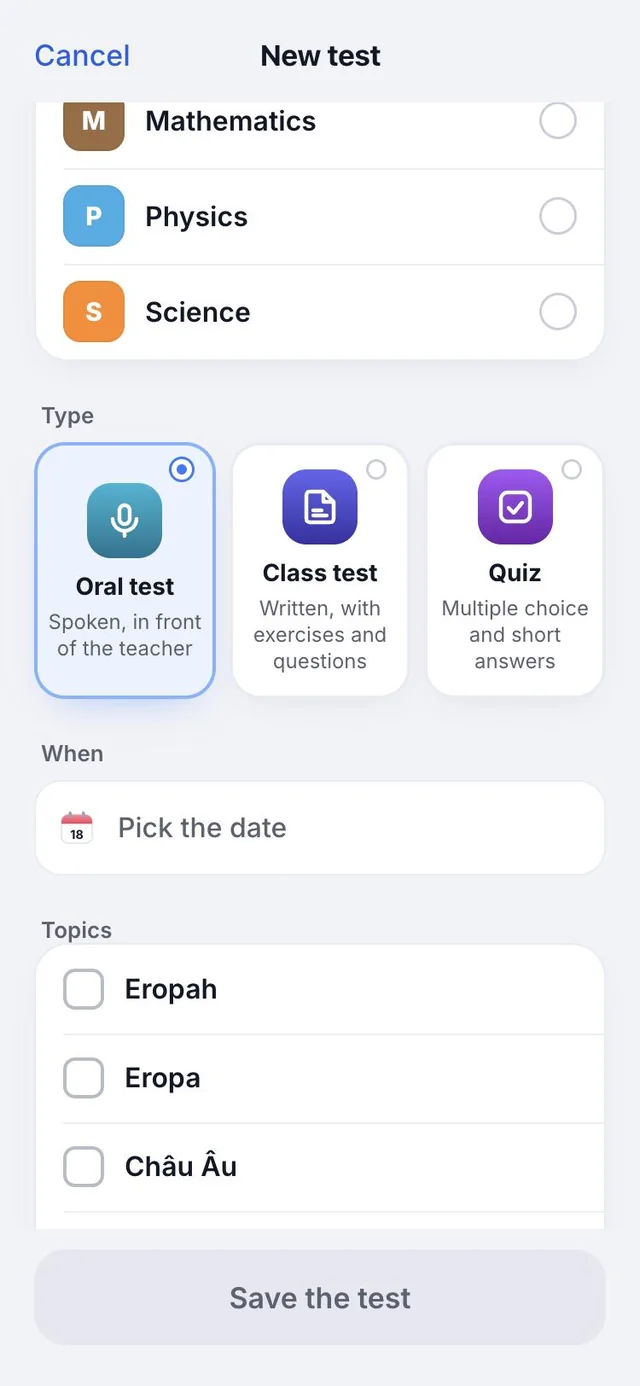
Choose the subject and the type of test, tap the date on the calendar and list the topics, that is, the lessons to study. Archimede builds the plan to get you ready.

Each of the three types has a line that explains it: the oral test is spoken in front of the teacher, the class test is written with exercises and questions, the quiz is multiple choice and short answers. Topics are chosen from the subject’s list of lessons; if there aren’t any yet, you add them from the subject’s page. With the switch “Prepare the study plan” Archimede spreads the review up to the day before.

A saved test can be changed or deleted: before deleting it the app asks for confirmation and warns you that the plan disappears with it.

Why it helps. Telling Archimede what is coming up and when is the only step you need: he organises the rest.

The New test sheet: the subject History, three types to choose from (Oral test, Class test, Quiz) and the calendar with the selected date

Upload the pages

A photo of the pages.
The lesson is ready.

What it does. Reads the pages of the book, photocopies and even handwritten notes.

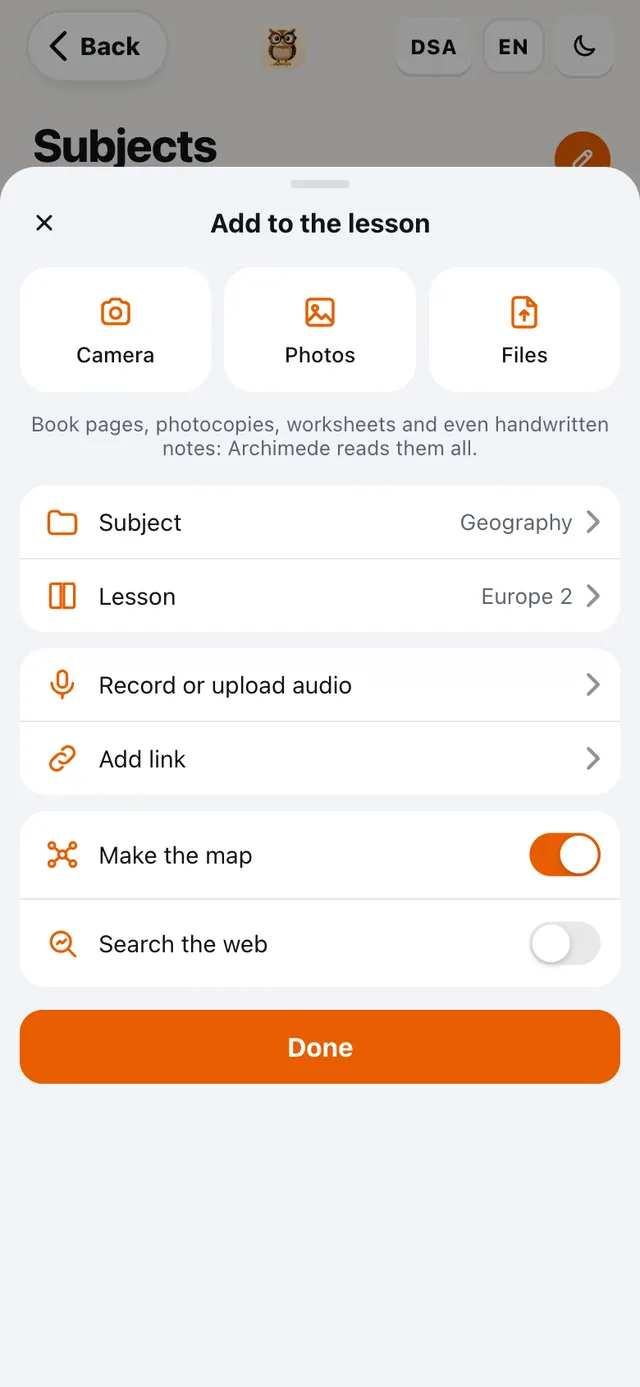
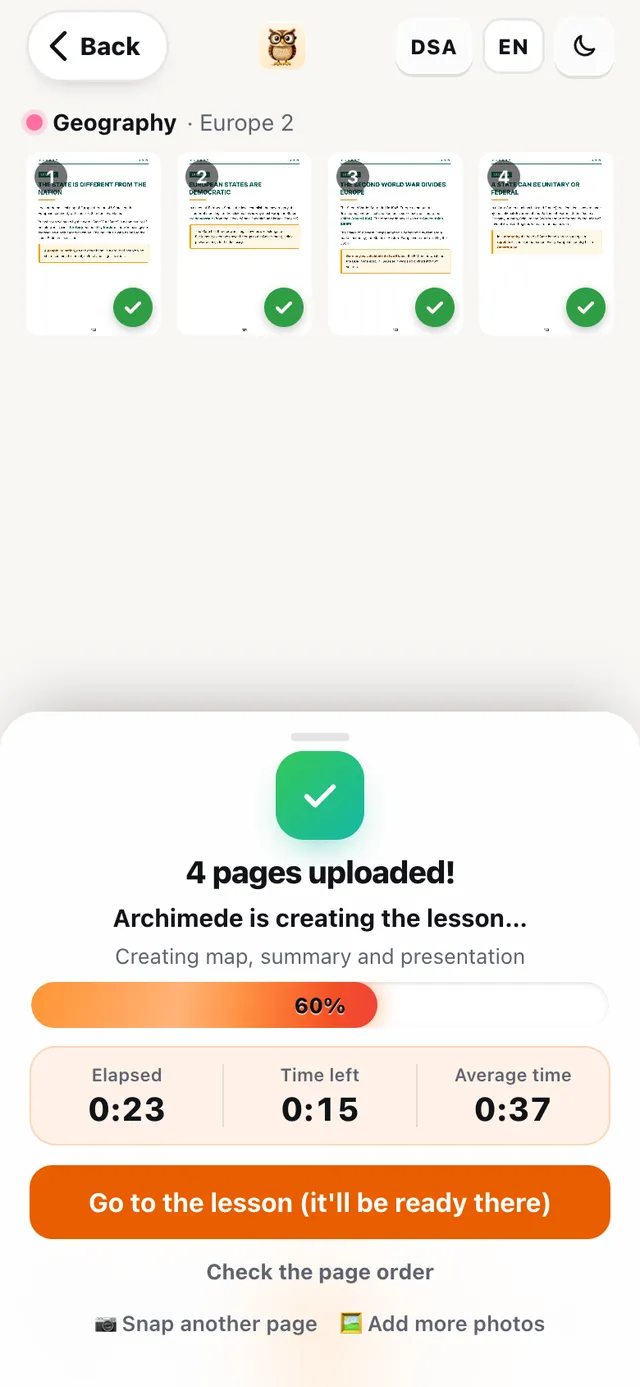
From the empty lesson, tap “Upload the pages of the book”: photograph the pages or choose photos and PDFs from the gallery, up to twenty-five at a time. Check that they are in order and tap “Create the lesson with Archimede”: in a short time the lesson is ready, with all the tools. If creation is interrupted, “Try creating the lesson again” and the uploaded pages stay safe. Forgot a page? Add more photos and create the lesson again.

Why it helps. You don’t have to copy anything: you start from your book or your notes, and the exercises, quizzes and story are about exactly those pages.

The Add to the lesson sheet with Camera, Photos and Files
Three pages uploaded and Archimede creating the lesson with the stopwatch

The plan

The plan adjusts
by itself.

What it does. Day by day, from today until the test.

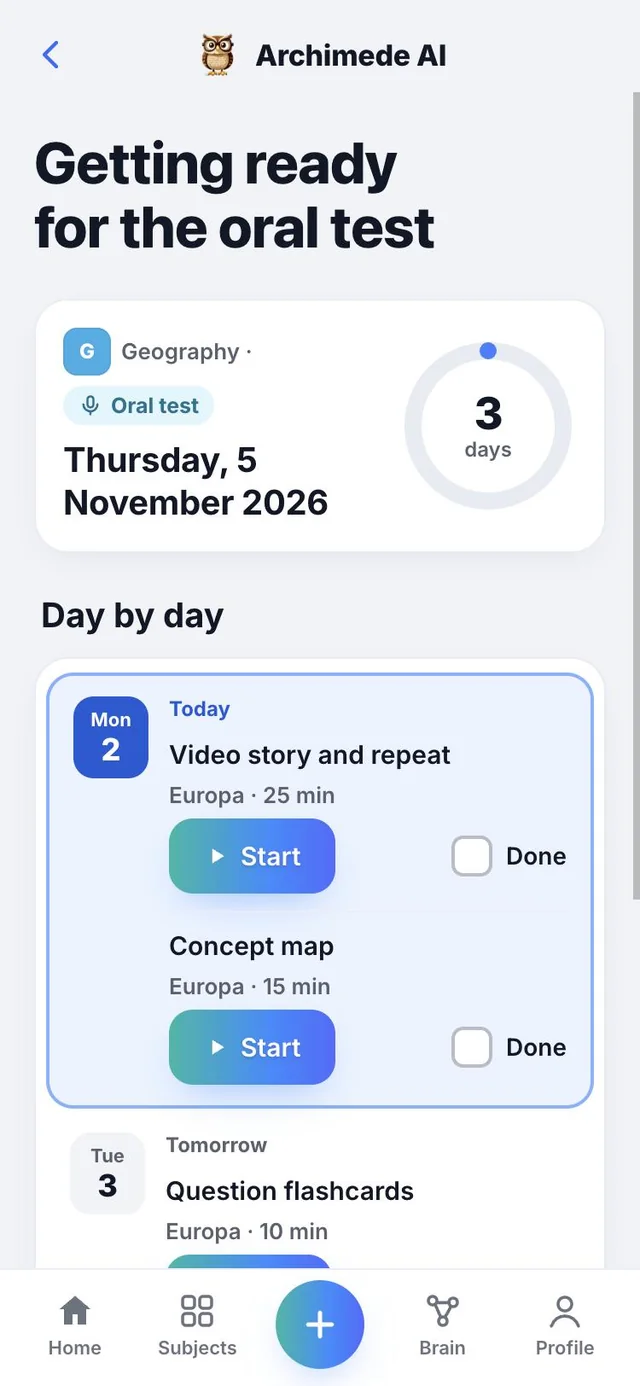
Each day has its activities, with estimated minutes and the right tools for the type of test; tap “Start” and go. If you skip a day, you don’t have to redo anything: what you didn’t do moves to the remaining days. Activities you’ve finished stay marked as done.

At the top a ring shows the percentage of the plan completed and the days left. For each activity, tap “Start” to open the tool, or mark it as “Done” by hand. If you haven’t yet chosen the topics, the plan takes you to choose them; if the plan is off, you turn it back on from there.

When the activities are finished the app tells you that you have completed all the review. When the test is over, a link takes you to add the grade you got.

Why it helps. You don’t have to decide what to study or when: studying is split into small activities and doesn’t pile up on the last day.

The Getting ready for the oral test plan: a 4-day countdown and, day by day, the activities to do, with the note that the plan adjusts by itself if you skip a day

What to do today

The tip
of the day.

What it does. On the Home, below the next test, a line tells you what to study today.

It reads: “Today: tool · lesson · minutes”. It appears when the test has its plan on and it is the first activity of today that you haven’t yet done; tapping it opens the plan. When you finish it, the line moves on to the next activity.

Why it helps. You don’t have to wonder where to start: the plan has already decided for you.

The plan with the Today section: today’s activities with the minutes, the Start button and the Done checkbox

Get ready for

Tell me what test
is coming up.

What it does. Puts the right tools for the type of test at the top.

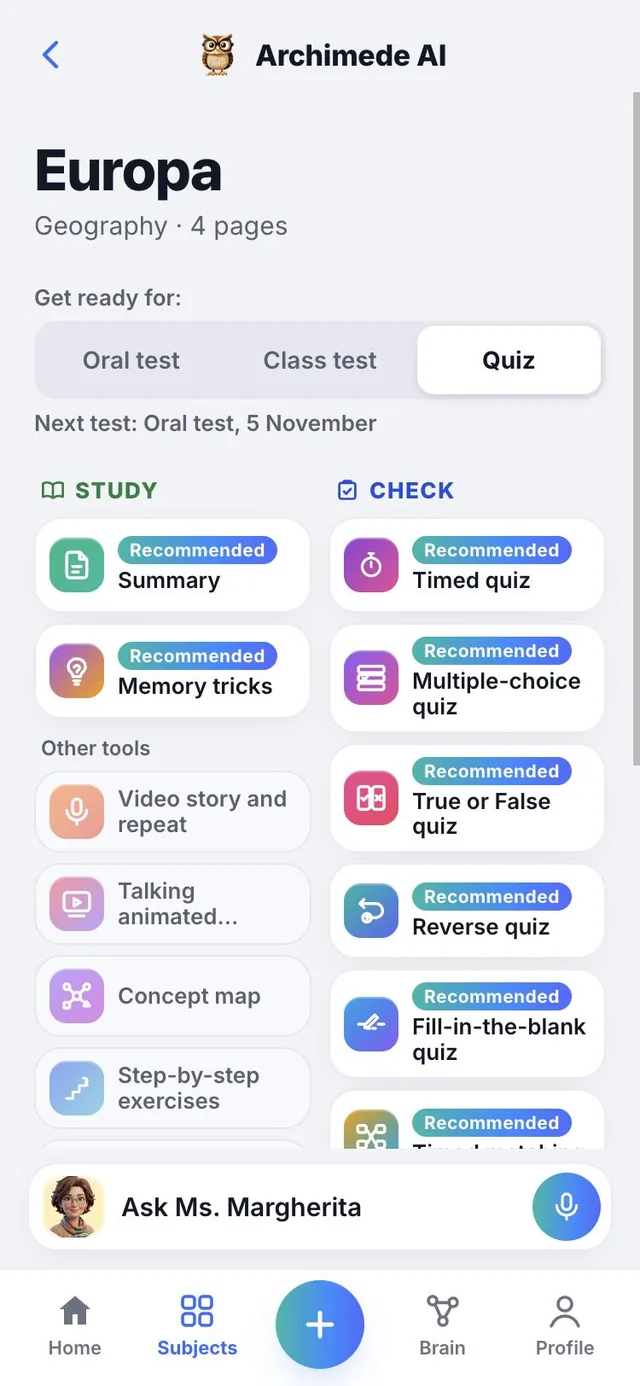
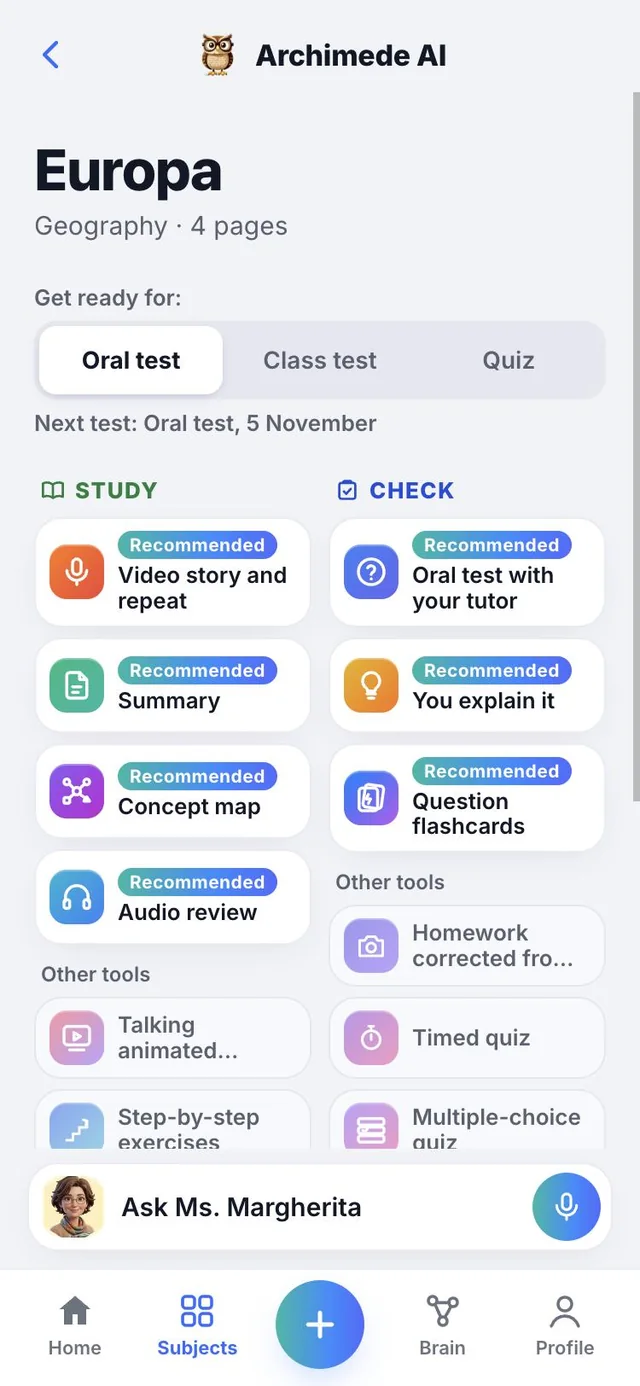
At the top of each lesson, choose the type of test: Oral test, Class test or Quiz. The tools recommended for that type move to the top with the label “Recommended”; the others stay below, within easy reach. For an oral test, for example, you’ll find story, summary, mind map and audio at the top, then the oral test with your tutor, You explain it and flashcards.

Why it helps. You don’t have to remember which tools each test needs: choose the type and you’ll find them at the top. If you don’t choose anything, the type of the next test applies, and below you see its date.

Get ready for: type of test with the recommended tools

The lesson

Study on one side,
test on the other.

What it does. Each lesson has two columns: STUDY and CHECK.

Under CHECK, next to the high school tools, you’ll find all the middle school quizzes. Below you’ll find a card for each one.

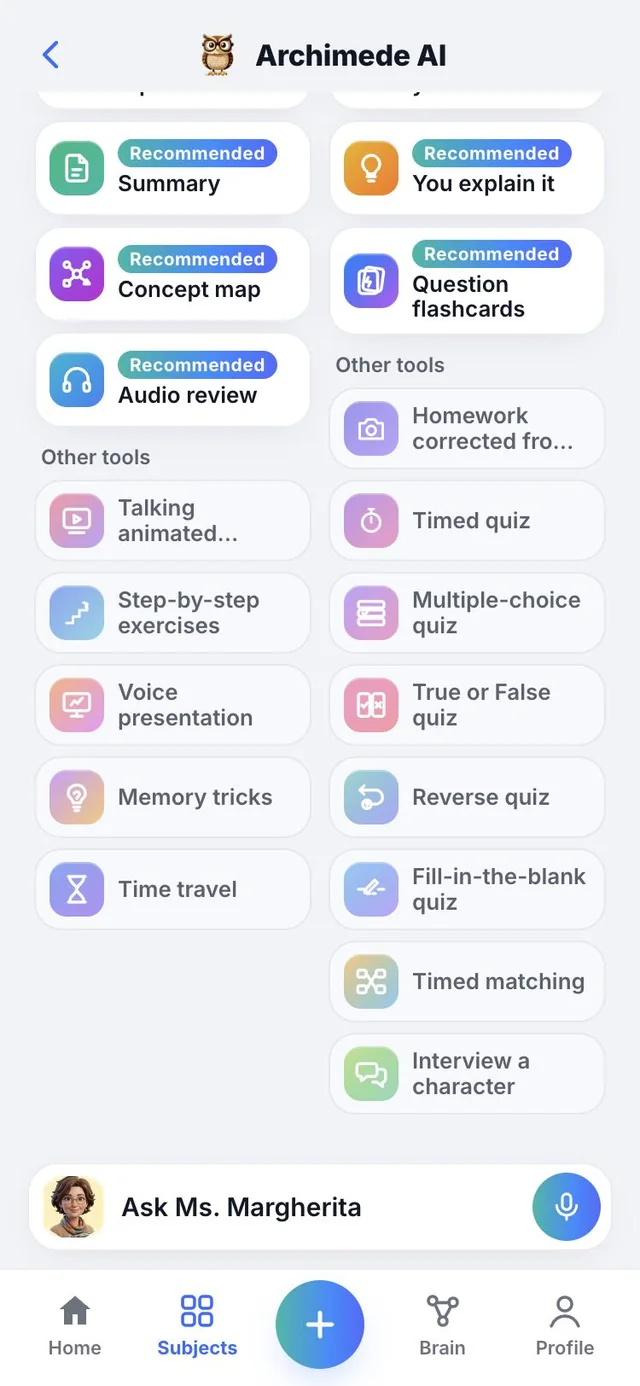
STUDY. Story and repeat, Summary, Mind map, Animated diagram, Step-by-step exercises, Audio review, Presentation, Memory tricks, Time travel.

CHECK. Oral test with your tutor, You explain it, Homework corrected from a photo, Timed quiz, Flashcards, Multiple choice, True or false, Fill in the blank, Reverse quiz, Timed matching, Interview a character.

A tool without material ready yet stays grey with the words “Not available”. In maths lessons the Interview a character and the Time travel do not appear, because they aren’t needed.

If the lesson isn’t ready yet, here you find the missing step: uploading the pages, creating it with Archimede or trying again if creation was interrupted.
A History lesson with the Get ready for selector (Oral test, Class test, Quiz) and the STUDY and CHECK columns, with the recommended tools at the top

Ask the tutor

A question?
Ask the tutor.

What it does. In every lesson a bar at the bottom takes you to talk with that lesson’s tutor.

Tap “Ask…” (with the tutor’s name, next to the microphone) and you can ask a question about what you are studying, by voice or in writing.

Why it helps. If a passage isn’t clear, you ask right away, without leaving the lesson or looking elsewhere.

The lesson with the bottom bar Ask the tutor and the microphone

Which tool for which test

All on
one board.

The recommended tools for each type of test. Tap it to open it full size.

Tools board by type of test. Oral test: story and repeat, summary, mind map, presentation, animated diagram, audio review, oral test with your tutor, you explain it, flashcards, interview. Class test: summary, mind map, step-by-step exercises, homework corrected from a photo, open questions, quizzes, flashcards. Quiz: short summary, flashcards, memory tricks, timed quiz, quizzes, true or false, matching. On the right, the grades out of ten the Italian way, from 5½ to 10.

The tools

All the tools,
one by one.

Every lesson has all of them. Below is what each one does and when it’s worth using it.

STUDY

To understand
and remember.

Study · Story and repeat

The lesson out loud,
one block at a time.

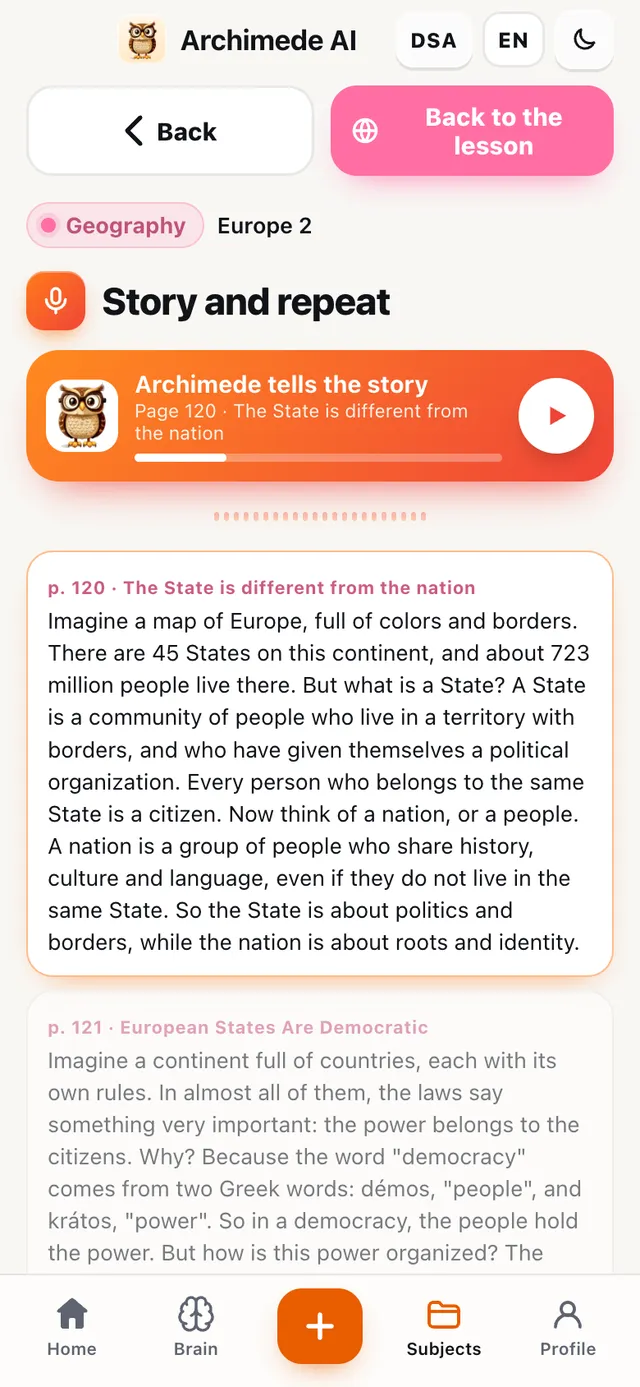
What it does. The tutor explains the lesson in blocks, and after each block it’s your turn to repeat it.

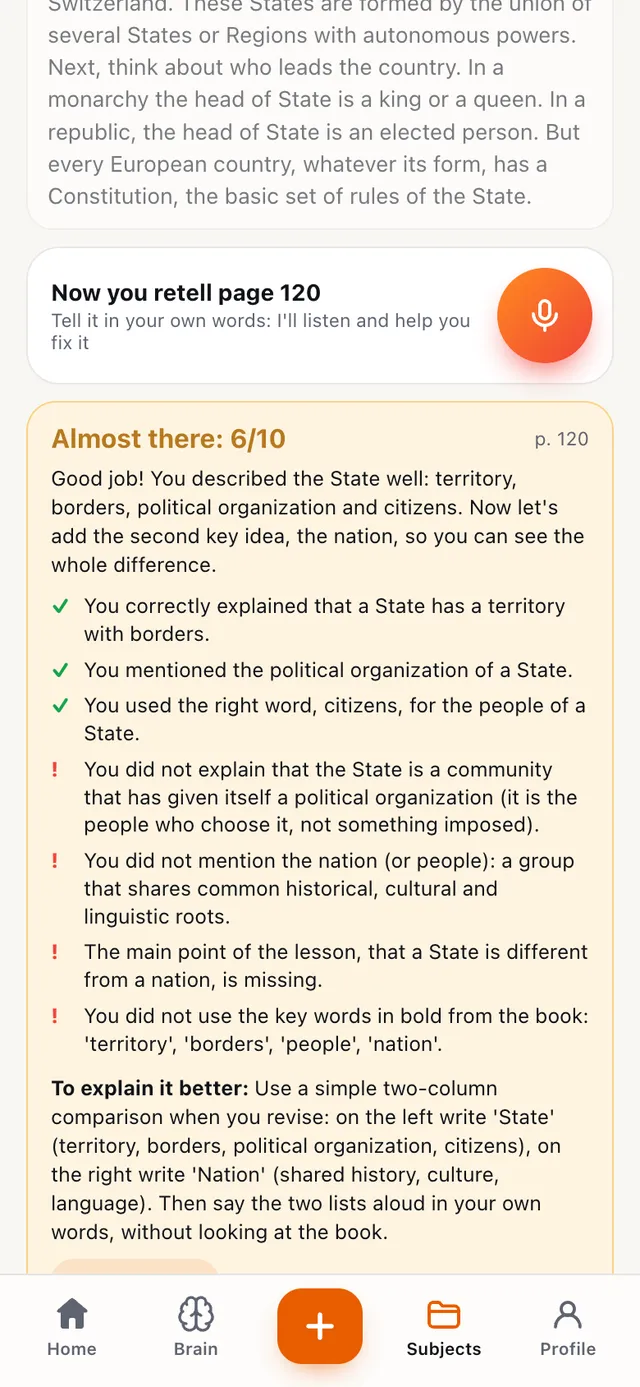
Repeat in your own words, out loud or in writing: the tutor also listens to the pauses while you think. Then it gives you a grade out of ten for completeness and accuracy, tells you what you said well and what’s missing, and gives you a tip for explaining better. You move to the next block only when this one is passed. It’s the training closest to a real oral test.

Why it helps. At the oral test, how you speak counts too, not only what you know: here you train to present out loud, one block at a time, and you know right away what to correct.

A page’s story read by the tutor, block by block, with the player at the top
The evaluation of a repetition: Almost there, 6 out of 10, with what you said well and what’s missing

Study · Animated diagram

The animated diagram
that talks.

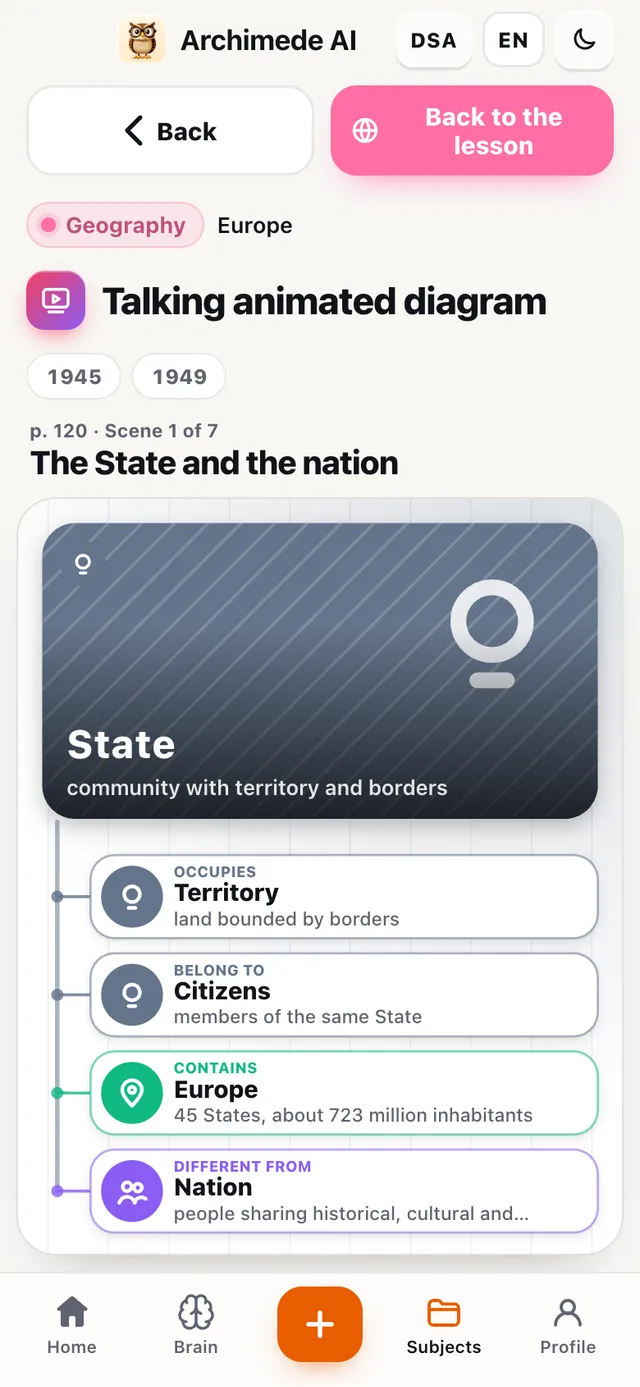
What it does. Tells the lesson in scenes: names, places and dates appear as the tutor says them.

Each scene is drawn in front of you, with images and a timeline. You can pause, go back and review every scene in full. It’s best for history and geography, which are full of names, dates and places.

Why it helps. Seeing names, dates and places appear as you hear them fixes them in your mind better than reading them on a page.

The animated diagram: a scene about the State with the 1945 and 1949 timeline and the concepts appearing one after another

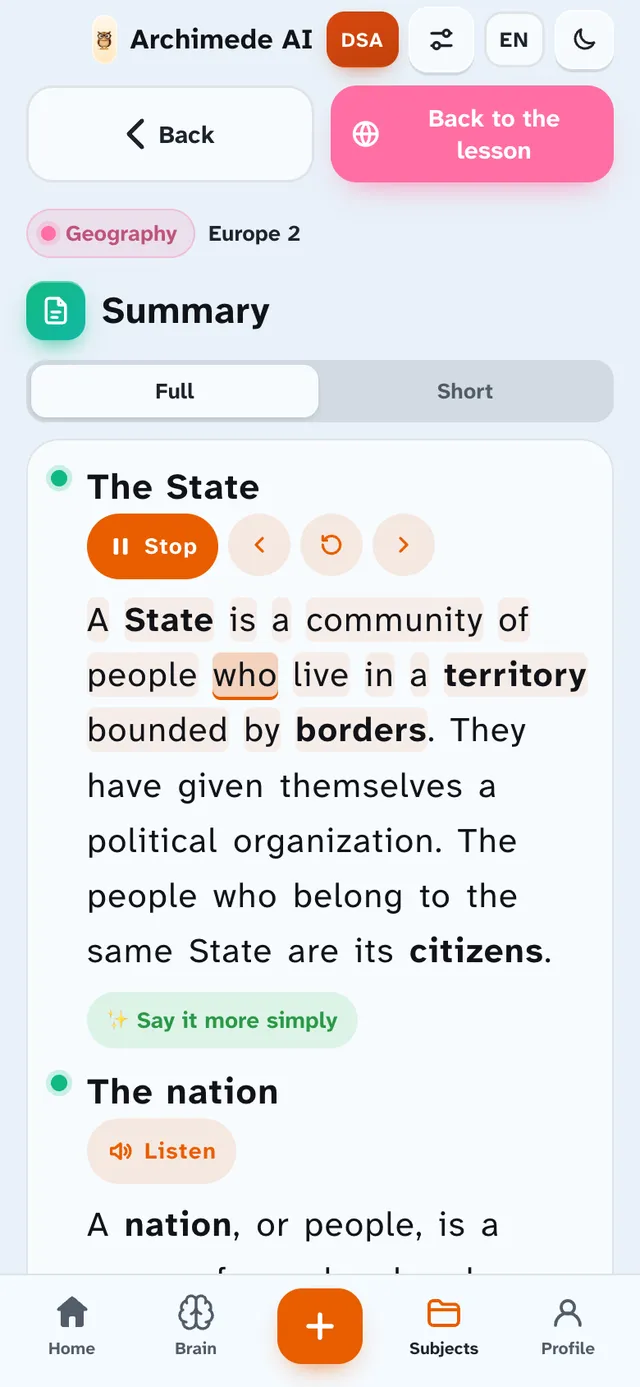
Study · Summary

The summary,
full or short.

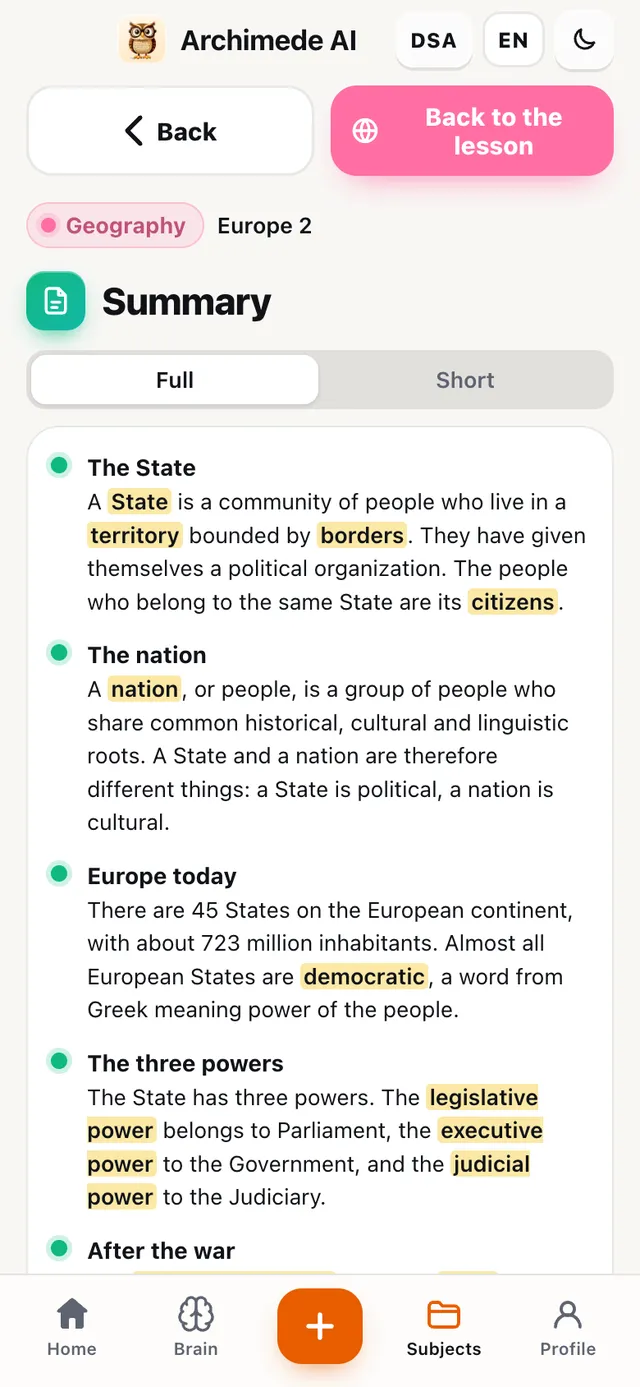
What it does. The lesson summarized, with the key words highlighted.
Choose “Full” to study or “Short” for a quick review before the test. Important words are highlighted, so your eye finds them right away.

Why it helps. The summary comes from the pages you uploaded, so you review exactly what the teacher will ask, without rewriting anything.

The lesson summary with the Full or Short choice and the key words highlighted in the text

Study · Mind map

The mind map,
the map of the lesson.

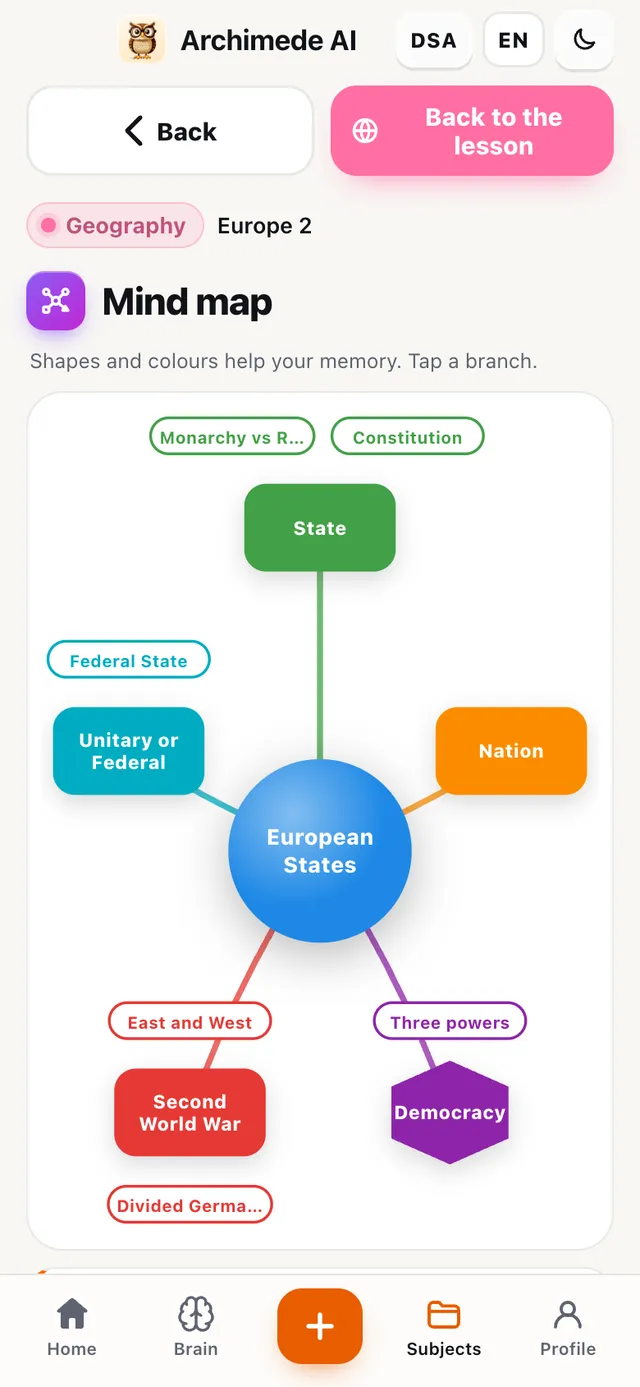
What it does. Puts the concepts into a colour-coded map, with the links between them.

Tap “Listen to the diagram”: the tutor tells the centre and the branches one at a time, and the map builds itself while it speaks. Below, each branch has a card with the explanation, to read even without sound. It helps you see the structure and the links.

Why it helps. Seeing the connections between concepts helps you present a topic in order, instead of remembering separate pieces.

Mind map with Europe in the centre and the branches State, Nation, Democracy, coloured and connected

Step-by-step exercises

The exercises,
one step at a time.

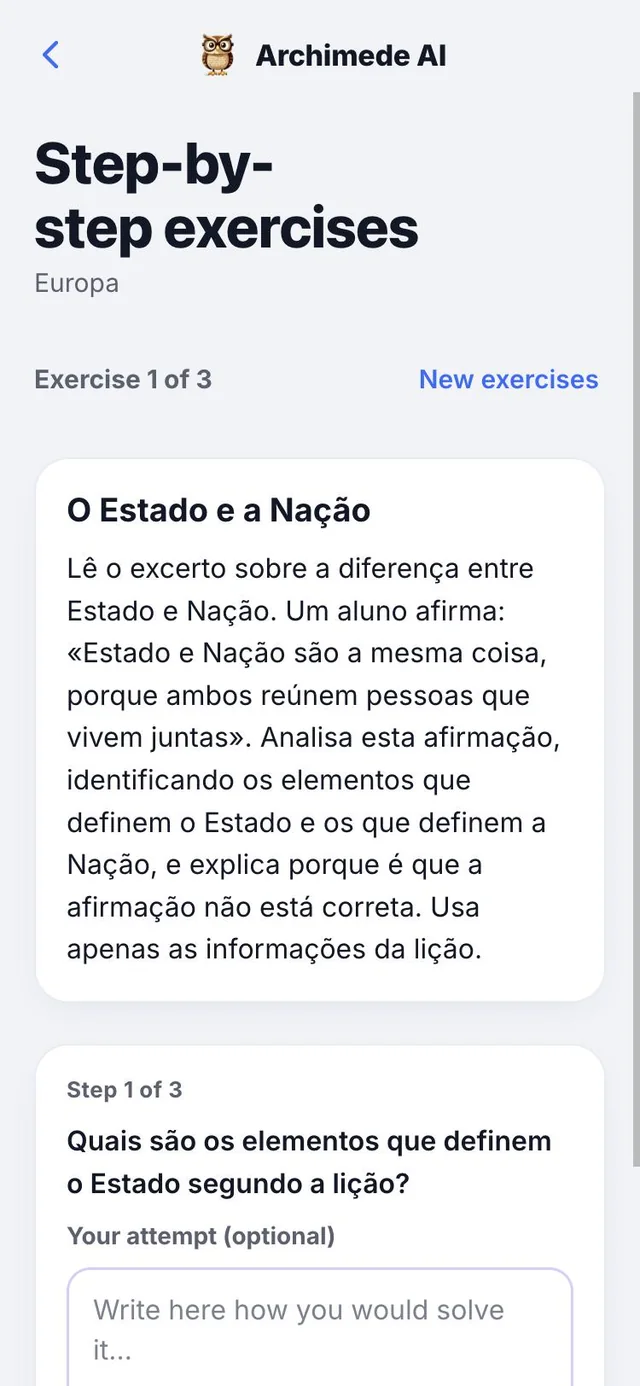
What it does. One exercise at a time, and each exercise is solved step by step.

Archimede prepares three exercises on the lesson, suited to the subject: calculations for maths and physics, guided translation for Latin and Greek, analysis for the others. For each step you try to answer, ask for a hint if you need one, and then reveal the solution. “New exercises” asks for more; an internet connection is needed.
At the end of each exercise the final result appears, and with “Next exercise” you move on to the next. Your attempt is not marked: it is there to make you reason before seeing the step.

Why it helps. You arrive at the class test knowing how to get to the result, not just what it is.

A step-by-step Maths exercise: the current step with the question, the field for your attempt, the Hint and Show the step buttons

Study · Audio review

The audio review,
like a podcast.

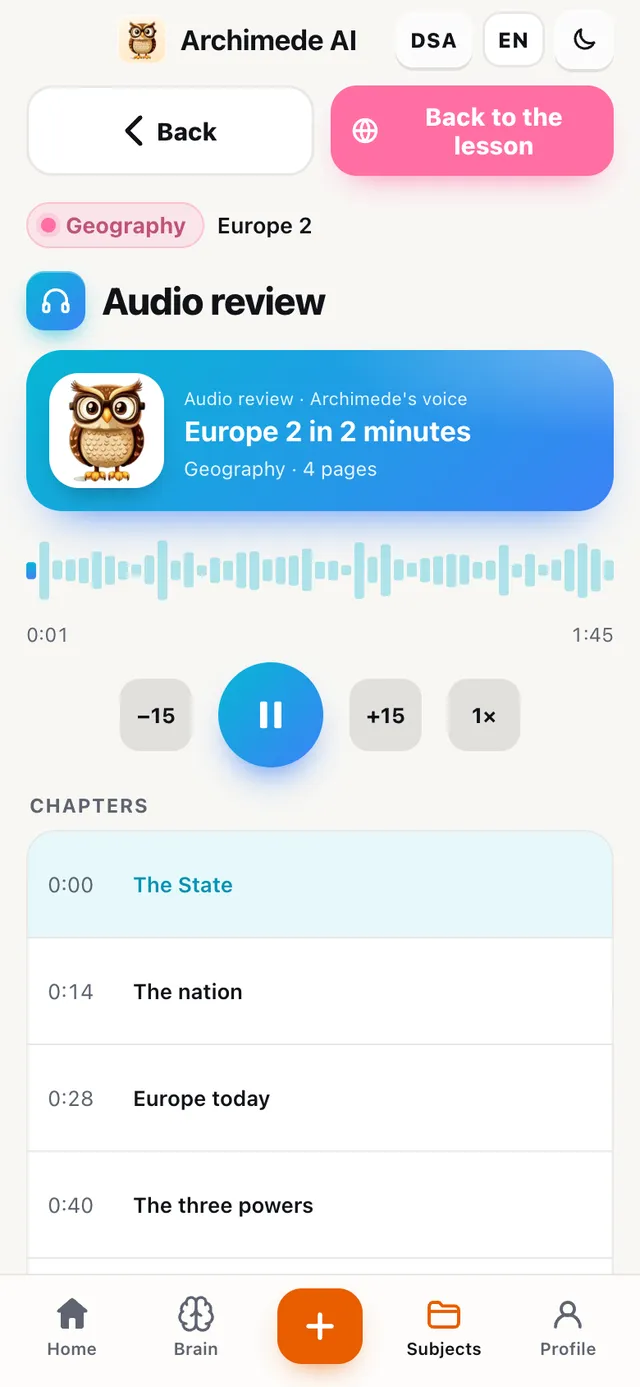
What it does. The summary read aloud, divided into chapters.

You review by listening, without looking at the screen: on the bus, on a walk, before bed. Skip back and forward fifteen seconds, adjust the speed and jump to the chapter you need.
Why it helps. You review at times when you can’t look at the screen, and the chapters let you find straight away the point you need.

The audio review player with the length, the fifteen-second forward and back buttons, the speed and the list of chapters

Study · Presentation

The presentation,
ready to present.

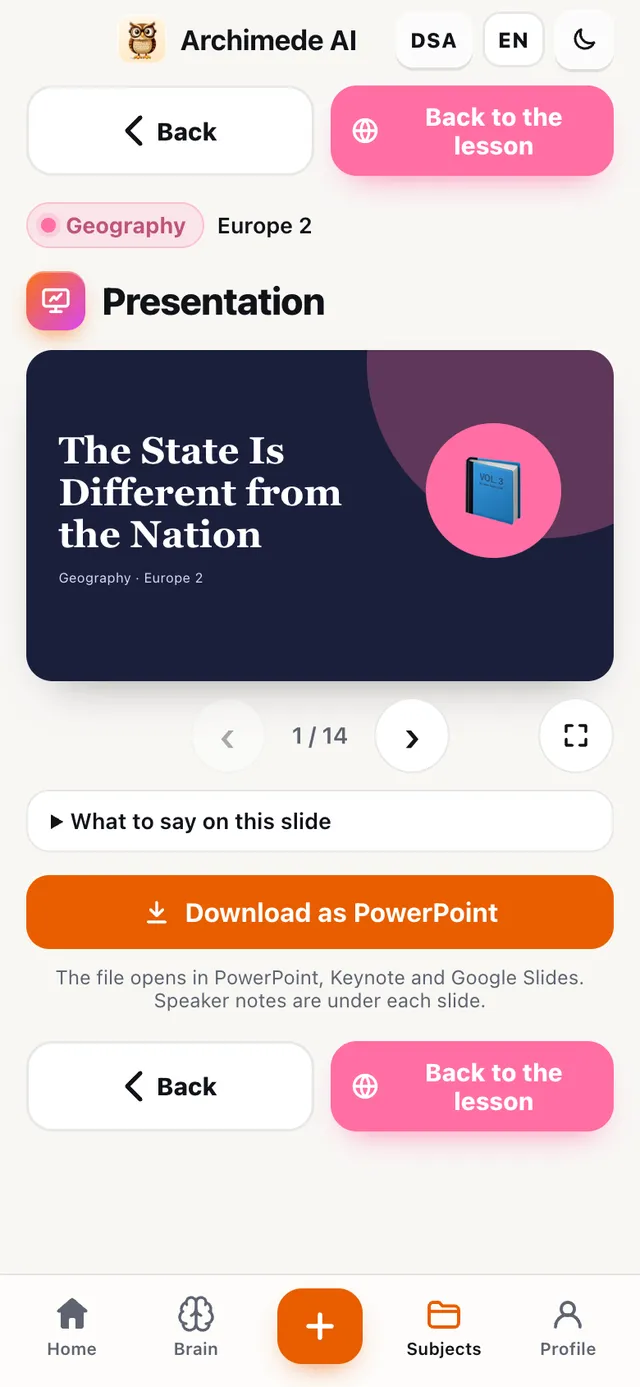
What it does. Turns the lesson into a slide presentation, with diagrams, key words and photos.

Tap “Listen to the slides”: the tutor tells one slide at a time. You can also download it as PowerPoint, with speaker notes under each slide; it opens with Keynote and Google Slides. Useful for presenting the lesson or reviewing it in pieces.

Why it helps. You already have an outline to present with, with the key words in the right place, without starting from a blank page.

Presentation preview with a keyword slide and the Download as PowerPoint button

Study · Memory tricks

Memory tricks
for dates and names.

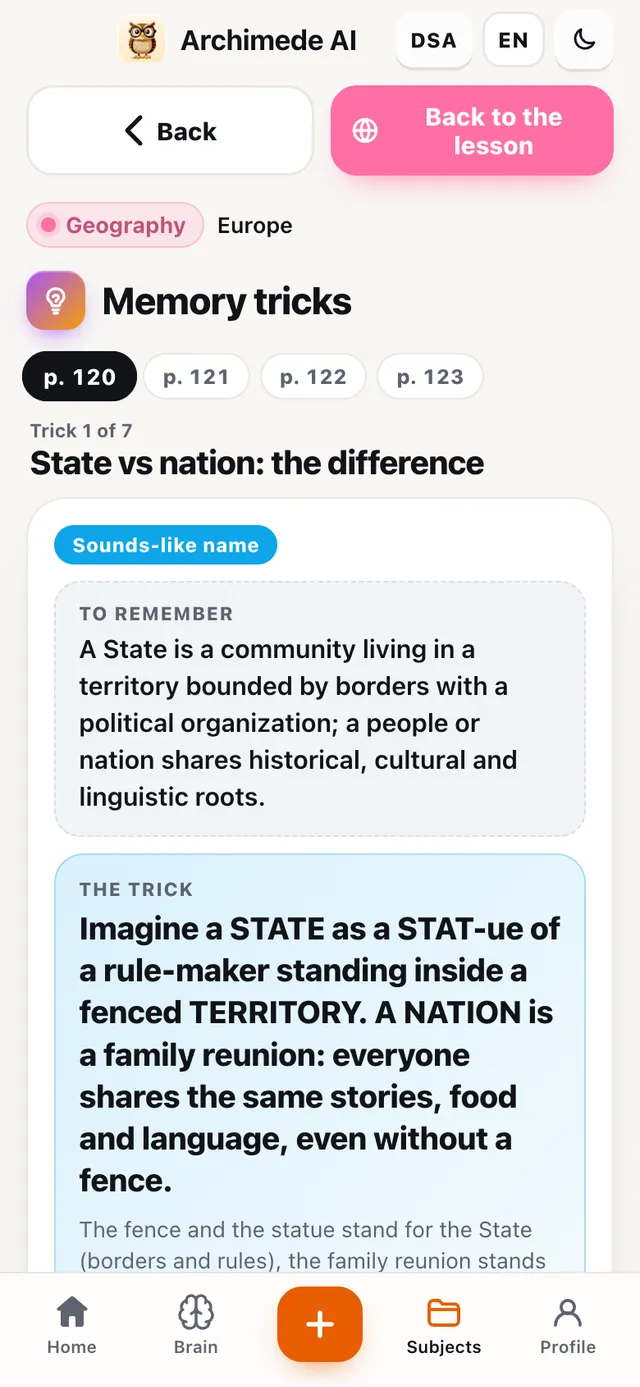
What it does. Acronyms, rhymes and funny stories to remember lists, dates and difficult names.

The tutor explains them out loud, the letters of the acronym light up as it speaks, and with “Test yourself” you find out whether the trick works. Useful when a definition or a list won’t stick.

Why it helps. A list or a date linked to an acronym or a rhyme is much easier to remember than a list to repeat by heart.

A memory trick: the acronym TCO with the letters T, C, O and the sentence not to forget

Study · Time travel

Time travel,
on the map.

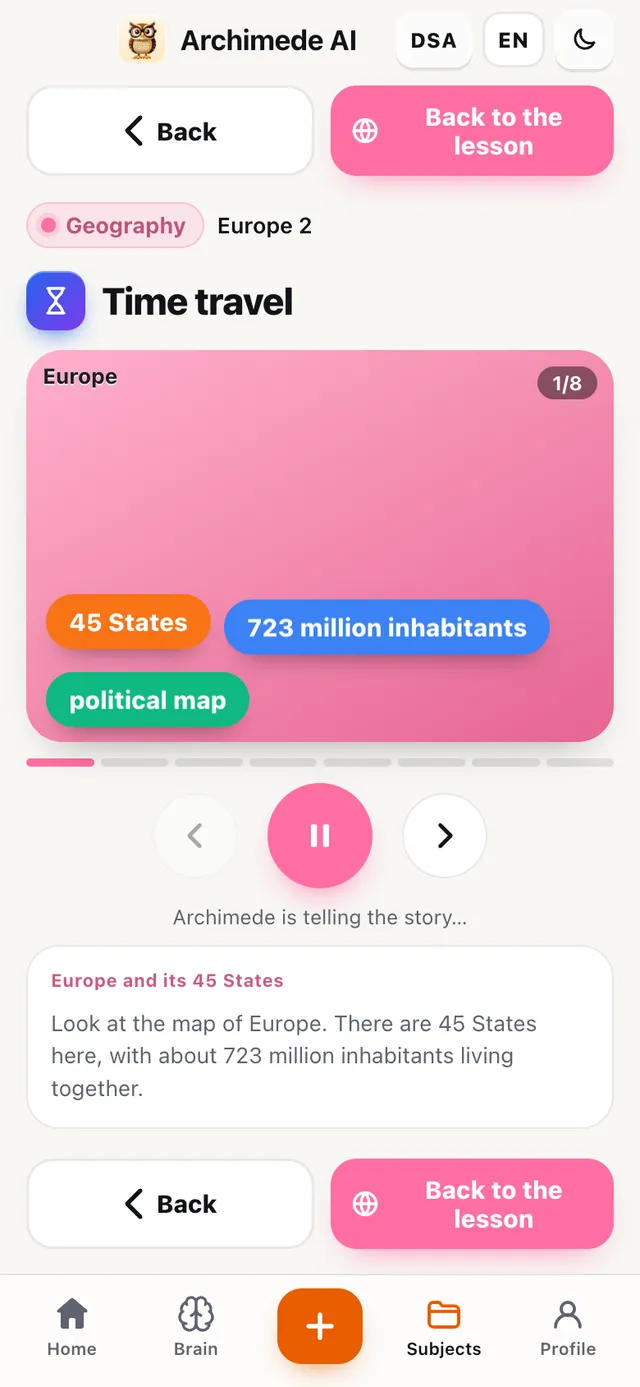
What it does. An animated story with a map, arrows and dates, and the tutor’s voice.

The map moves, the dates scroll by and the tutor tells of movements, conquests and places. Perfect for history lessons that need to be fixed in space and time.

Why it helps. Movements and dates are understood by watching the map move, not just by reading what happened in which year.

Time travel across Europe: the animated map with the words State, territory, borders, nation

CHECK

To put yourself
to the test.

Oral test with your tutor

The oral test
with your tutor.

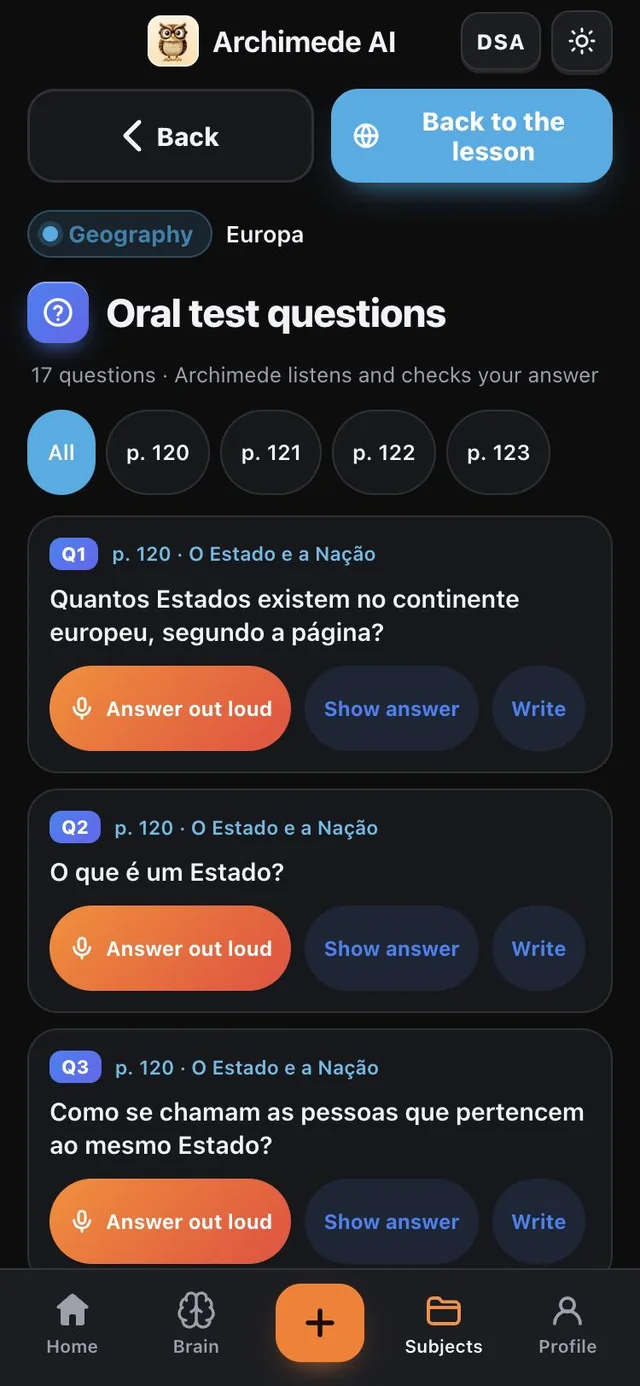
What it does. The tutor asks you questions and gives you a grade.

Answer out loud or in writing, and you can stop to think. At the end you get a grade out of ten in the Italian style, such as 7½, with a comment, scores for knowledge, presentation and connections, and a list of what to review. You can retake it right away or save the grade.

For questions you just need to speak: the microphone stays open and the tutor waits if you stop to think.

Why it helps. You try the oral test before the real one, with an honest grade and the precise list of what to review.

The result of a History oral test: grade 7½ out of 10, the tutor’s comment, the scores for knowledge, presentation and connections, the topics to review and the Retake and Save the grade buttons

Check · You explain it

You explain it
to the tutor.

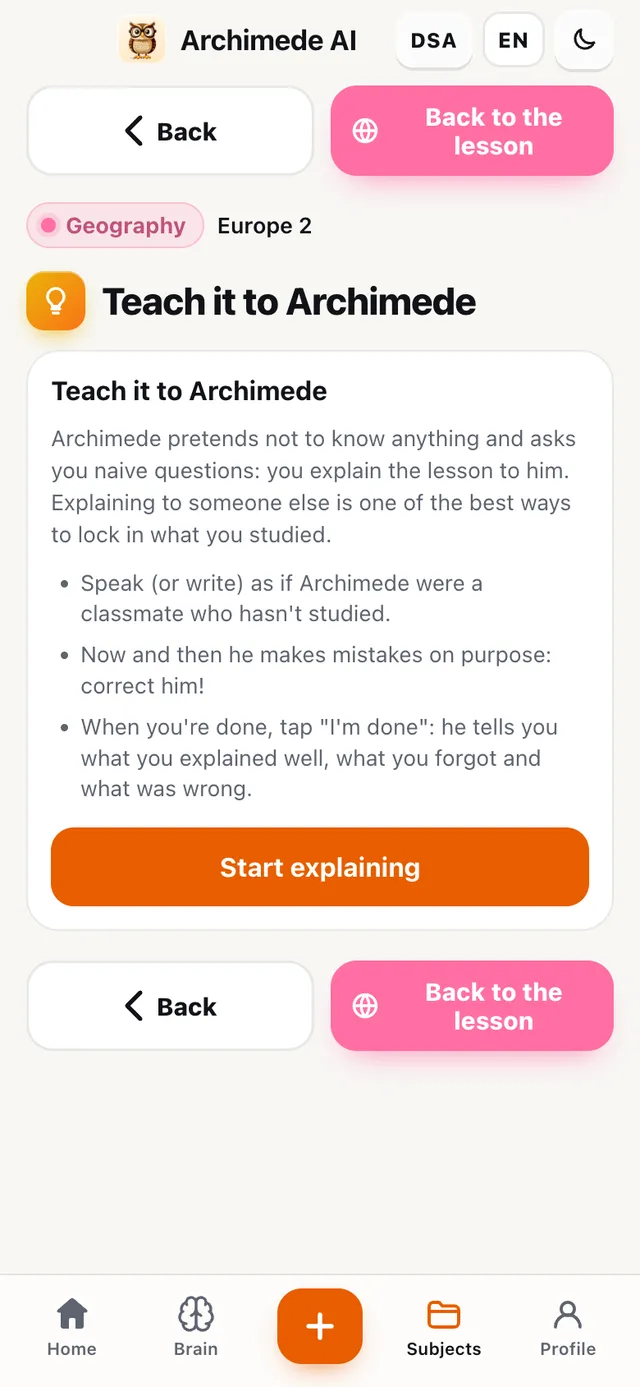
What it does. The roles switch: you explain the lesson, and the tutor plays the curious student.

You speak or write as if you were explaining to a classmate who knows nothing. Now and then the tutor makes a mistake on purpose: it’s up to you to notice it and correct it. At the end it tells you what you explained well, what you forgot and what was wrong. If you can explain it, you really understood it.

Why it helps. Explaining is the toughest way to check whether you understood: the gaps come out straight away, before the teacher finds them.

The explain-to-the-tutor screen, with the instructions and the Start explaining button

Homework corrected from a photo

Photograph your work.
The tutor corrects it.

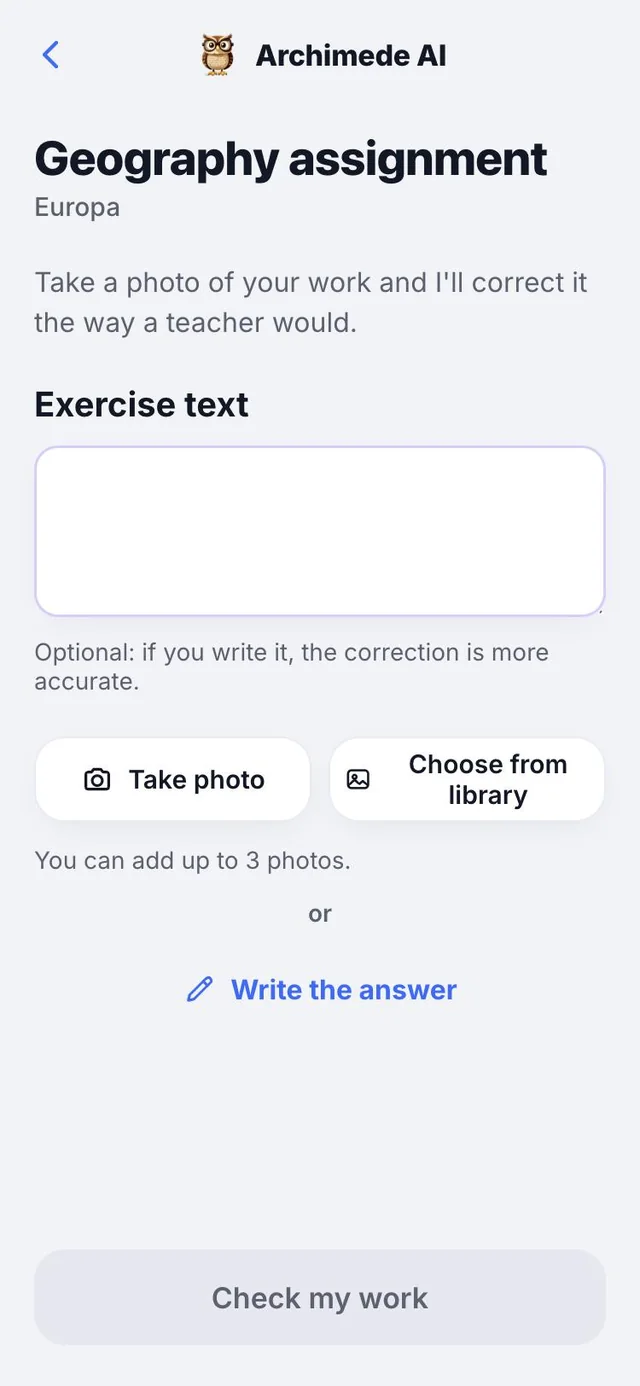
What it does. Do the exercise on paper, photograph the sheet and get the correction.

You can send up to three photos. You get a grade out of ten, a summary and at most six numbered comments: what’s wrong, what’s right and a tip. With “Retake the photo” you take another, with “Next exercise” you move on.

If you like, also write the text of the exercise: the correction becomes more precise. As an alternative to photos you can write the answer directly, without photographing anything.

Why it helps. The homework is corrected right away, with the mistakes explained one by one, before the real test.

A Maths class test photographed on squared paper, with a circled mistake, and below the tutor’s correction: grade 7 and comments on the steps

Timed quiz

The timed quiz.

What it does. A simulation of the class test, with an hourglass.

The questions come from the quizzes the lesson already has and arrive in pages of five: multiple choice, true or false, fill in the blank and other types. Choose how much time you have, or no limit at all. At the end you see the grade and the mistakes to review, and you can save the grade. If the quizzes don’t exist yet, the app takes you to create them.

You choose the time from 5, 10 and 20 minutes, or no limit. If you make no mistakes, the app tells you.

Why it helps. You get used to the rush of the class test and find out which pages you get wrong.

A Physics question from the timed quiz with the timer at the top, page 2 of 6, the quiz types and three answers to choose from

Check · Flashcards

The flashcards.

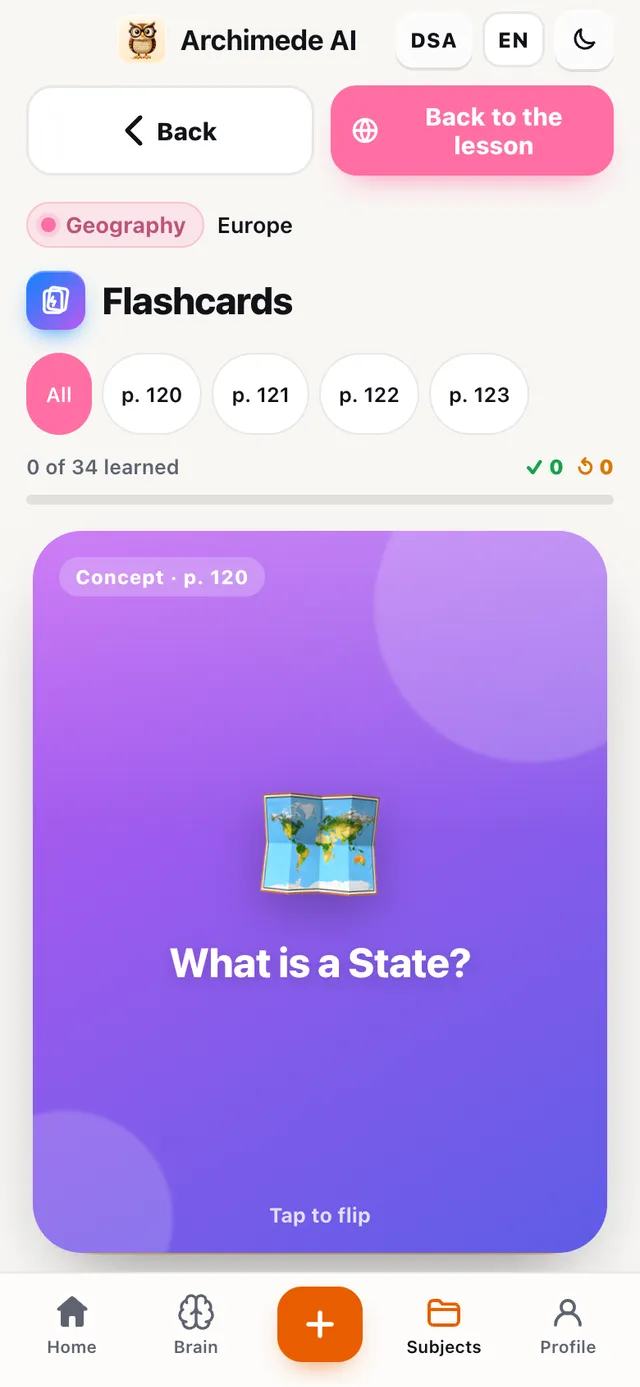
What it does. Cards with a question on the front and the answer on the back, in a few sentences.

You flip them with a tap or listen to them. Choose whether to flip the card and say “I know it” or “Review it”, pick between two answers, or write the answer. Cards to review come back into the deck. At the end the grade saves itself. Great for memorising in a few minutes.

Why it helps. What you know goes by quickly, what you don’t know comes back until it sticks: you study only what you need.

A flashcard with the question What is a State? and the words Tap to flip

Check · Multiple choice

The multiple-choice
quiz.

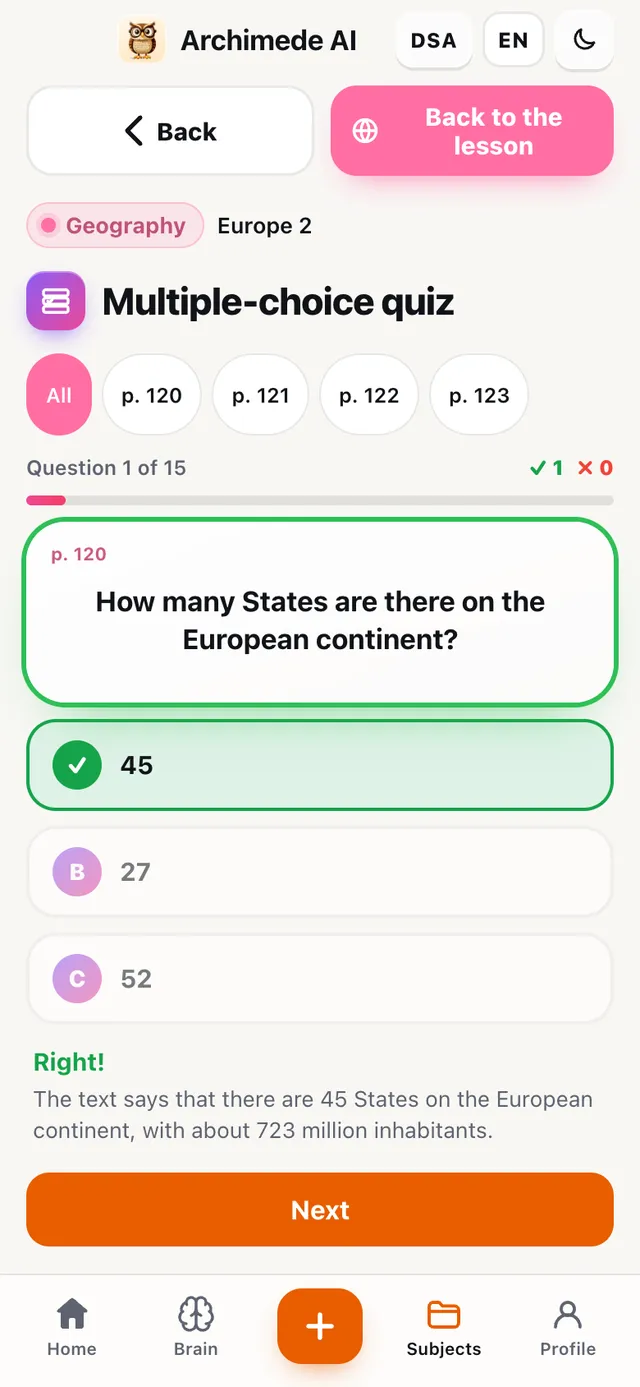
What it does. Questions with three answers: you tap the right one and immediately see why.

The tutor prepares the questions page by page, taking them only from what is in the book. Each answer has its explanation, and at the end there is the grade. To train for the written test.

Why it helps. These are the questions most like a multiple-choice test, and each explanation tells you why the other answers are wrong.

A multiple-choice question with three answers, the right one highlighted and the explanation below

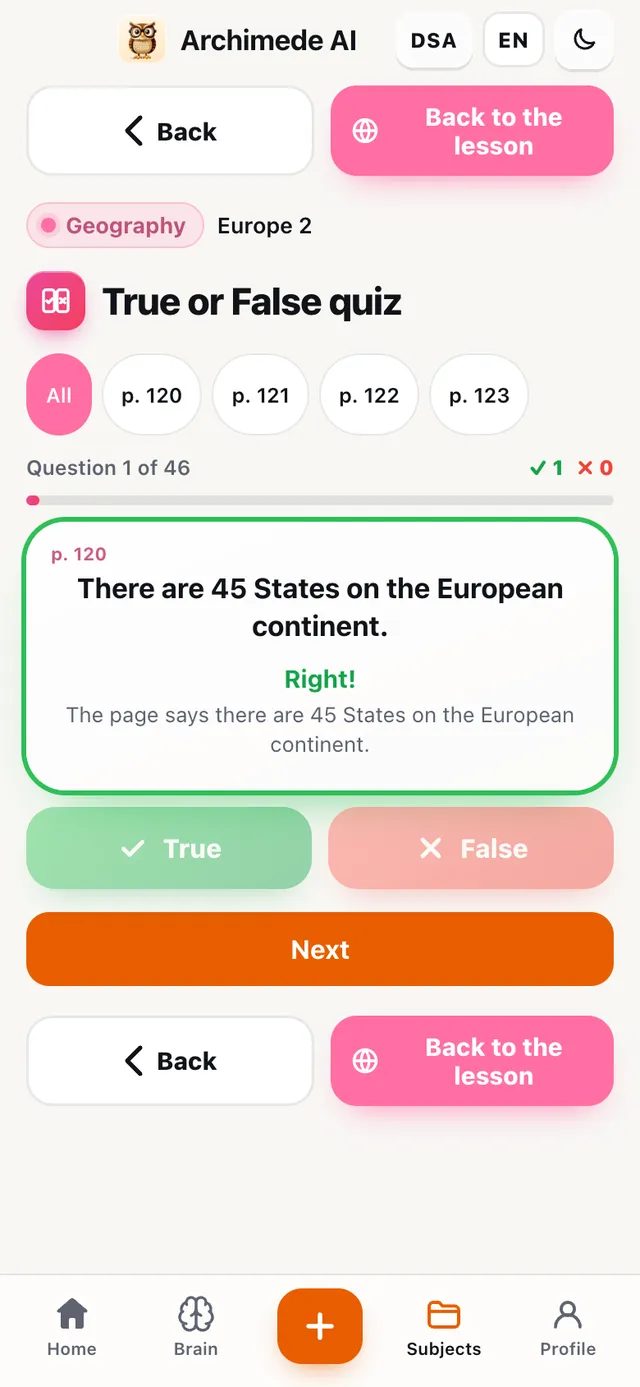
Check · True or false

True or false.

What it does. Statements to judge as true or false, with the explanation right after.

You can do it on the whole lesson or on a single page. Mistakes go into the tutor’s memory, which brings them back in your reviews. A quick check of what you’ve understood.

Why it helps. In a few minutes you understand whether you grasped the meaning of the statements or were fooled by the words.

A statement about Europe with the True and False buttons and the explanation of the answer

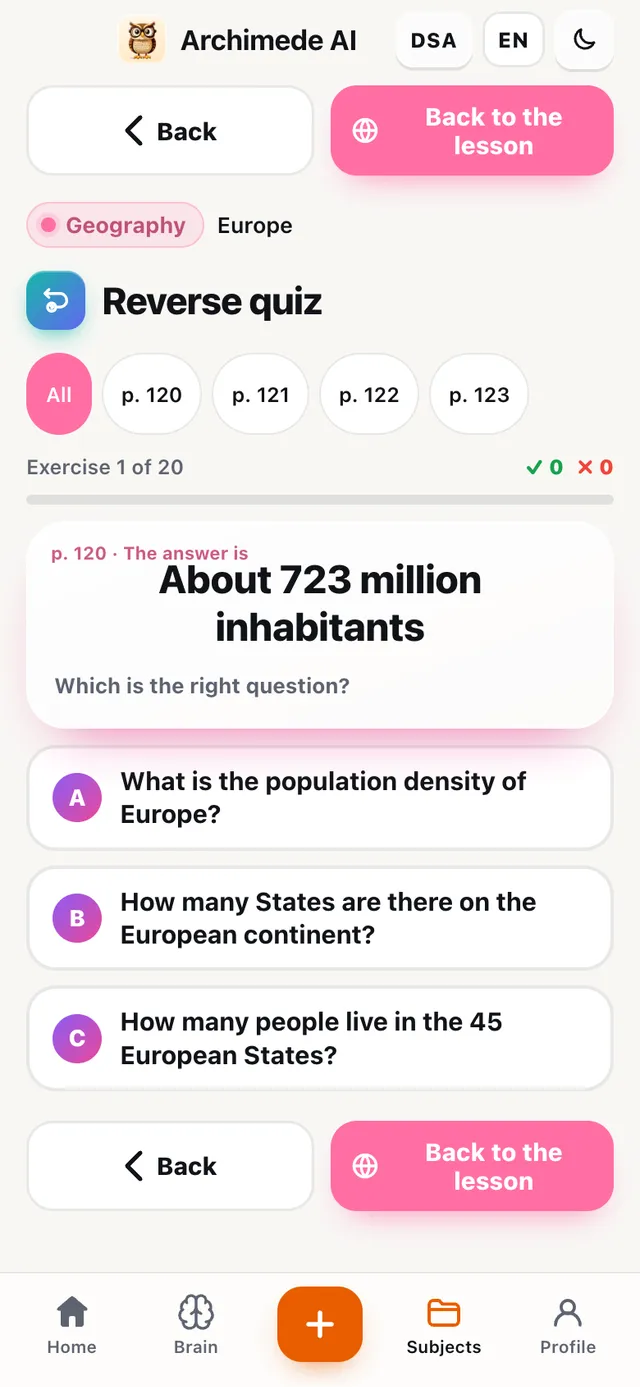
Check · Reverse quiz

The reverse
quiz.

What it does. The tutor gives the answer and you choose, from three, the right question.

Trains you to link dates, names and terms to their meaning, not just to repeat them. Each exercise covers one page of the lesson.

Why it helps. When you remember the answer but not the question, you often haven’t yet understood the link: this quiz brings it to light.

The reverse quiz: the answer 45 States and three questions to choose the right one from

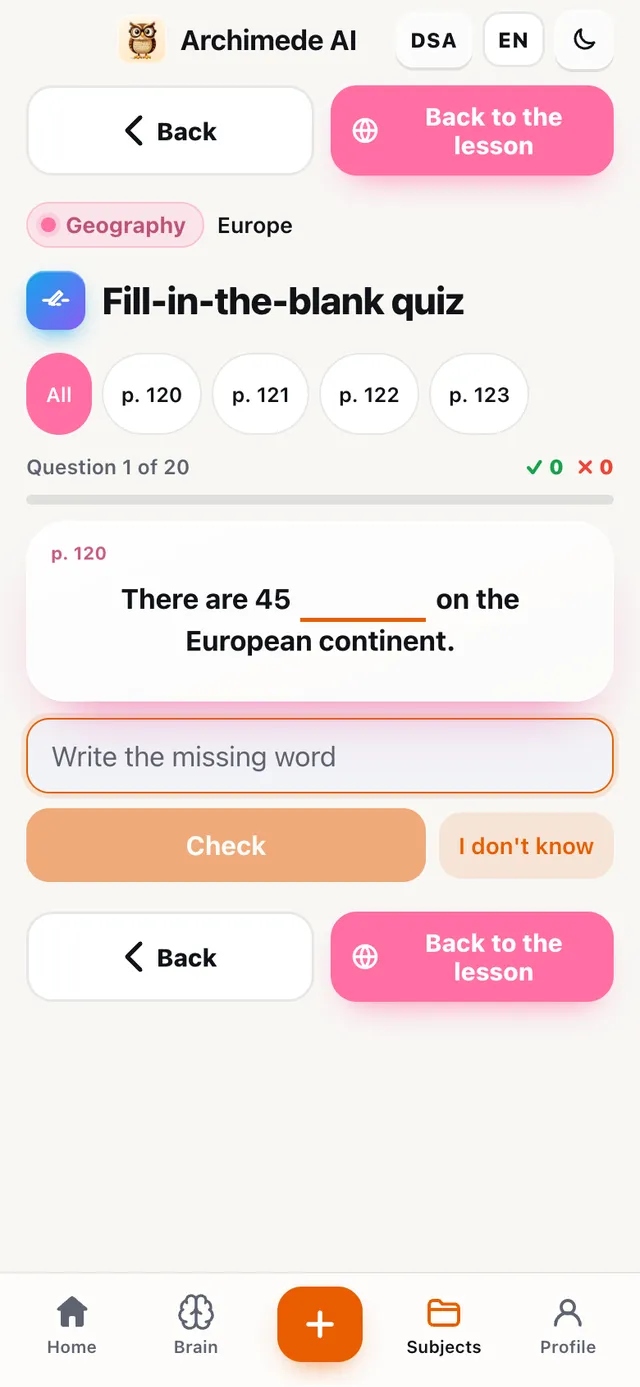
Check · Fill in the blank

The fill-in-the-blank
quiz.

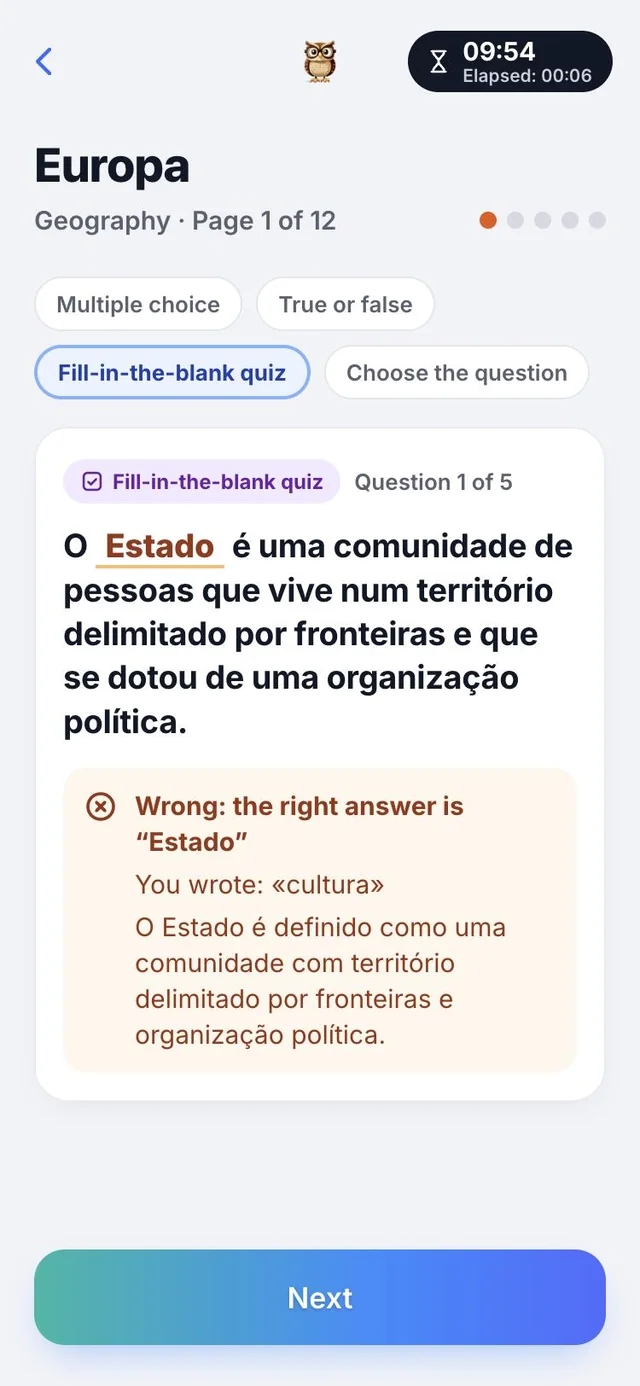
What it does. Sentences with a missing word to write, with no hints.

To check whether you really remember names, dates and terms. A small typing error counts as correct, because remembering the content is what matters; numbers and dates, however, must be exact.

Why it helps. Having to write the word, with no options to choose from, is the most honest test of what you remember.

A sentence with a blank, the Write the missing word field and the Check and I don’t know buttons

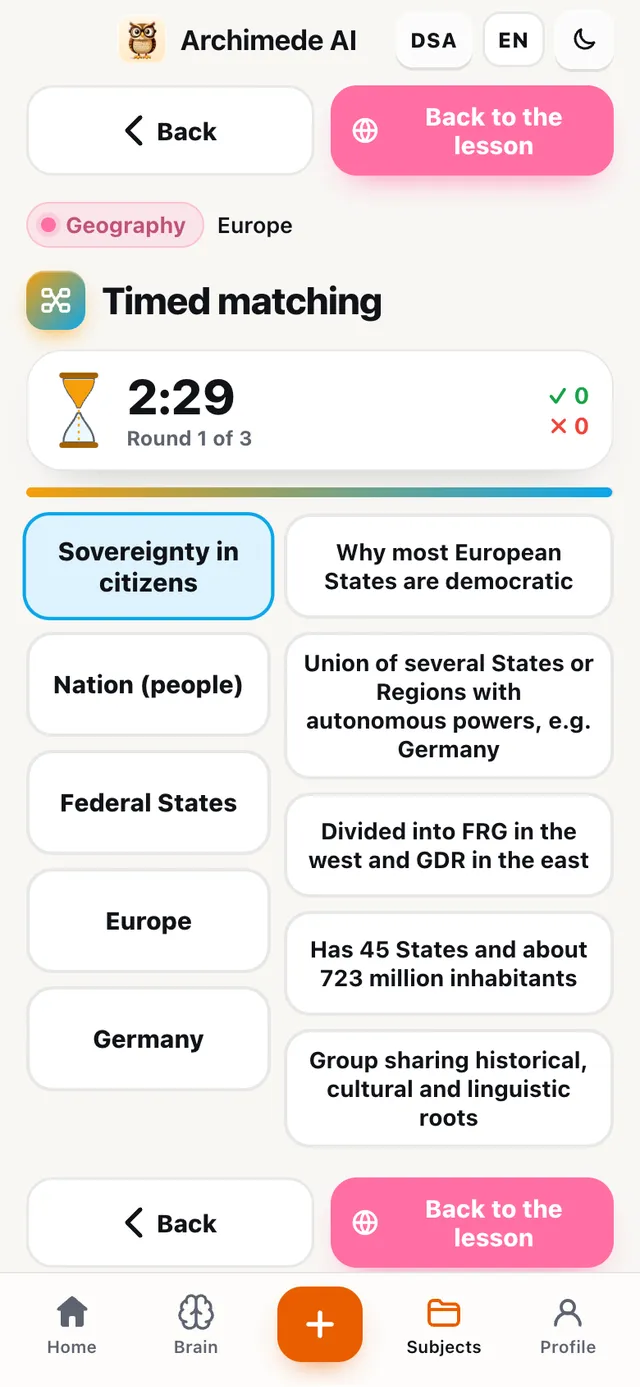
Check · Timed matching

Matching,
against the clock.

What it does. Pairs to connect across two columns before the hourglass runs out.

Character and action, date and event, term and definition. Every mistake counts and your best time is saved, so you can beat your record; if you like, play without a timer.

Why it helps. The ticking time forces you to recognise pairs at a glance, as happens when you review for a test.

The timed matching: the hourglass at 2:29 and two columns of tiles to connect, such as 1945 and End of the Second World War

Check · Interview a character

Interview
the character.

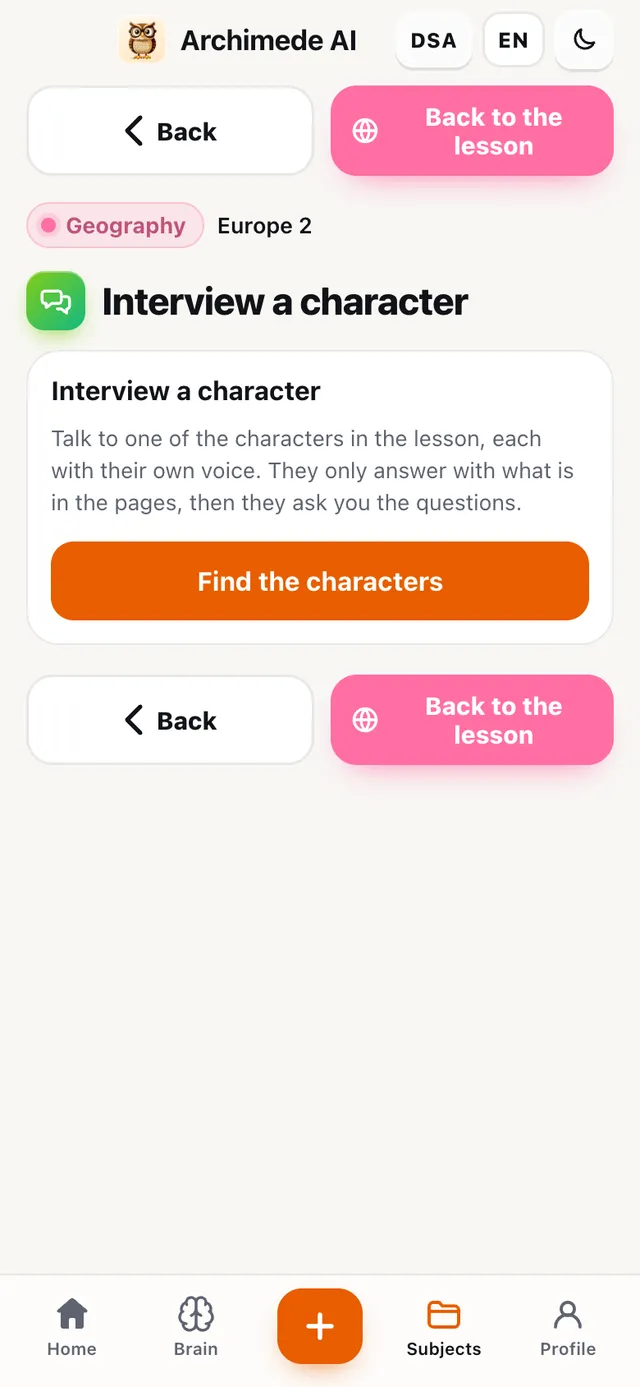
What it does. A conversation with the characters of the lesson, each with their own voice.

The character answers only with what is in the pages, then it is the character who asks you questions. For lessons with historical or literary characters; not for maths or grammar.

Why it helps. Hearing a character answer in their own words makes the lesson more vivid and helps you remember who they were and why they matter.

The “Interview a character” screen with the “Find the characters” button

My grades

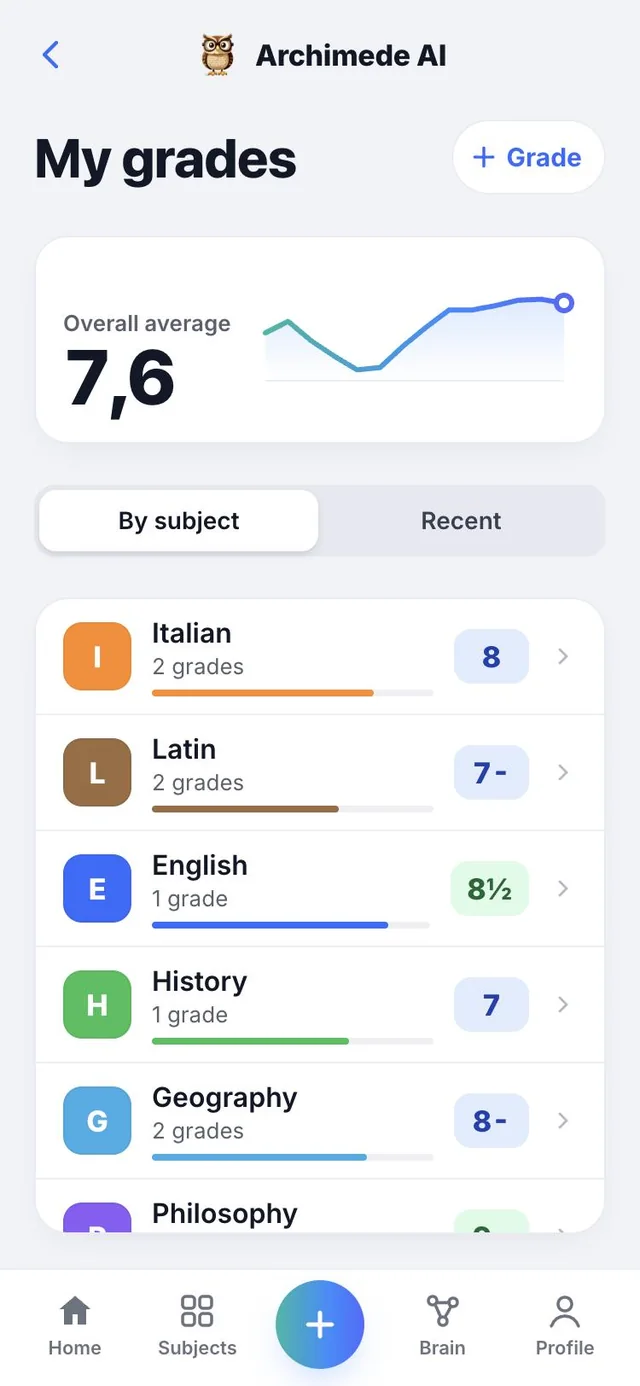
My grades,
out of ten, the Italian way.

What it does. All your grades and the average, the way you read them at school.

Grades have the names you use in class: 6+, 7½, 8-. At the top you see the overall average and how it changes over time; below, the average of each subject or the most recent grades. Colours show at a glance where you stand: below 6, from 6 to 7¾, from 8 up. Got a grade at school? Add it with “Grade” and Archimede adjusts the plan.

If the country is France or another that grades out of twenty, the grade is read out of twenty. Here you find only the grades you got at school and that you wrote yourself.

Why it helps. You see where you are heading before the report card and which subject deserves more effort.

The My grades page: overall average 7.2 with the trend chart, the box to add a grade from school and the list of subjects with their grade, such as 6½ and 7½

Add a grade

Got a grade?
Write it here.

What it does. The “Add a grade” sheet records the grades you got at school.

From the “+ Grade” button you choose the subject, the type of test, the grade from a grid in quarters (7+, 7½, 8-), the date on the calendar and, if you like, a note. No free field, so no crooked grades. If you come from the plan after a test, the sheet already opens with subject, type and date. If you make a mistake, from “Recent” you delete a grade with the bin, after a confirmation.

Why it helps. The average is always up to date and Archimede adjusts the plan to how you are doing.

The My grades page with the + Grade button at the top, the overall average and the list of grades

The average

The average,
with its chart.

What it does. An overall average and one for each subject, with the trend over time.

At the top you see the overall average out of ten, with a figure and a chart: each point is the average after a day with grades, and the final dot is the current moment. The chart appears from the second day with grades. Below, “By subject” shows the average of each with a coloured bar, and “Recent” the list of grades from the newest, with type and date.

Why it helps. You see straight away whether you are going up or down and in which subject, instead of doing the sums in your head.

Overall average 7.6 with the trend chart and, below, the averages by subject with the coloured bar

For everyone

The grade on the scale
of your country.

What it does. Shows grades out of ten or out of twenty, depending on the country.

In Italy grades are out of ten and are written as at school: 6+, 7½, 8-. In countries that grade out of twenty, such as France, the same grade is read out of 20: for example 7½ out of 10 becomes 15 out of 20. Only the way of showing it changes.

Why it helps. You read grades the way you read them at your school, without converting.

The same grade

Italy · 7½ out of 10
France · 15 out of 20

For everyone

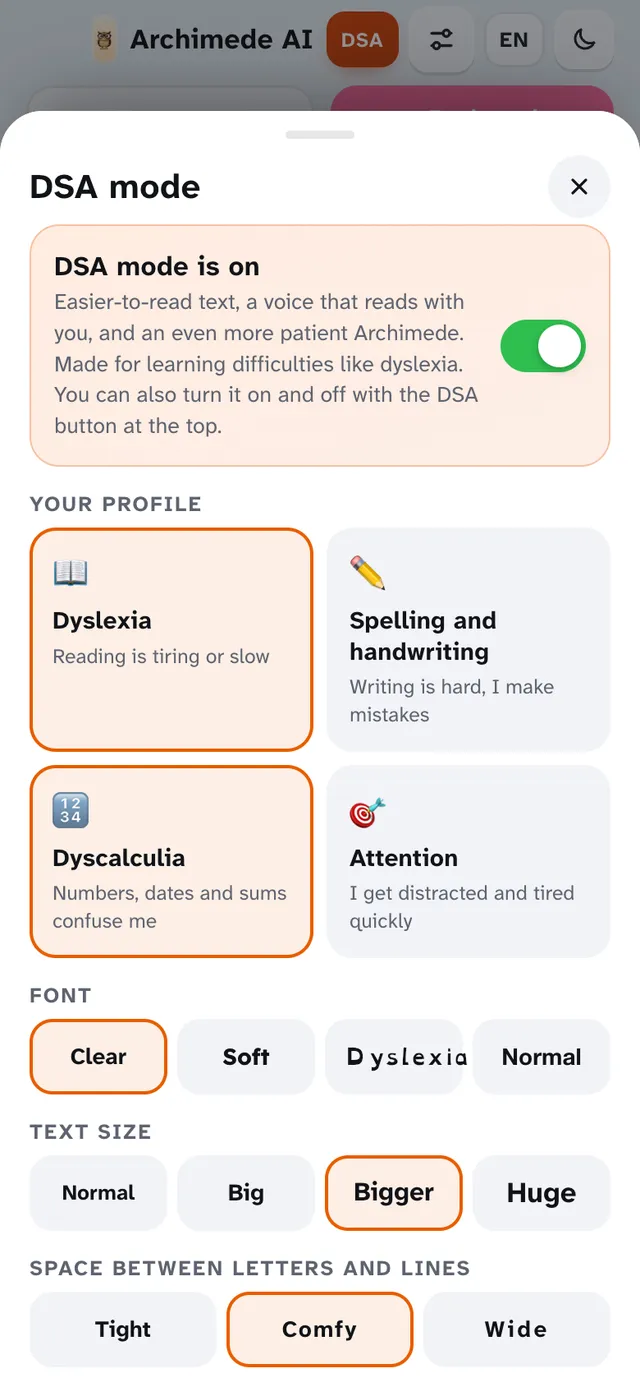
DSA mode.

What it does. Adapts text, voice and grading for those with a specific learning disorder.

Highly readable fonts, more space and calming backgrounds. Reading with highlighted words, syllables and “Tell me more simply”. The tutor speaks more slowly and grades only the content, not spelling. From the DSA settings you choose profile, font, size, colours and voice speed, and you can change them whenever you like. With the mode off, everything stays as it is.

Settings are linked to each individual student: if a tablet is shared between siblings, each one finds their own.

Why it helps. Those with a DSA study with tools designed for them and are assessed on what they know, not on how they write.

A summary in DSA mode with readable font and reading with highlighted words
The DSA mode settings: profile, font, text size and background colour

For everyone

In 20 languages.

What it does. The app and the tutor speak the language you choose.

You choose it before entering, with the language button (IT, EN…), and then it stays the one in your profile. Menus, buttons and the tutor’s voice follow the chosen language, while lessons stay in the language of the book you created them from.

The names of subjects and types of test are translated too.

Why it helps. You can study in the language you feel is yours, while lessons stay in the language of the book.

20 languages

Italiano · English · Español · Français · Deutsch · Português (Portugal) · Português (Brasil) · 中文 · हिन्दी · Русский · العربية · 日本語 · 한국어 · Català · Türkçe · ไทย · Filipino · Bahasa Indonesia · Melayu · Tiếng Việt

No connection

If the connection is missing,
it tells you.

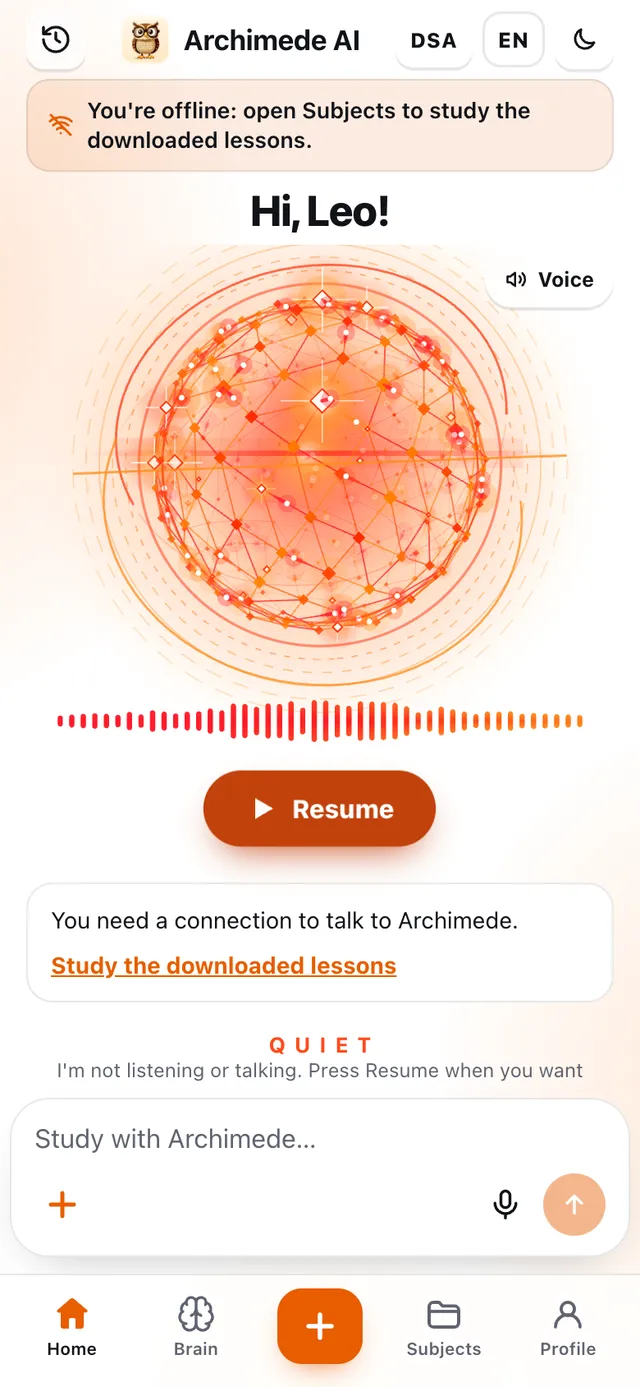
What it does. If you are offline, the Home warns you and takes you to the lessons downloaded on the phone.

Talking with the tutor needs a connection, and with no network the Home says so and suggests “Study the downloaded lessons”. Step-by-step exercises also need a connection.

Why it helps. You know straight away why a feature isn’t responding and what you can still do.

The offline Home with the notice: open Subjects to study the downloaded lessons

The bottom bar

Brain and Profile.

Besides Home and Subjects, the bottom bar has two more pages.

Brain

Brain

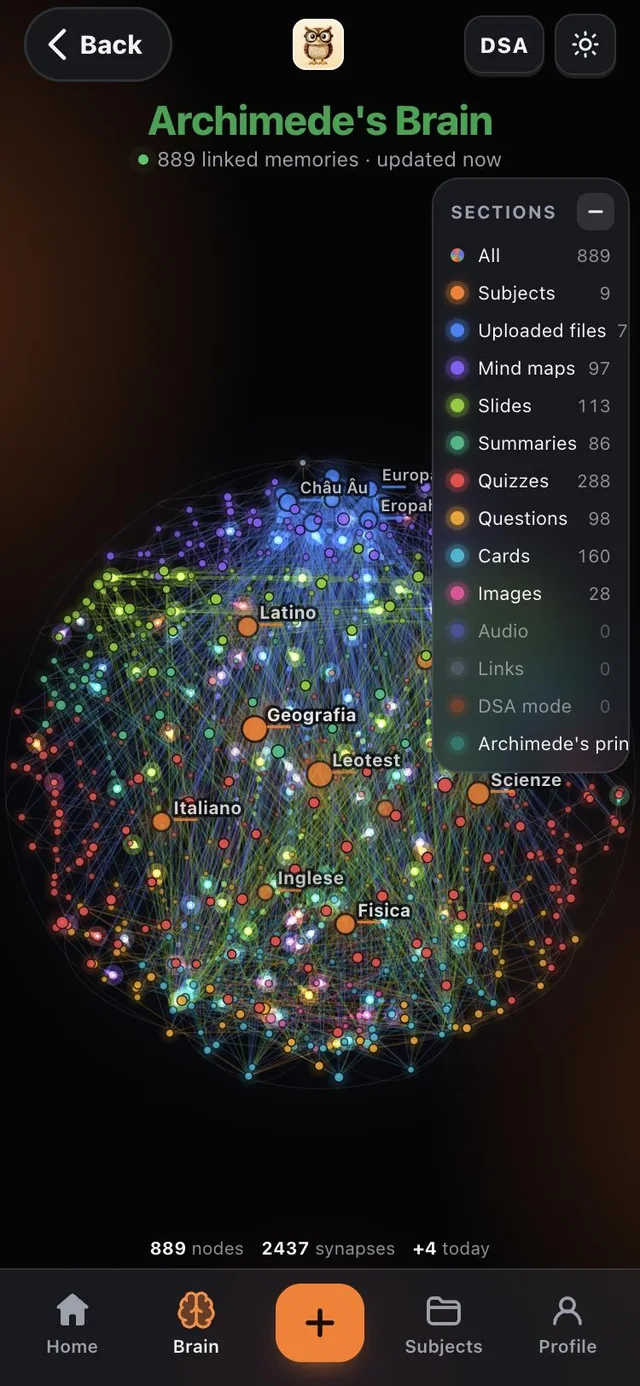
Everything you’ve studied, with the concepts linked together and divided by section. Explore it to see what’s in your head.

It is a globe of linked dots: each dot is a memory. The “Sections” panel divides them into subjects, uploaded files, diagrams, summaries, quizzes, questions, presentations, audio and more, and with “All” you see them together. With few lessons it is still almost empty: every lesson you upload makes it grow.

Profile

Profile

Your account and your preferences.

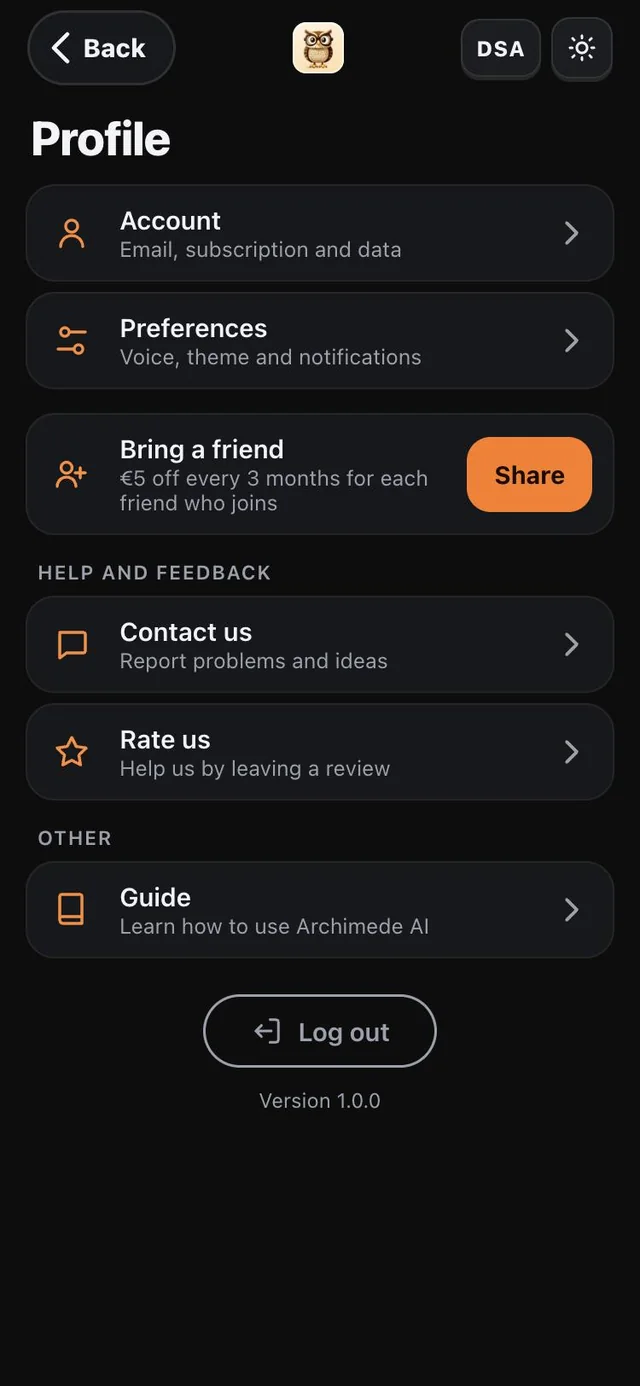
In “Account” you find email, subscription and data; in “Preferences” voice, theme and notifications. Further down you can write to support, leave a review, read the guide to using the app, invite a friend and log out of the account.

Get ready for your next
test.

Open the app

After signing up, choose “Secondary school”. Pricing